Creating treatment plans
Using the procedures that have been treatment-planned or referred, you can create a custom treatment plan for a patient.
To create a treatment plan
-
If the correct patient is not already selected, use the Patient Search box to access the patient's record.

-
Do one of the following:
-
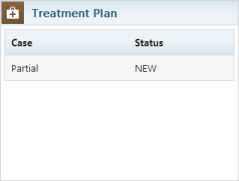
If the patient's Overview page is not already open, on the Patient menu, under General, select Overview. The patient's Overview page opens. Click (or tap) the Treatment Plan box.
-
On the Patient menu, under Clinical, select Treatment Planner.
The patient's clinical record opens with the Tx Planner tab selected.
-
-
Do one of the following to create a case:
-
Create a case using planned procedures not assigned to a case:
-
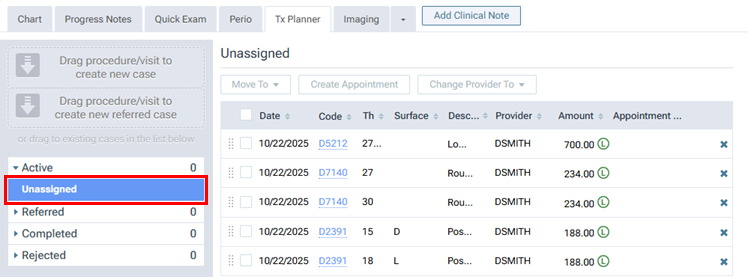
On the navigation panel (on the left), under Active, select Unassigned. The procedures that have not been assigned to a case appear on the right.
Notes:
-
To view or edit the details of a procedure, click (or tap) the corresponding Code link.
-
To change the provider of multiple procedures at one time, do the following:
-
Select the checkboxes of the procedures that you want to change the provider for.
-
From the Change Provider To menu, select the correct provider.
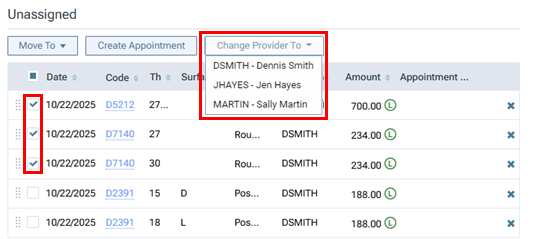
Note: Only providers who have access to the current location and who are flagged as charting providers are available.
The Changing Provider dialog box appears.
-
Do one of the following:
-
If the new provider has an assigned fee schedule, to update the amounts for the procedures based on that provider's fee schedule, select the Update procedure amount(s) based on this fee schedule checkbox. With the checkbox clear, the amounts for the procedures will not change. Then, click (or tap) Change.
-
If the new provider does not have an assigned fee schedule, there is not a checkbox, so click (or tap) Change. The amounts for the procedures will not change.
Note: Changing the provider and amount requires the "Edit patient procedure" and "Edit patient procedure amount" security rights.
-
-
-
-
Do one of the following:
-
To move an individual procedure, drag that procedure (using the handle
 ) to the Drag procedure/visit to create new case box on the navigation panel (on the left).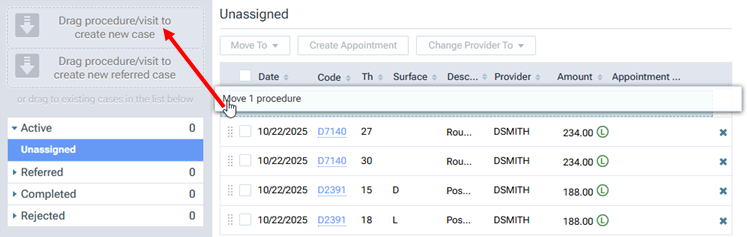
-
To move one or more procedures, select the checkbox of each procedure.
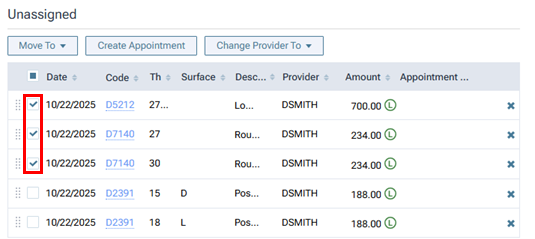
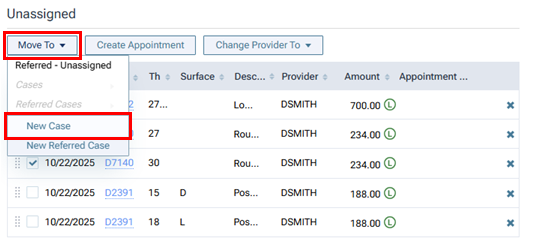
Next, do one of the following:
-
On the Move To menu, select New Case.
-
Drag those procedures (using the handle
of any of those procedures) to the Drag procedure/visit to create new case box on the navigation panel (on the left).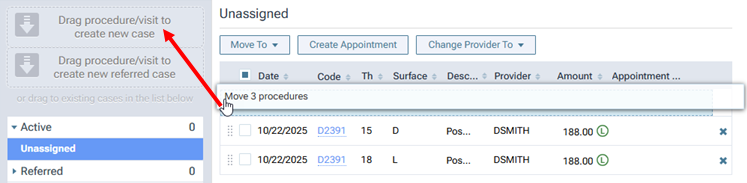
-
-
-
-
Create a case using planned procedures assigned to an existing case:
-
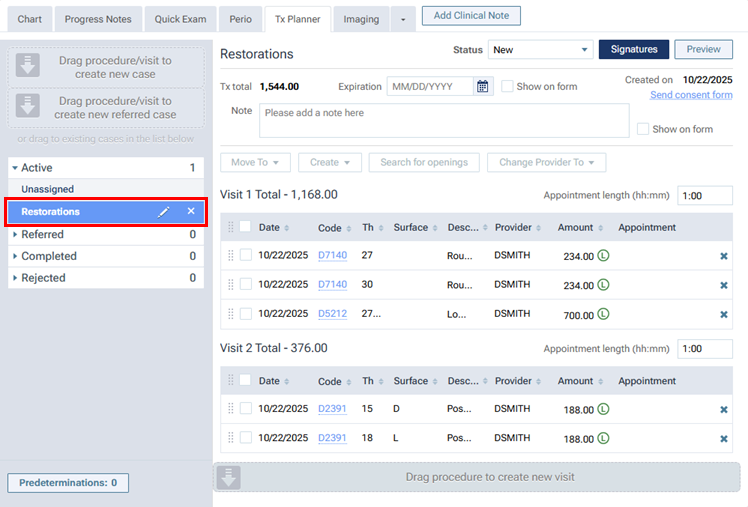
On the navigation panel (on the left), under Active, select a case. The case details appear on the right.
-
Do one of the following:
-
To move an individual procedure, drag that procedure (using the handle
) to the Drag procedure/visit to create new case box on the navigation panel (on the left).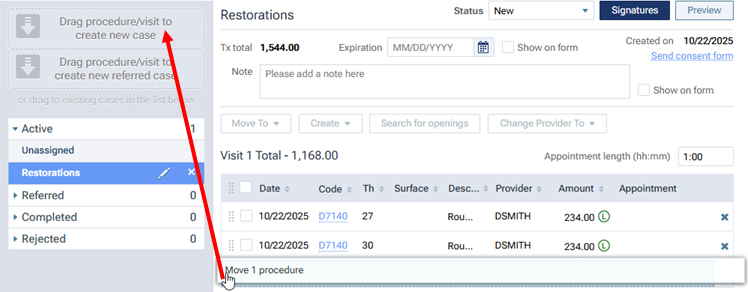
-
To move one or more procedures, select the checkbox of each procedure.
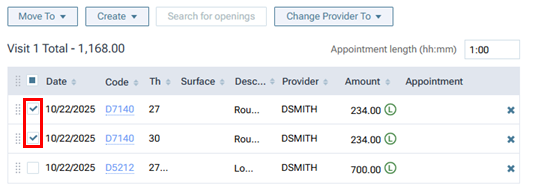
Next, do one of the following:
-
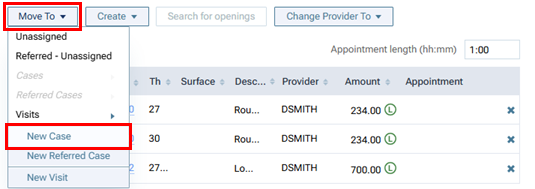
On the Move To menu, select New Case.
-
Drag those procedures (using the handle
of any of those procedures) to the Drag procedure/visit to create new case box on the navigation panel (on the left).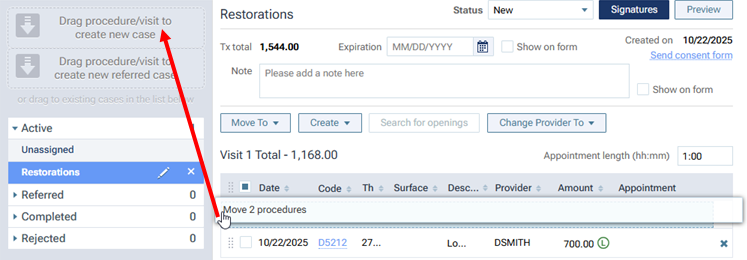
-
-
To move all the procedures in a visit, drag that visit (using the handle
 ) to the Drag procedure/visit to create new case box on the navigation panel (on the left).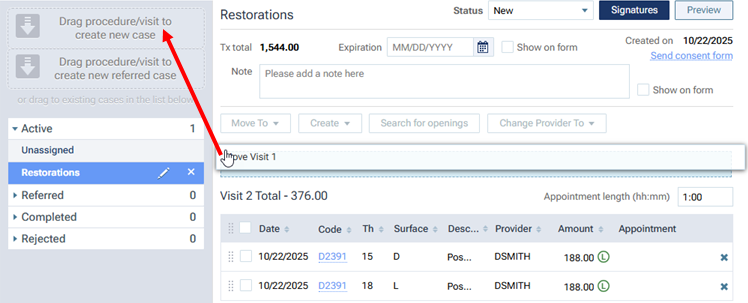
-
-
-
Create a case using referred procedures not assigned to a case:
-
On the navigation panel (on the left), under Referred, select Unassigned. The procedures that have not been assigned to a case appear on the right.
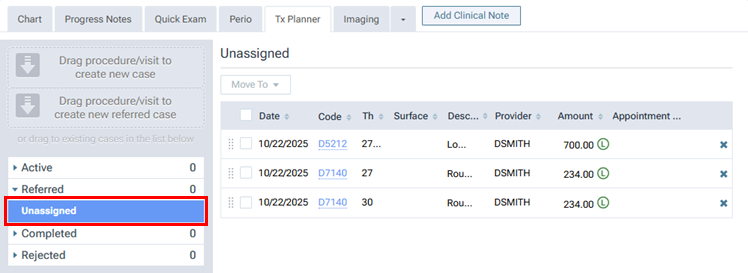
Note: To view or edit the details of a procedure, click (or tap) the corresponding Code link.
-
Do one of the following:
-
To move an individual procedure, drag that procedure (using the handle
) to the Drag procedure/visit to create new case box on the navigation panel (on the left).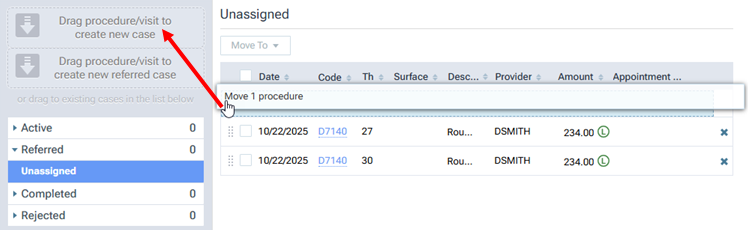
-
To move one or more procedures, select the checkbox of each procedure.
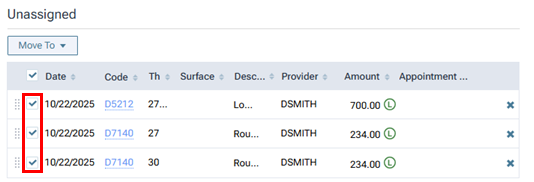
Next, do one of the following:
-
On the Move To menu, select New Case.
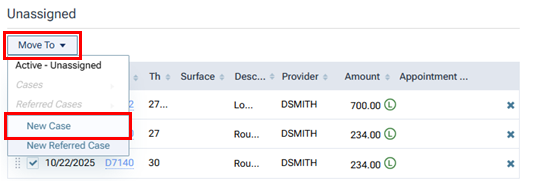
-
Drag those procedures (using the handle
of any of those procedures) to the Drag procedure/visit to create new case box on the navigation panel (on the left).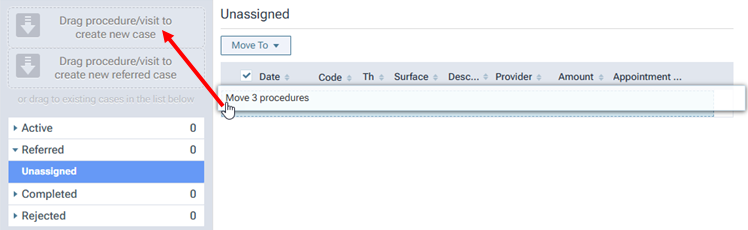
-
-
-
-
Create a case using referred procedures assigned to an existing case:
-
On the navigation panel (on the left), under Referred, select a case. The case details appear on the right.
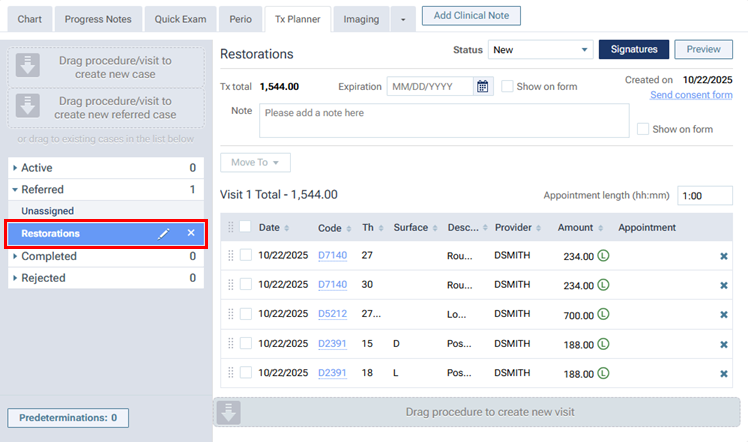
-
Do one of the following:
-
To move an individual procedure, drag that procedure (using the handle
) to the Drag procedure/visit to create new case box on the navigation panel (on the left).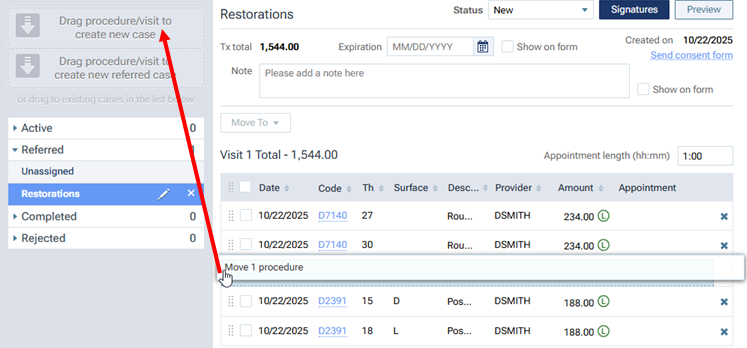
-
To move one or more procedures, select the checkbox of each procedure.

Next, do one of the following:
-
On the Move To menu, select New Case.
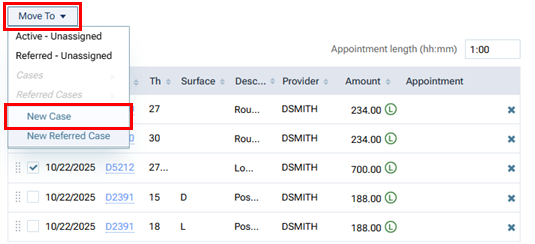
-
Drag those procedures (using the handle
of any of those procedures) to the Drag procedure/visit to create new case box on the navigation panel (on the left).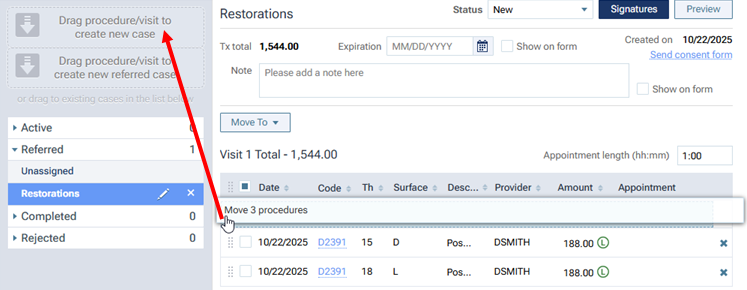
-
-
To move all the procedures in a visit, drag that visit (using the handle
) to the Drag procedure/visit to create new case box on the navigation panel (on the left).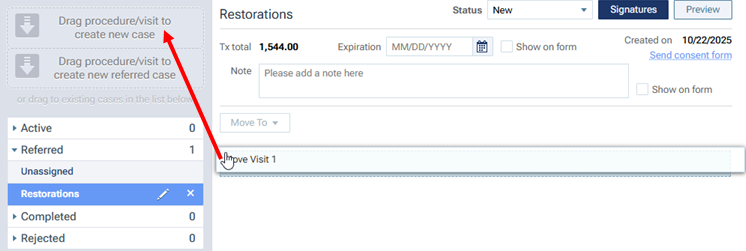
-
-
-
-
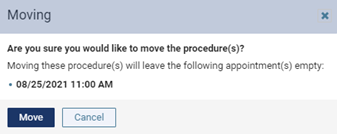
If you move procedures that are already scheduled, they are removed from the corresponding appointment. However, if removing those procedures leaves the appointment empty, the Moving message box appears and displays the date and time of the affected appointment. To confirm the removal of the procedures and allow the existence of the empty appointment, click (or tap) Move. Later, you can go to the schedule and delete the empty appointment.
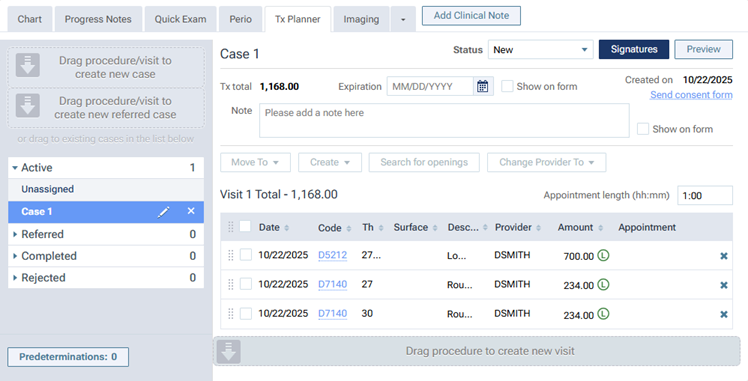
A new case is created, and the procedures are moved to it.
-
To rename the newly created case, do the following:
-
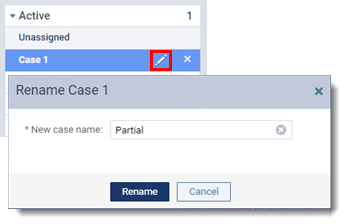
With the case selected under Active on the navigation panel (on the left), click (or tap) the corresponding Edit button
 .
.The Rename dialog box appears.
-
Change the name in the New case name box.
-
Click (or tap) Rename.
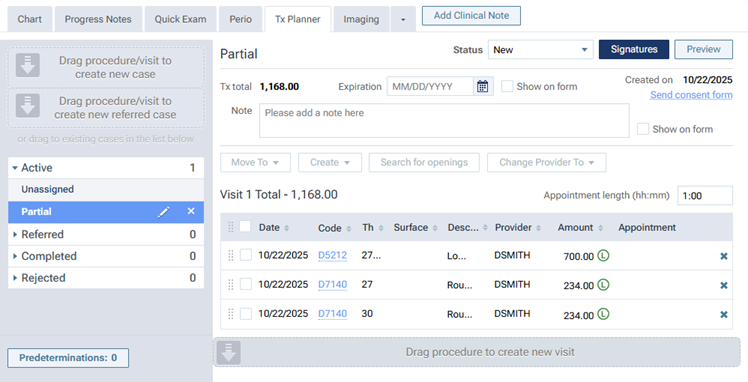
The name change is applied to the case.
Notes:
-
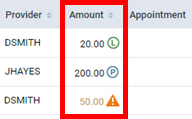
The fees on treatment plans come from either the procedure provider's fee schedule or, if there is not a fee schedule for the provider, the preferred fee schedule of the location where the procedures were treatment planned. The fees do not take into account an insurance plan's fee schedule and coverage table or a patient's estimated portion. An icon next to a procedure's Amount indicates where the fee comes from:
-
P - If the procedure's provider has a fee schedule assigned to his or her user account, the amount comes from the fee schedule assigned to that provider.
-
L - If the procedure's provider does not have a fee schedule assigned to his or her user account, the amount comes from the fee schedule assigned to the location that you were logged in to when you charted the procedure or updated its amount.
-
! - The amount is different from the fee in the provider's or location's fee schedule, depending on which fee schedule applies.
-
-
If a procedure has a coverage exception, an orange warning icon
 appears next to the procedure's description. You can click (or tap) the icon to view the applicable coverage exception.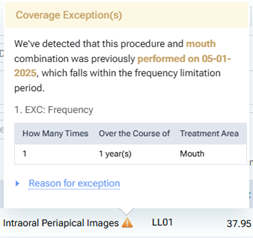
-
-
Do any of the following:
-
Create a new visit for procedures:
-
Do any of the following:
-
To create a new visit for an individual procedure, drag that procedure (using the handle
) to the Drag procedure to create new visit box (below the visits).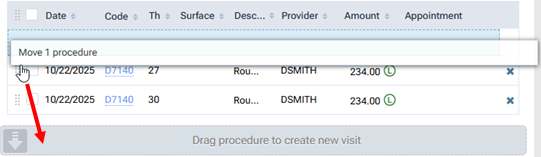
-
To create a new visit for one or more procedures, select the checkbox of each procedure.
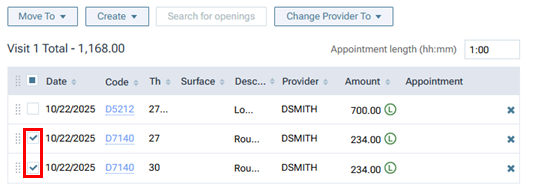
Next, do one of the following:
-
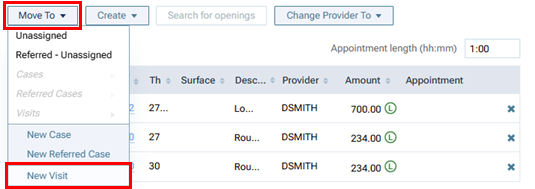
On the Move To menu, click (or tap) New Visit.
-
Drag those procedures (using the handle
of any of those procedures) to the Drag procedure to create new visit box (below the visits).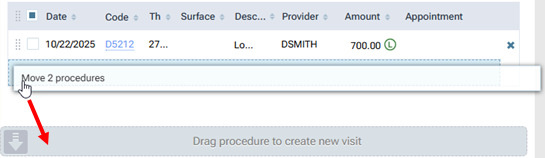
-
-
-
If you move procedures that are already scheduled, they are removed from the corresponding appointment. However, if removing those procedures leaves the appointment empty, the Moving message box appears and displays the date and time of the affected appointment. To confirm the removal of the procedures and allow the existence of the empty appointment, click (or tap) Move. Later, you can go to the schedule and delete the empty appointment.
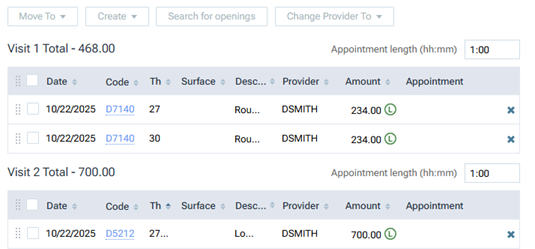
The new visit is created, and the procedures are moved to it.
-
-
Move procedures to an existing visit:
-
Do any of the following:
-
To move an individual procedure to an existing visit, drag that procedure (using the handle
) to a visit.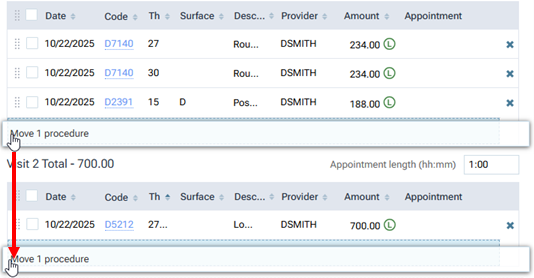
-
To move multiple procedures to an existing visit, select the checkboxes of those procedures.
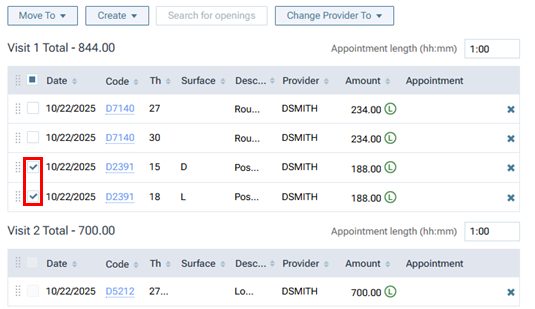
Next, do one of the following:
-
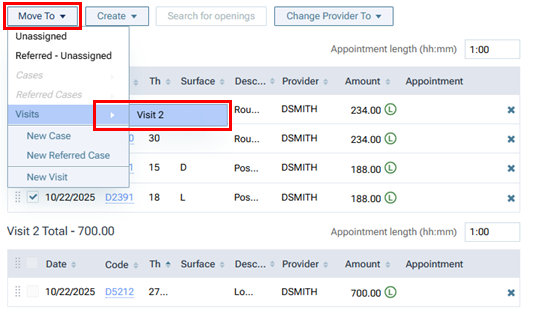
On the Move To menu, point to (or tap) Visits, and then select the name of a visit.
-
Drag those procedures (using the handle
of any of those procedures) to a visit.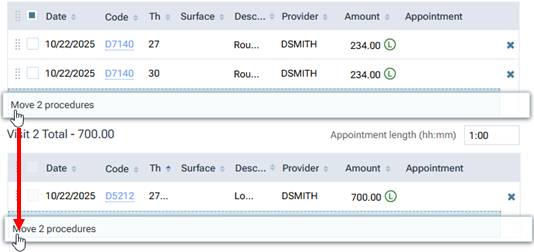
-
-
-
If you move procedures that are already scheduled, they are removed from the corresponding appointment. However, if removing those procedures leaves the appointment empty, the Moving message box appears and displays the date and time of the affected appointment. To confirm the removal of the procedures and allow the existence of the empty appointment, click (or tap) Move. Later, you can go to the schedule and delete the empty appointment.
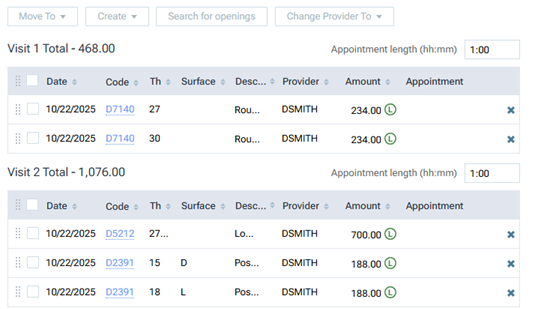
The procedures are moved to the other visit.
-
-
Adjust the order of procedures in a visit:
Do any of the following:
-
To move an individual procedure, drag that procedure (using the handle
) to a location above or below another procedure in that visit.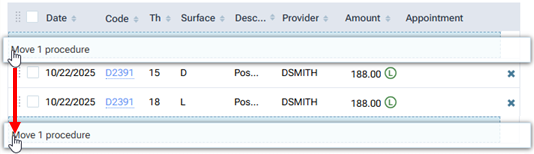
-
To move one or more procedures, select the checkbox of each procedure.
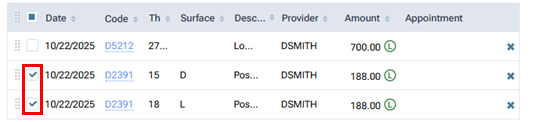
Next, drag those procedures (using the handle
of any of those procedures) to a location above or below another procedure in that visit.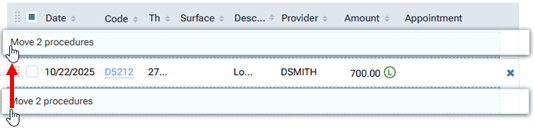
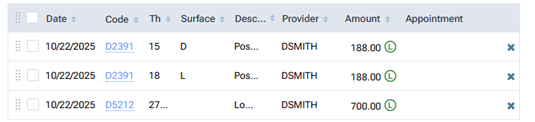
The procedures in the visit are now reordered.
-
-
To edit a procedure, click (or tap) the corresponding Code link.
-
If needed, change the provider of multiple procedures at one time:
-
Select the checkboxes of the procedures that you want to change the provider for.
-
From the Change Provider To menu, select the correct provider.
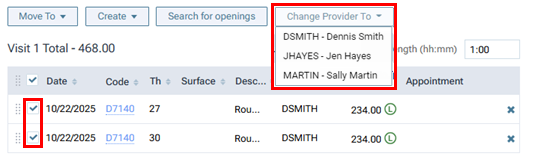
Note: Only providers who have access to the current location and who are flagged as charting providers are available.
The Changing Provider dialog box appears.
-
Do one of the following:
-
If the new provider has an assigned fee schedule, to update the amounts for the procedures based on that provider's fee schedule, select the Update procedure amount(s) based on this fee schedule checkbox. With the checkbox clear, the amounts for the procedures will not change. Then, click (or tap) Change.
-
If the new provider does not have an assigned fee schedule, there is not a checkbox, so click (or tap) Change. The amounts for the procedures will not change.
Note: Changing the provider and amount requires the "Edit patient procedure" and "Edit patient procedure amount" security rights.
-
-
-
Modify the details of the case, such as the expiration date and status, as needed:
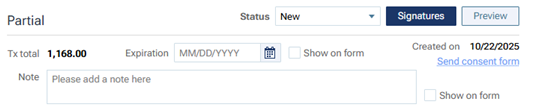
Do any of the following:
-
Specify the Expiration date of the case. You can choose a specific date, insert the last day of the current year, or insert a date that is three months in the future. To show the expiration date when presenting the case, on the printed copy of the case, and on a consent form, select the Show on form checkbox.
-
Enter a Note regarding the case. The note can be up to 250 characters long. To show the note when presenting the case, on the printed copy of the case, and on a consent form, select the Show on form checkbox.
-
To change the duration of any visit, enter a different appointment length in the corresponding Appointment length box. (Also, you can select a length from the list that appears when you click in, or tap, the box.)
Note: Changing the duration of a visit requires the "Manage Appointments" security right.
-
By default, a new case has a "New" status initially, but you can select a different Status for the case. Select one of the following options.
-
New - If this is a newly created case that you have not presented to the patient yet.
-
Presented - If you have presented the case to the patient.
-
Accepted - If the patient accepts the entire case.
-
Rejected - If the patient rejects any part of the case.
-
-
-
-
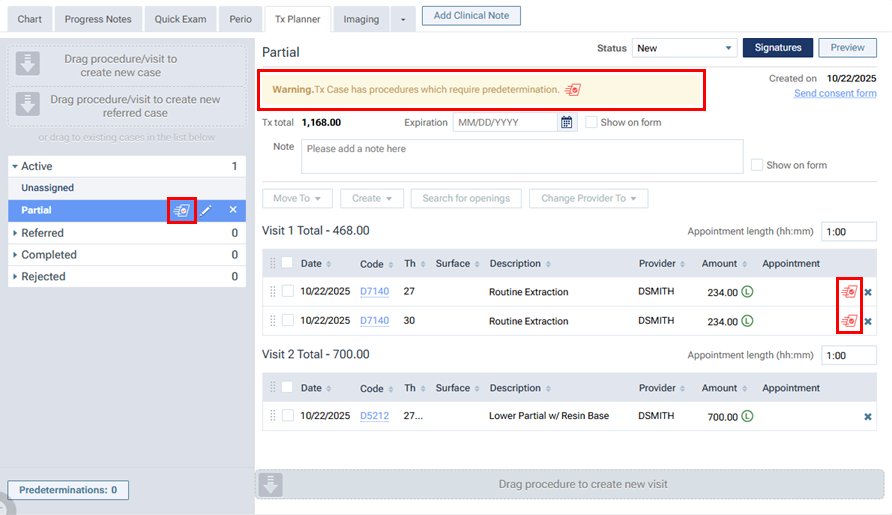
If any of the procedures in the case that are being billed to insurance require a predetermination (pre-authorization), according to the patient's primary insurance plan settings, a yellow warning message appears, and a Predetermination Required symbol
 appears next to those procedures and next to the case name. However, for any procedure that requires a predetermination but is not flagged as being billed to insurance, the procedure's Predetermination Required symbol is gray
  , but you can edit the procedure to flag it as being billed to insurance if you want to include the procedure on a predetermination. Create a predetermination.