Align iTero Software Bridge Setup Guide
This guide describes the setup of the Align iTero software bridge for use with Dentrix Ascend Imaging.
Last updated: 5/12/2026
Overview
Dentrix Ascend Imaging supports the acquisition of CAD/CAM images from the Align iTero software through a software bridge.
Notes:
-
All acquisition devices must be functioning in the Align iTero software on each computer that will acquire images using the Align iTero software bridge. Please contact Align iTero support for assistance.
-
Prior to the installation of any imaging devices or setting up the Align iTero software bridge, the acquisition agent application must be installed on each computer that will acquire images using the software bridge. Refer to Setting up the acquisition agent for instructions on downloading and installing the acquisition agent.
Minimum Version
-
Acquisition agent v172.0.xxxx.xxxxx
Acquisition Agent Configuration
To configure the Align iTero software bridge settings, do the following:
-
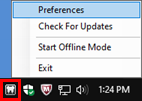
To open the acquisition agent preferences, click the Acquisition Agent icon in the system tray, and then select Preferences.
-
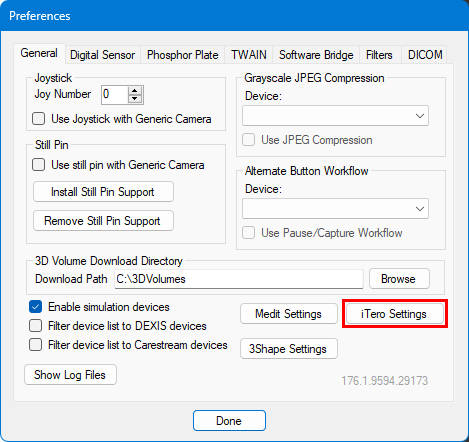
On the General tab, click iTero Settings.
-
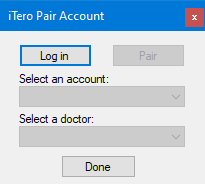
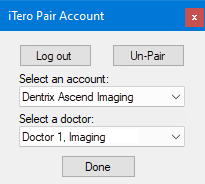
In the iTero Pair Account dialog box, click Log in.
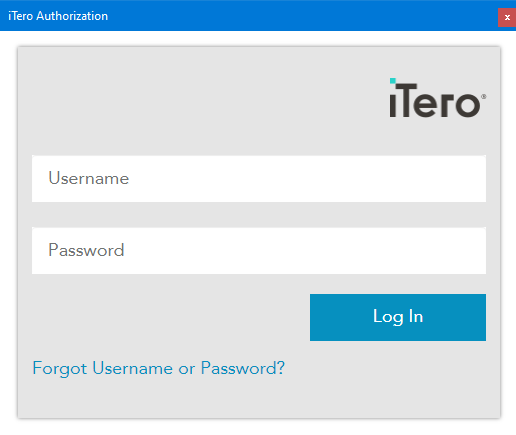
The iTero Authorization dialog box appears.
-
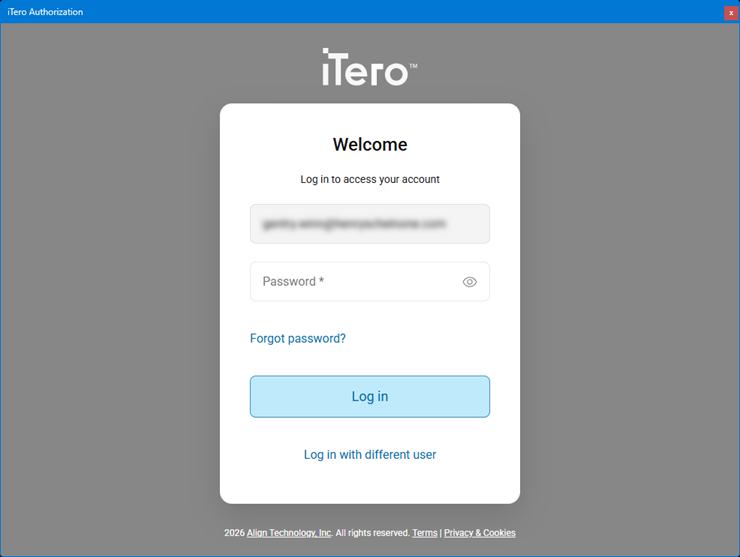
Enter the email address that is associated with your iTero account, and then click (or tap) Next.
The next page of the login opens.
-
Enter the password that is associated with your iTero account, and then click Log in.
You are returned to the iTero Pair Account dialog box.
-
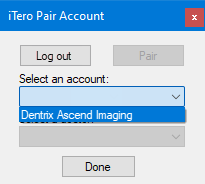
Select your account from the Select an account list.
-
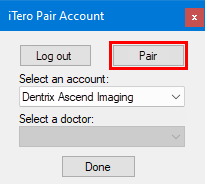
Click Pair.
-
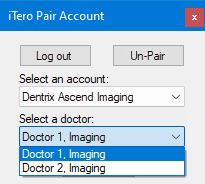
Select a doctor from the Select a doctor list.
-
Click Done.
-
In the Preferences dialog box, click Done.
Testing
The Align iTero software bridge is now functional in Dentrix Ascend Imaging. To acquire a test CAD/CAM scan, do the following:
-
Open the Align iTero software, and log in.
-
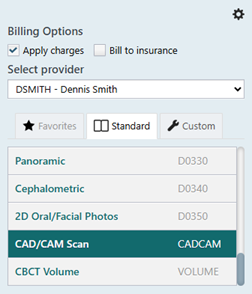
Select the CAD/CAM Scan imaging procedure.
-
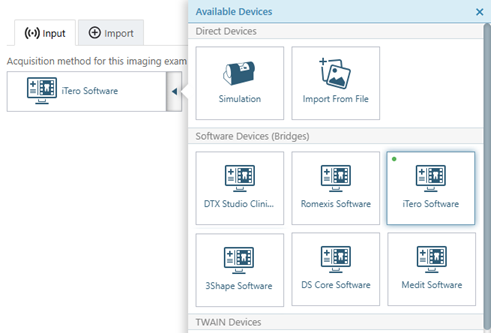
On the Available Devices menu, select iTero Software.
-
Click Start.
-
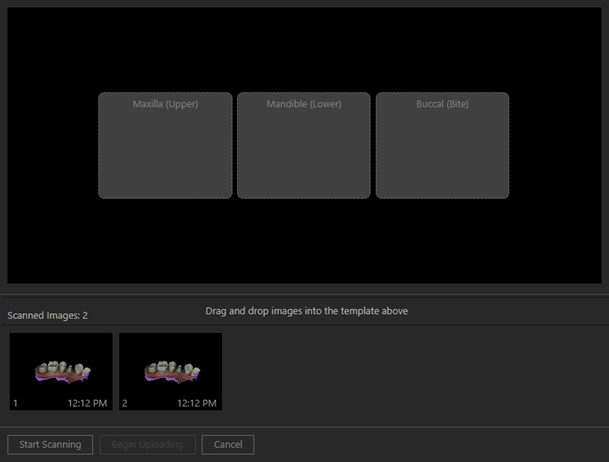
Acquire images in the Align iTero software. After you finish scanning in iTero, return to Dentrix Ascend Imaging. The images appear automatically.
-
Assign the scanned images to the correct slot, and then click Begin Uploading.
Troubleshooting
You may want to change the export settings for the scans that you acquire using iTero. Do the following:
-
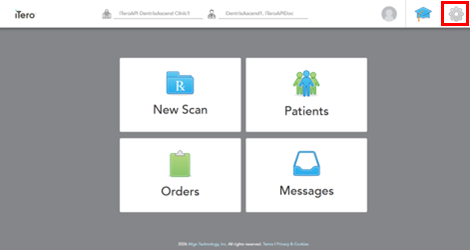
In iTero, click the gear icon in the upper-right corner to open the settings.
-
Under User Settings, click Export Settings.
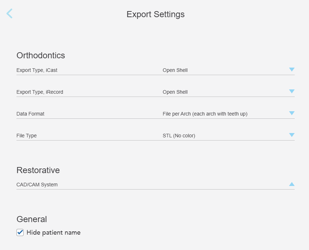
The Export Settings appear.
-
Set up the following options:
-
Export Type, iCast - Select Open Shell to have the software fill in the gaps.
-
Export Type, iRecord - Select Open Shell to have the software fill in the gaps.
-
Data Format - Select Arches Combined (to add the upper and lower jaws together when the scans are transferred over) or File per Arch (to send each jaw over separately).
-
File Type - Specify if you want the images to be exported in color.
-
For any issues related to a device not working inside the iTero software, please contact iTero support: https://itero.com/customer-support.