
You can edit the total payment or estimate information.
To edit medical payment or pre-authorization information
1. In the Ledger transaction log, double-click an insurance claim or a pre-authorization estimate.
The Medical Insurance Claim or Medical Preauthorization Estimate window appears.

2. Double-click the Payment/Estimate Information block.
The Total Medical Insurance Payment or Total Medical Insurance Preauthorization dialog box appears.

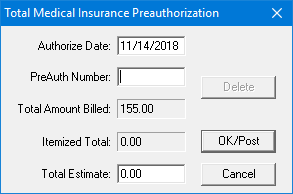
3. Edit the following information as necessary:
· Date - The date the payment was received. The default is the current date.
· Payment Type - Select a type from the list:
· Check Payment - Select if the payment was made by check.
· Electronic Payment - Select if the payment was electronic.
· Credit Card Payment - Select if the payment was made by credit card, type the last 4 digits of the credit card number and a description of up to 20 characters (credit card type, insurer's name, or any other description to help you remember) in the corresponding fields.
· Check # - Type the check number.
· Bank/Branch # - Type the bank or branch number.
· Provider Amounts - Click Add to add another provider and a payment amount. Or, select a provider payment and click Edit to change the payment amount.
· Deductibles - Type the amounts applied to the Standard, Preventive, and Other deductibles.
· Claim Totals - Displays the pre-authorization number, coverage amount, total amount billed, itemized total, and total amount paid or authorized.
· Enter Adjustment - Select Write-off (-) or Refund (+)and then select $ or %. Select an adjustment type from the list. Type the Total Amount of the adjustment. If appropriate, select Split Adjustment by Provider.
4. Click OK/Post.