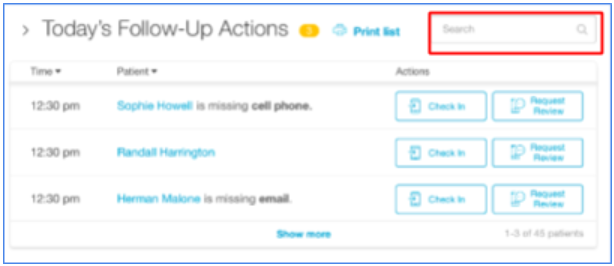
Kiosk Check In allows your patients to complete forms from a mobile phone prior to their appointment.
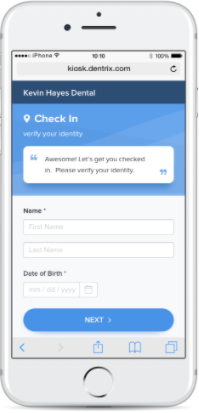
Note: A patient must opt in or agree to opt in to all text communications before receiving the Check In link on their mobile device. If a patient is opt-in neutral (they have not explicitly consented to nor unsubscribed from text communications), they will be asked to opt-in to all text communications prior to receiving the Check In link.
To send a Check In Link to a patient
1. Under Today's Follow-Up Actions, click the Check In button next to a patient's name.
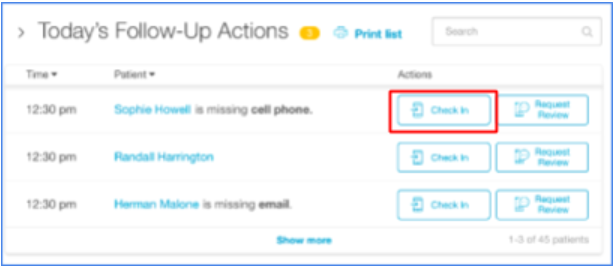
2. Get verbal consent from the patient to complete the Check In for their appointment via mobile phone, and then click Next.
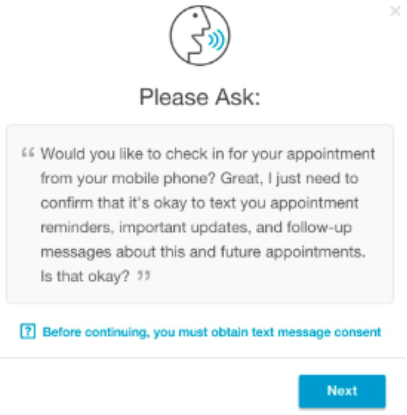
3. According to the patient's response, click "Yes, [PatientName] consents" or "No,[PatientName] does not consent."
Note: You can also opt-in a different number for the patient, by replacing the number that auto-populates with the desired number in the provided field, and then click Next.
4. Click Next.
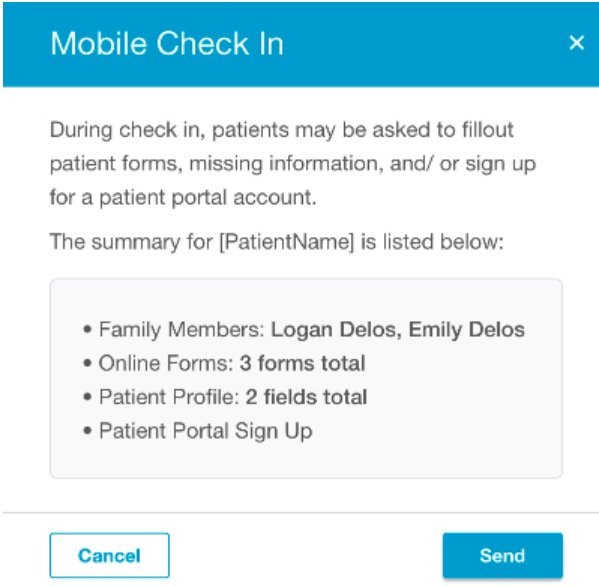
5. Review the Mobile Check In prompt that summarizes what the patient will fill out, and then click Send.
6. Inform the patient that a text will be sent to their phone to which they must reply TEXT before receiving the Check In link.
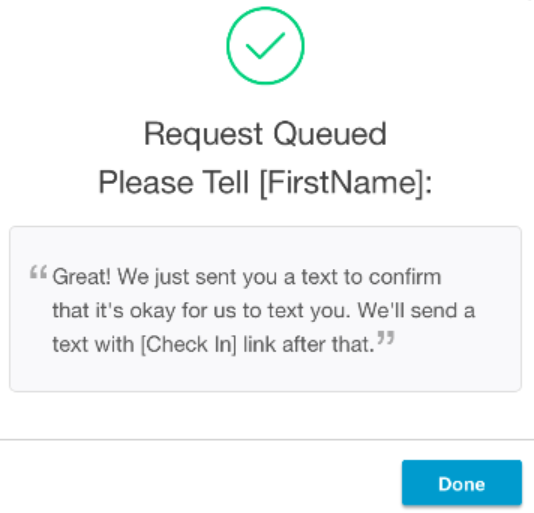
7. Click Done.
Note: If the patient has already opted in to text communication, the Check In link will be sent once you've clicked the Check In button, and the patient will neither receive nor have to reply to the opt-in text. Patients must be opted in completely to text communications prior to receiving the Check in link.
Tip: You can also search for a specific patient and send them a Check In link using the search box: