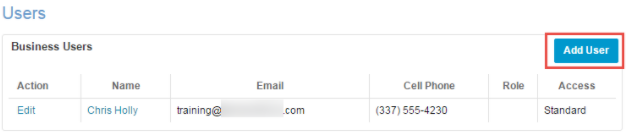
You can create a new user account in your portal, so your new employee can log into the portal and access its functionality. When creating a user, please use a valid email address, so our system can send him or her a change password link in the event s/he should need a password reset.
To create a new user account
2. From the Dentrix Hub toolbar, click Settings.
3. Under Manage, click Users.
4. Click Add User.
5. Complete the fields provided.
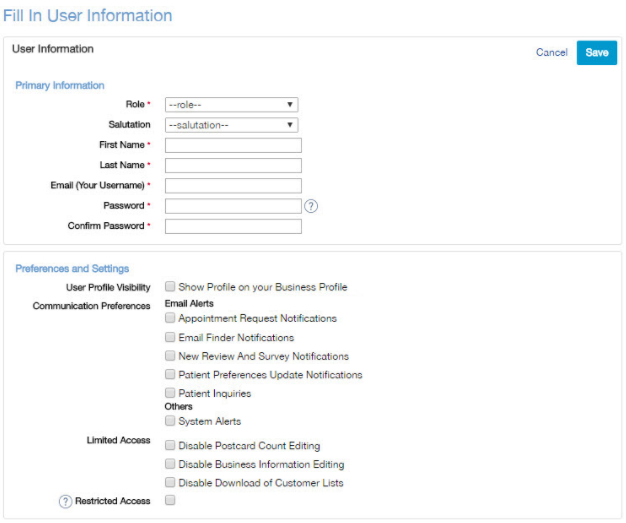
Notes:
· A valid email is required in the Email box.
· If someone in your office is already using your general business email address in the Email box, you'll need to enter an alternative email address for your employee in this box.
· If you deleted an email address but want to reuse it, you'll need to wait 24 hours after deleting it. If you try to reuse the email address before 24 hours have passed, you'll see a message that the email address is already in use.
6. When finished, click Save.
In order for an enterprise user to have access to other locations' portals, you must add location access to that user.
To add location access for a user
1. Click the user's name.
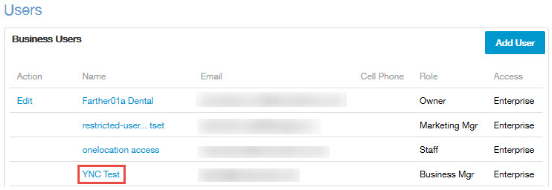
2. Scroll down to the Location Access section and click Edit.

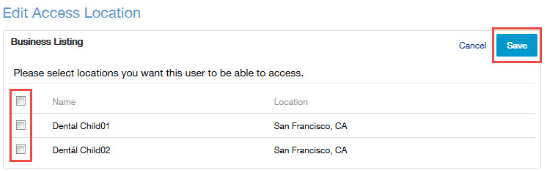
3. Select applicable locations, then click Save.
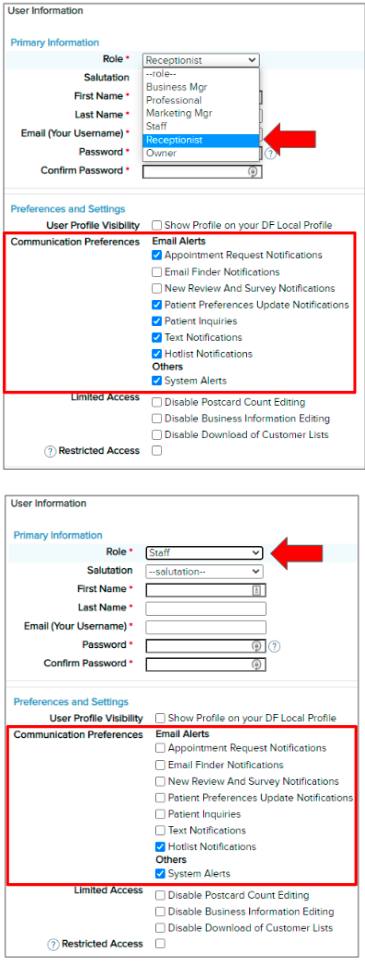
There are a different Roles that can be assigned when creating a User. Each Role Type has pre-selected communication preferences to optimize the user's experience, although you can adjust them according to your needs when creating the User.
Click through the different Role types when creating a User to see the various combinations of Communication Preferences.
When you add a user to the portal, you can decide whether the user is Standard or Restricted. Standard users have the same general access rights as the Manager/Admin user role. Restricted Users can view portal activity but cannot make changes. Below is a list of actions that Restricted User cannot take in the portal.
Restricted users cannot do the following:
· Access the Settings link (in the top-right corner after logging in)
· User-added image
· See Campaigns tab
· See Contact Info
· See Mark All Reviews as Read, Download All Reviews, and Download List links in Reviews tab
· Respond to reviews or surveys
· See Mark all Surveys as Read link in Surveys tab
· Access Your Offers in Local tab
· See Sign Up Today for Email Finder in Results tab
· Receive system notifications. Including, but not limited to, appointment request emails, new surveys/emails, or updates to consumer preferences
· Download reports
· Access the following postcard settings:
· Slide the On/Off slider for a postcard campaign
· Check the Only Customers who are not receiving emails box
· Click the View/Manage Future Recipients link
· Click the in queue for next delivery on the right side
· Slide On/Off slider and Customize holiday postcards
· Edit Settings under Postcard Summary