
eTrans status reports
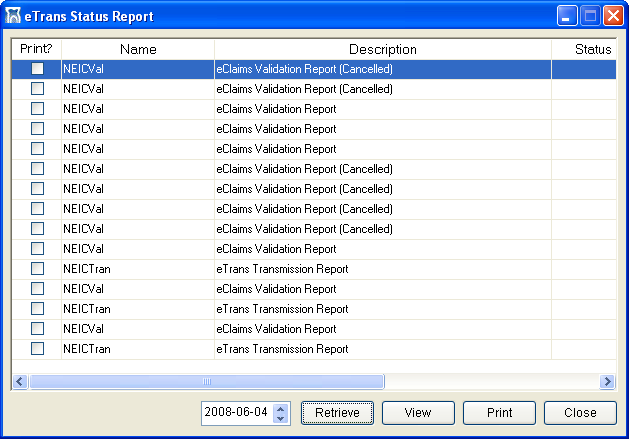
From the eTrans Status Report dialog box, you can view and print eTrans reports for a specific date. This dialog box appears after you finish sending your e-claims or if you cancel out of the transmission. Alternately, to open this dialog box at any time, from the Report menu, point to Insurance > eTrans, and then click eTrans Status Report.
To retrieve, view, and print reports
Retrieve eTrans reports for a certain date:
Enter the desired date in a YYYY-MM-DD format in the box at the bottom of the dialog box. The current date is displayed by default.
Click Retrieve.
The reports for the date you entered, if any, are displayed.
View reports as desired:
Select the report that you want to view.
Click View. The selected report is displayed in the Windows default text editor.
When you are finished reviewing the details of the report, close the document.
Repeat steps a-c for any other reports you want to view.
Print the eTrans reports:
For each report you want to print, select the corresponding check box in the Print? column.
Click Print.
The documents are sent to the Windows default printer.
When you are finished printing reports, click Close to close the eTrans Status Report dialog box.
Need more help?
You can visit our website or contact OMSVision Customer Support.