
Testing your eTrans server connection
It is important for you to test your eTrans connection to ensure that you are connecting to the eTrans server properly so that you can send your claims electronically.
Note: If you are sending eclaims over the Internet with a dial-up connection, you will usually need to connect to your ISP before testing your connection or sending eclaims.
To test your eTrans connection
From the Report menu, point to Insurance, and then click Electronic Claims.
The Claims Table [Electronic Claims] dialog box appears.
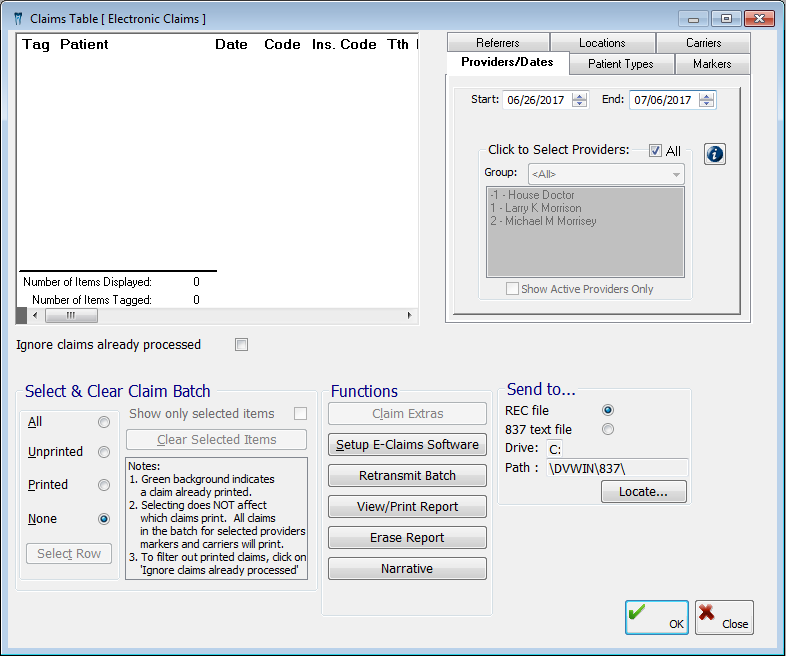
Click Setup E-Claims Software.
The eTrans Setup dialog box appears.
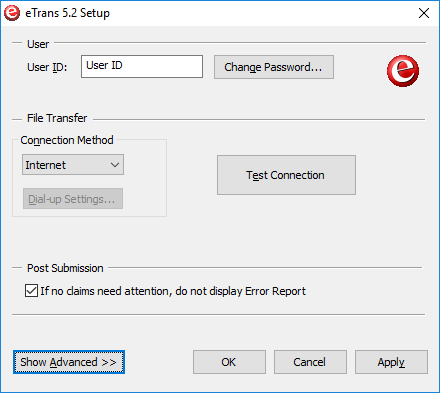
Under File Transfer, click Test Connection.
The Test eTrans Connection dialog box appears with the status of the connection test.
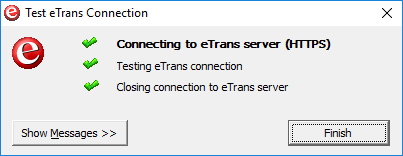
When the process has been completed successfully, a message appears and states that your reports have been retrieved successfully.
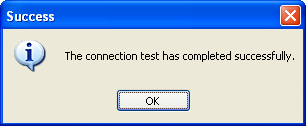
Click OK to close the message and return to the Test eTrans Connection dialog box.
If you want to view a detailed log of the transmission, click Show Messages >>.
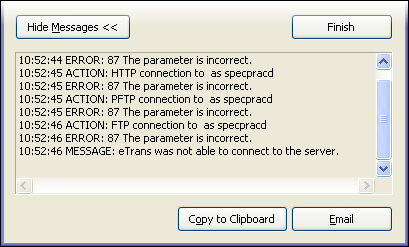
The expanded dialog box, provides the following options for the log:
Copy to Clipboard - If you want to copy the output log to the Windows clipboard to be pasted into another program, click Copy to Clipboard.
Email - If you want to send a message containing the output log, click Email.
Click Finish to close the Test eTrans Connection dialog box and return to the eTrans 4.6 Setup dialog box.
Need more help?
You can visit our website or contact OMSVision Customer Support.