
Adding letters to the letters batch
Certain letters are added to the batch automatically. You can put letters into the letters batch manually.
To add letters
From the Reports menu, click Word Processor.
The Word Processor window appears.
From the File menu, click Letters Batch.
The Letter Batch dialog box appears.
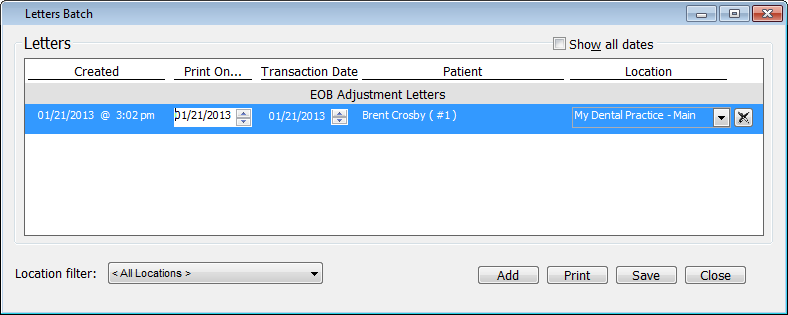
Click Add.
The Patient Lookup dialog box appears.
Double-click the patient to whom you want to send a letter.
The Letters & Labels dialog box appears.
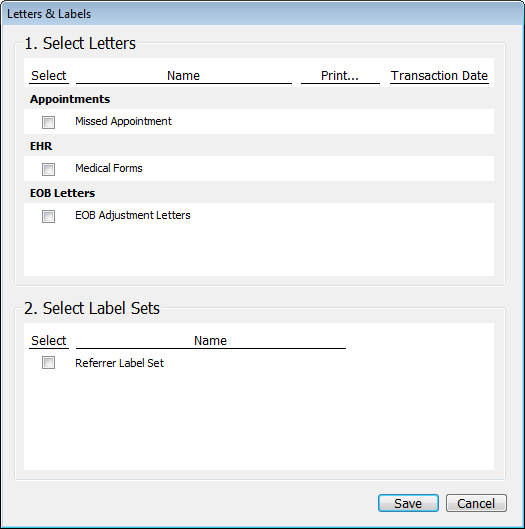
Select the letters to send to the batch. The names of selected letters turn red.
For each letter you select, select when you want to Print the letter; or leave "Today" selected. You can change the Print On and Transaction Date dates, as well as the Location, at any time in the Letters Batch dialog box.
For each letter you select, enter the Transaction Date; or leave the current date entered. You can change the Print On and Transaction Date dates, as well as the Location, at any time in the Letters Batch dialog box.
Click Save to save and close the Letters & Labels dialog box.
You can remove letters at any time in the Letter Batch dialog box. Click the letter that you want to delete, and then click the Remove button to remove that letter. When a confirmation message appears, click Yes.
Click Save to save any changes made to the letters batch.
When you are finished with the letters batch, click Close.
Need more help?
You can visit our website or contact OMSVision Customer Support.