
Adding multiple referrer locations
Your referrers might have multiple office locations. You can have up to five locations per referrer.
To add a location
From the File menu, click Referrers.
The Referrers window appears.
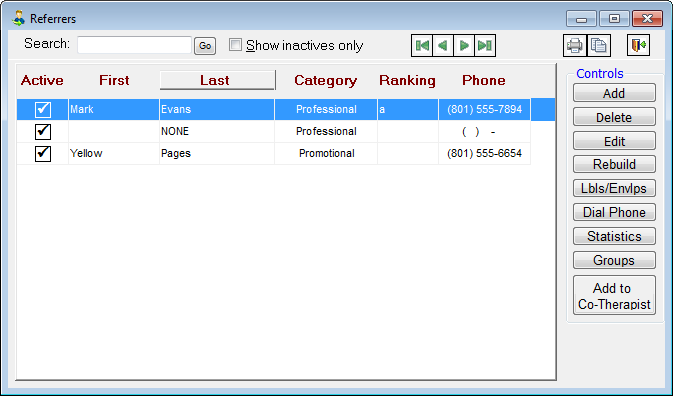
Select a referrer, and then click Edit.
The Edit Referrer dialog box appears.
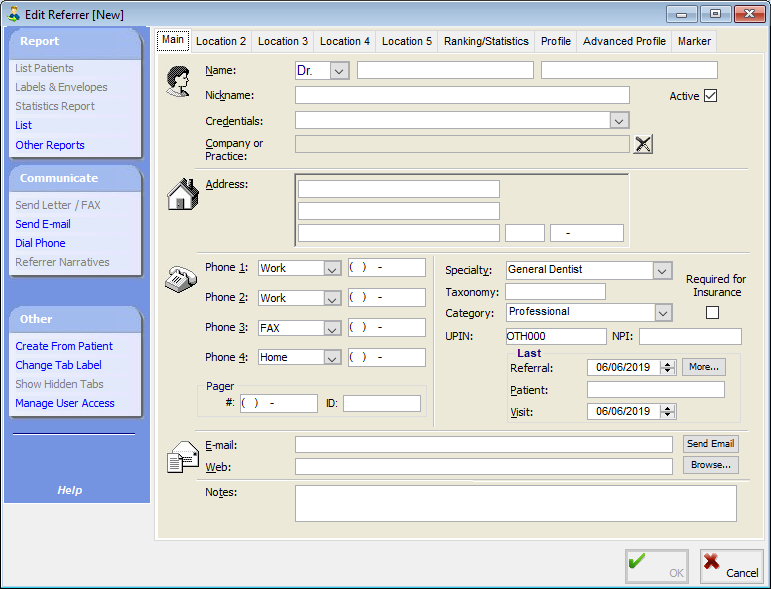
Click the Location 2, Location 3, Location 4, or Location 5 tab to access, edit, or add the additional location's information.
Notes:
Any of the location tabs may have a different label if the text has been changed.
You can right-click a tab and click Rename to give it a more specific name.
You can right-click a tab and click Hide to hide the tab.
To display hidden tabs, under Other, click Show Hidden Tabs.
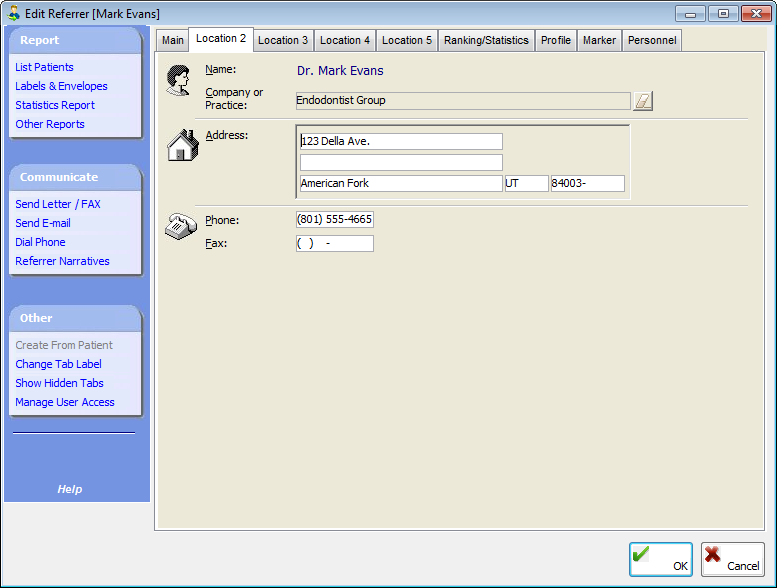
Set up the following options:
Address - Type the street address, press Tab to move to the ZIP Code field, and then type the ZIP Code. The city and state will be entered automatically. The street address fields each have a limit of 40 characters.
Numbers - Type the Phone and Fax numbers.
Repeat steps 3-4 to add any other locations.
Click OK.
Need more help?
You can visit our website or contact OMSVision Customer Support.