
Adding and editing referrer companies or practices
You can keep a record of groups of referrers that belong to the same practice or company. You can add referrers to referrer companies or practices as members. You can add and edit the referrer company or practice as needed.
To add or edit a referrer company or practice
Do one of the following:
From the File menu, point to Codes and Lists > Referrals, and then click Company or Practice.
From the File menu, click Referrers. The Referrers window appears. Click Groups.
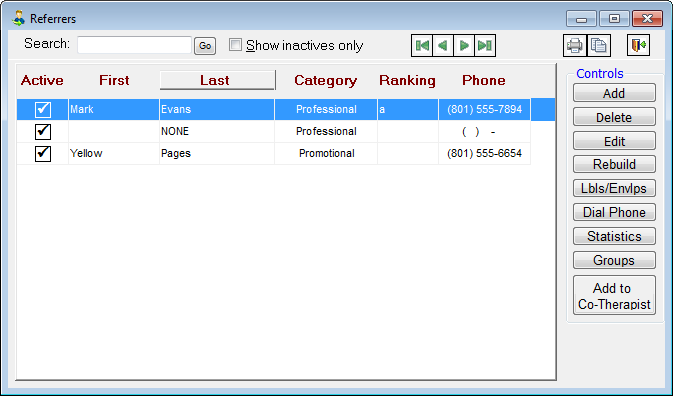
The Referrer Company or Practice window appears.
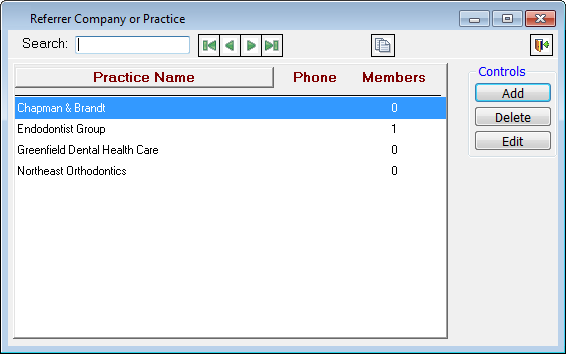
Do one of the following:
To add a referrer group, click Add.
To edit an existing referrer group, select a group, and then click Edit.
The Edit Referrer Company or Practice dialog box appears.
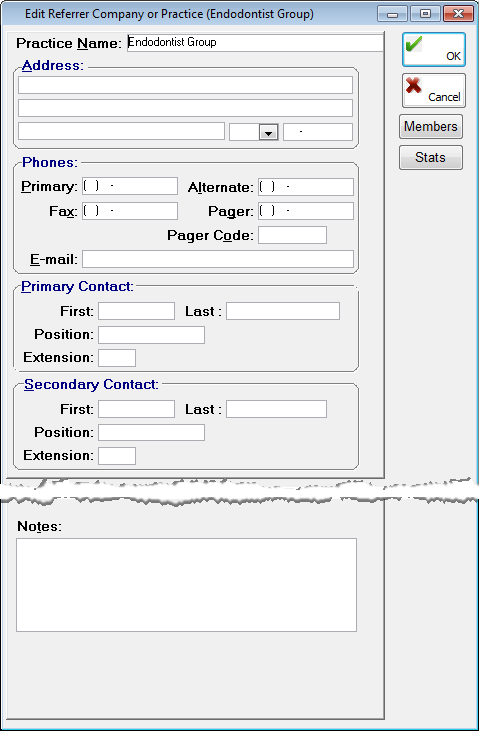
Set up the following options:
Practice Name - Type the name of the practice where the referrer works. This field has a limit of 50 characters.
Address - Type the street address, city, state, and ZIP Code of the referrer's practice.
Phones - Type the primary and alternate phone, fax, pager, and pager code numbers at the referrer's practice. Also, type the referrer's email address. The email address field is limited to 40 characters.
Primary Contact - Type the first and last name, position, and extension of the primary contact person at the referrer's practice. The first name field has a limit of 10 characters; the last name, 15 characters; the position, 20 characters; and the extension, five characters.
Secondary Contact - Type the first and last name, position, and extension of the secondary contact person at the referrer's practice. The first name field has a limit of 10 characters; the last name, 15 characters; the position, 20 characters; and the extension, five characters.
Notes - Type any notes regarding the practice.
Click OK.
Need more help?
You can visit our website or contact OMSVision Customer Support.