
Production Report
The Production Report displays the production, collections, and adjustments broken down by doctor and totals for the office. Unlike the Weekly, Monthly, and Yearly reports, this report is run for a specific date range you set and can, therefore, be used to show past performance or future projections.
To run the Production Report
From the Report menu, click Production.
The Production Report dialog box appears.
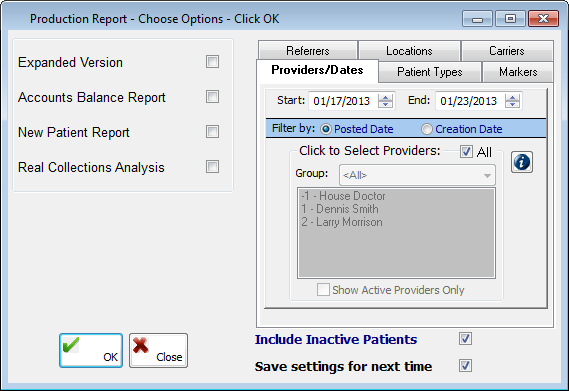
Select any of the reports you want to run:
Expanded Version - This report displays a patient by patient detail for each doctor.
Accounts Balance Report - This report displays the total production, collections, adjustments, and comparison to UCR for the date range you are running. Also, the report is broken down by doctor and includes a summary for the office.
New Patients - This report displays a list of the new patients who have registered during the date range you have specified, broken down by provider.
Real Collections Analysis - This report displays an analysis of your collections from a year ago to this month.
Note: Real collections are defined as money collected for work billed in a certain month.
Set up how you want to filter the reports using the standard filter tabs.
Note: Since the Start and End dates on the Providers/Dates tab default to the previous week, you may want to enter a different date range in the boxes.
Select Include Inactive Patients to include inactive patients on the report.
Select Save settings for next time to save any options you have changed for the next time you run the Production Report.
Click OK.
Expanded Version sample
_(DE).png)
Accounts Balance Report sample
.png)
_(DE).png)
.png)
_(DE).png)
_(DE).png)
New Patients sample
.png)
Real Collections Analysis sample
.png)
Need more help?
You can visit our website or contact OMSVision Customer Support.