
Customizing the Appointment Book hover window
You can specify what patient information is included in the hover window that appears when you position your mouse pointer over an appointment.
To customize the Appointment Book hover window
From the Preferences dialog box, on the Operation tab, under Appointment Book, select the Show pop-up pt info hovering over appts check box. Turning on this hover window turns off the hover window that displays comments (the Show pop-up comments hovering over appts is cleared automatically); you cannot have both hover windows appear.
Tip: You can also turn on the patient information hover window from the Appointment Book. Select the Enable pop-up hover check box.
Next to the Show pop-up pt info hovering over appts check box, click Customize.
The Hover Detail Setup dialog box appears.
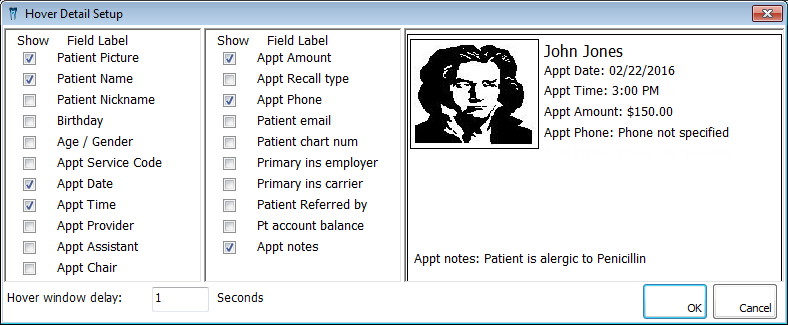
Set up the following options:
Show – Select the check boxes that correspond to the type of information you want to have appear on the hover window. Clear the check boxes of any items that you want to exclude.
Hover window delay – Enter the number of seconds (0-999) after you position your mouse pointer over an appointment that the program should wait before displaying the hover window. The default length is one second.
Click OK.
In the Preferences dialog box, click OK.
Note: These settings are user specific.
Need more help?
You can visit our website or contact OMSVision Customer Support.