
In Treatment Planner, from the Supporting Information and Treatment Plan Case Setup sections on the Navigation panel, you can view and print a consent form that is attached to a case. When you view a consent form for a specific case, the information about that case that is listed in the case detail is shown at the bottom of the consent form if the form allows the viewing of procedure information, so patients know exactly which procedures they are giving consent to have performed.
To view and print an enhanced consent form for a case
In Treatment Planner, do one of the following:
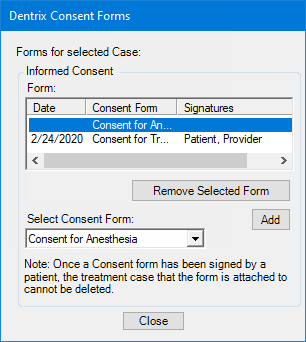
In the Treatment Plan Case Setup section on the Navigation panel, right-click the case with a consent form to view and/or print, and then click Consent Forms. The Dentrix Consent Forms dialog box appears.
With a case selected in the Treatment Plan Case Setup section on the Navigation panel, expand the Supporting Information section on the Navigation panel, and then scroll down to Informed Consent.
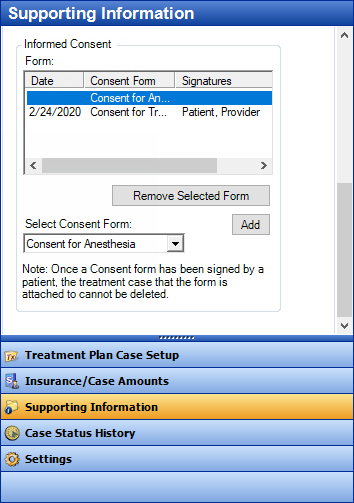
The consent forms that are attached to the case appear in the Form list.
Double-click the consent form that you want to view and/or print.
The Consent Form dialog box appears.
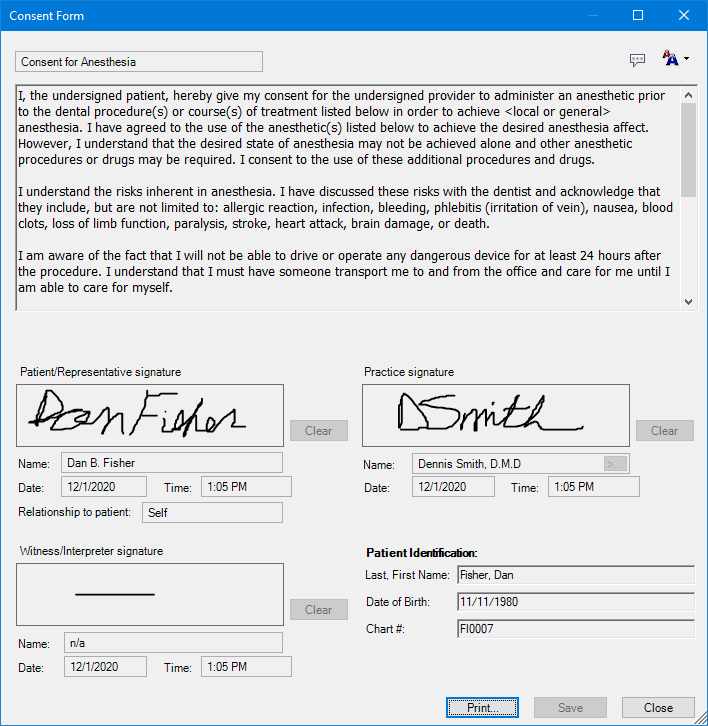
If any of the text of the consent form was entered using a template with prompts, to view the corresponding responses, click the View Prompts button  .
.
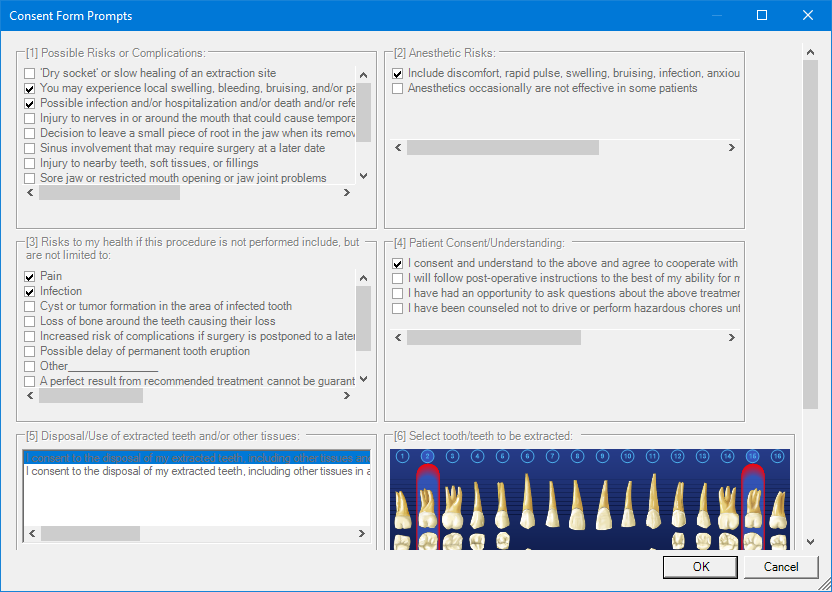
You cannot edit any of the responses. When you are finished viewing the responses, click OK.
To select a different font size for the text, click the Change Font Size button  in the upper-right corner of the dialog box, and then select Small, Medium, Large, or X-Large from the menu.
To print the consent form, click Print.
Click Close.