
You can set up several options for all the toolbars to indicate how menus and toolbars appear.
To set up toolbar options
In Treatment Planner or Document Center, right-click a toolbar or anywhere in an empty portion of the toolbar area, and then click Customize.
The Customize dialog box appears.
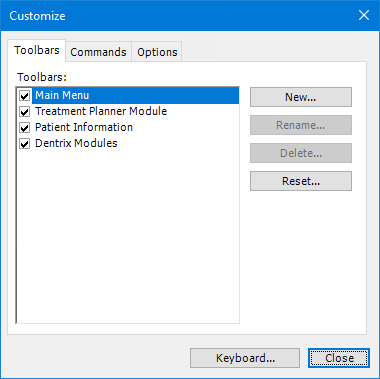 OR
OR 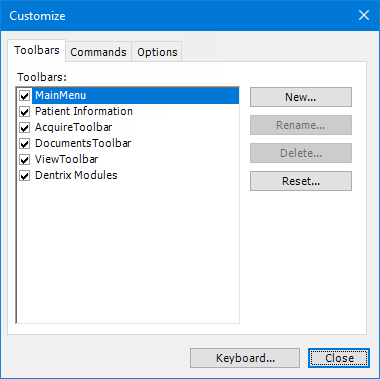
Select the Options tab.
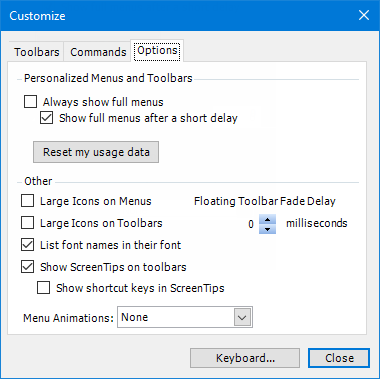
Customize the options as needed:
Personalized Menus and Toolbars - Select one of the following checkboxes:
Always show full menus - Each time you view a menu, all the options appear on the menu immediately.
Show full menus after a short delay - Each time you view a menu, your most frequently used options appear on the menu, and then all the options appear on the menu after a brief delay.
Note: Your most frequently used options are determined by your usage. To reset the usage data, click Reset my usage data.
Other:
Large Icons on Menus - With this checkbox selected, large icons appear on menus. With this checkbox clear, small icons appear on menus.
Large Icons on Toolbars - With this checkbox selected, large icons appear on toolbars. With this checkbox clear, small icons appear on toolbars.
List font names in their font - With this checkbox selected, font names appear in their respective font wherever you can select fonts. With this check box clear, font names are plain.
Show ScreenTips on toolbars - With this checkbox selected, tool tips appear when you position you pointer over buttons. With this checkbox clear, tool tips do not appear. With this checkbox selected, to show shortcut key combinations in tool tips, select the Show shortcut keys in ScreenTips checkbox.
Menu Animations - Either select None to display menus without animation, or select another option to use that type of animation to display menus.
Floating Toolbar Fade Delay - Either enter 0 to not have floating toolbars become less opaque when the pointer is not positioned over them, or enter the number of milliseconds it takes for floating toolbars to become less opaque when the pointer is not positioned over them. Also, if the delay is greater than zero (0), floating toolbars are completely hidden if the window is not active.
Click Close.
The settings you choose affect all toolbars and menus in Treatment Planner or Document Center on the current computer.