
In Dentrix Enterprise, each account is assigned a billing type. Using that number you can target specific groups when applying finance charges, processing bills, and printing reports. You can add a text description to each billing type to help you better identify each group that succinctly characterize the accounts of a given type. You can define up to 99 billing types.
Note: When customizing billing types, keep in mind how billing types can be used in Dentrix Enterprise. Certain reports (like billing statements) can be filtered by billing type but can only be filtered using a range of types. For example, you could include types 1 – 3 because they are in a range. However, if you wanted to run the report for types 1, 3, 4, and 5, you would have to run the report twice. Once with a range of 1 – 1 and a second time with the range of 3 – 5. For this reason, it is recommended that you group similar billing types together.
To customize Billing Types
In the Practice Definitions dialog box, in the Definition Type list, select Billing Types.
The corresponding definitions appear in the list to the right.
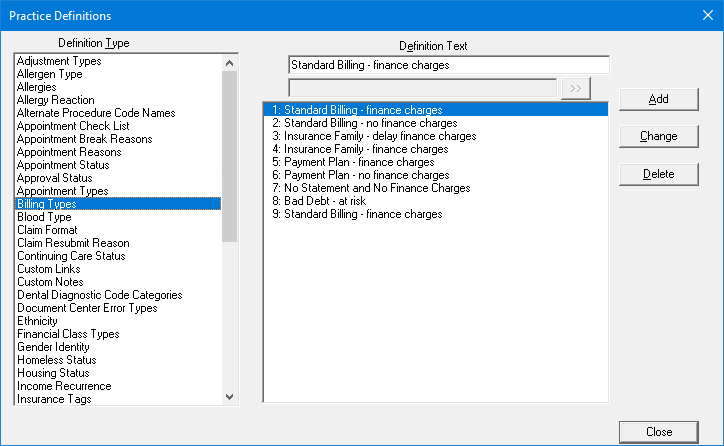
Do any of the following:
If there are fewer than 99 definitions, to add a definition, do the following:
With any definition selected, replace the existing text in the Definition Text box.
Click Add.
Notes:
This button is available only if there are not already 99 definitions.
The new definition is added in the first available spot (if there are no gaps in the sequence, it will be the last item) and given an ID.
To edit a definition, do the following:
Select a definition.
Note: Changing the definition for a billing type affects all instances of that billing type that have been assigned to families.
Replace the existing text in the Definition Text box.
Click Change.
To delete a definition, do the following:
Select a definition.
Notes:
Delete the definition for a billing type only if you know that it is not assigned to any families. If you re-add a deleted billing type definition (a definition with the same ID), any patients' families that had that billing type assigned to them when the definition was deleted will still have that billing type assigned to them whether or not it has the same name as before.
If you delete the definition for a billing type that has been assigned to any families, Family File and Ledger will show that the deleted billing type is still assigned to those patients; this could leave Dentrix Enterprise in an unstable condition.
Click Delete.
A confirmation message appears.
Click Yes.