
The Provider A/R Totals Report displays production totals. This report is more accurate than other production reports because it takes into account production and collection adjustments. For example, if a procedure was posted for $1000, but a $900 Charity Care credit was given to the patient, the Production Summary Report will show the procedure produced $100 in revenue, rather than $1000.
You can view this report in one of two formats:
The Provider A/R Totals - Standard Report - Displays production totals for a given date range.
|
|
Why: |
To view production totals for a date range |
|
When: |
Yearly, and monthly or weekly |
The Provider A/R Totals - Daily Report - Displays daily production totals.
|
|
Why: |
To view daily production totals for a date range |
|
When: |
As needed |
Note: For accurate reporting, follow these recommendations:
Post charge (production) and credit (collections) adjustments properly.
Close your books nightly.
Look at the net production figures within the date range of the report.
To see where allocations occur, you can run the Provider Revenue Report.
To generate the report
In DXOne Reporting, select Management, and then double-click Provider A/R Totals.
The Provider A/R Totals dialog box appears.

Set up the following options:
Date Range - To filter the report by date, do one of the following:
To include transactions that have dates (based on the Date Type) within a range that you specify, select the Specific Range option. With this option selected, do one of the following:
Enter a date range (in a m/d/yyyy format) in the From and To boxes.
To select a date, do the following for From and To:
Click the corresponding calendar icon to view a month calendar.

Navigate to the correct month using the left and right arrows.
Note: To quickly change the year and month, click the month-year at the top of the calendar, navigate to the correct year using the left and right arrows, and then click the correct month.
Click the correct day.
To include transactions that have dates (based on the Date Type) within a range that is relative to the report date, select the Relative Date Range option. With this option selected, select one of the following relative date ranges from the list:
|
Current Day Current MTD Current Fiscal YTD Current Calendar YTD |
Previous Day Previous Week Previous Month Previous 3 Months Previous 6 Months Previous Fiscal Year Previous Calendar Year |
Next Day Next Week Next Month Next 3 Months Next 6 Months Next Fiscal Year Next Calendar Year |
Date Type - Select one of the following options:
Entry Date - To include a transaction based on the date that it was created (entered into the database).
Procedure Date - To include a transaction based on the date that was specified for it.
Notes:
Most of the time, a transaction will have the same entry and procedure date. They will differ only if you backdate the transaction.
Applied credits are included based on the allocate date instead of the entry or procedure date. So, credits that have been applied within the date range for the report will appear on the report even if the date of the credit is not within the date range for the report. For example, a payment dated 4/8/2022 can be partially applied on 4/9/2022. If the report is run for 4/9/2022, grouping by provider, the applied portion of the payment will appear (with the 4/8/2022 date). However, any suspended amount will not appear.
Clinic - To filter the report by the clinics that are associated with transactions (based on either the collecting or rendering clinic), do one of the following:
To include all clinics that you are allowed to generate the report for, select the All checkbox.
To include specific clinics, do the following:
Click the search button  .
.
The Select Clinics dialog box appears.

Note: Only the clinics that you are allowed to generate the report for are available.
If the list is long, to search for a clinic by ID and/or title, do the following:
Click Search.
The options for searching appear in the upper list.

Enter the first character or more of a clinic's ID and/or title in the ID and Practice Title boxes, respectively.
Click Show Results to view a list of matching clinics.
Note: To return to viewing the list of all the clinics, click Search, click Clear Search to clear the search criteria that you entered, and then click Show Results.
In the upper list, select one or more clinics.
Note: To select multiple clinics, click a clinic, and then, while pressing the Ctrl key, click the other desired clinics. To select a range of adjacent clinics, click the first clinic of the desired range of clinics, and then, while pressing the Shift key, click the last clinic of the desired range of clinics.
Click Add.
Repeat steps b-d as needed to add other clinics.
Note: To remove a clinic that you added, select that clinic in the lower list, and then click Remove.
Click OK.
Also, select either the Collecting Clinic or Rendering Clinic option to include transactions according to the criteria that is explained in the Grouping and clinic selection scenarios section.
Provider - To filter the report by the providers who are associated with transactions, do one of the following:
To include all providers, select the All checkbox.
To include specific providers, do the following:
Click the search button .
The Select Providers/Staff dialog box appears.

Note: Only the providers and staff that you are allowed to generate the report for are available.
If the list is long, to search for a provider by ID, first name, last name, and/or title, do the following:
Click Search.
The options for searching appear in the upper list.

Enter the first character or more of a provider's ID, first name, last name, and/or title in the ID, First Name, Last Name, and Title boxes, respectively.
Click Show Results to view a list of matching providers.
Note: To return to viewing the list of all the providers and staff members, click Search, click Clear Search to clear the search criteria that you entered, and then click Show Results.
In the upper list, select one or more providers.
Note: To select multiple providers, click a provider, and then, while pressing the Ctrl key, click the other desired providers. To select a range of adjacent providers, click the first provider of the desired range of providers, and then, while pressing the Shift key, click the last provider of the desired range of providers.
Click Add.
Repeat steps b-d as needed to add other providers.
Note: To remove a provider that you added, select that provider in the lower list, and then click Remove.
Click OK.
Notes:
When the report uses the Initial Provider grouping option, the report includes a transaction if the corresponding patient's initial provider (the Initial Provider in Family File) is one of the specified providers.
When the report uses the No Group By, Rendering Provider, or Clinic grouping option, the report includes a transaction if it is associated with one of the specified providers.
Information about grouping and clinic options is explained in the Grouping and clinic selection scenarios section.
Exclude ADA Codes - To exclude procedure codes from the report, do one of the following:
To not exclude any procedure codes, select the None checkbox.
To exclude specific procedure codes, do the following:
Click the search button .
The Select ADA Codes dialog box appears.

Do one of the following:
To get a list of all procedure codes, do not enter any search criteria.
To search for procedure codes by category, abbreviated description, ADA code, and/or description, enter the first character or more of a procedure code category, abbreviated description, ADA code, and/or ADA description in the Category, User Code, ADA Code, and/or Description boxes, respectively.

Click Show Results to view a list of matching procedure codes.

Note: To clear the search criteria that you entered so you can search again, click Search, and then click Clear Search. Then, repeat steps b-c.
In the upper list, select one or more procedure codes.
Note: To select multiple procedure codes, click a procedure code, and then, while pressing the Ctrl key, click the other desired procedure codes. To select a range of adjacent procedure codes, click the first procedure code of the desired range of procedure codes, and then, while pressing the Shift key, click the last procedure code of the desired range of procedure codes.
Click Add.
Repeat steps b-e as needed to add other procedure codes.
Note: To remove a procedure code that you excluded, select that procedure code in the lower list, and then click Remove.
Click OK.
Also, if any procedure codes are being excluded, do one of the following:
To include a list of the excluded procedure codes on the report, select the List Descriptions checkbox.
To not include a list of the excluded procedure codes on the report, clear the List Descriptions checkbox.
Billing Type - To filter the report by the billing types that are associated with patients who have transactions entered in their records, do one of the following:
To include all billing types, select the All checkbox.
To include specific billing types, do the following:
Click the search button .
The Select Billing Type dialog box appears.
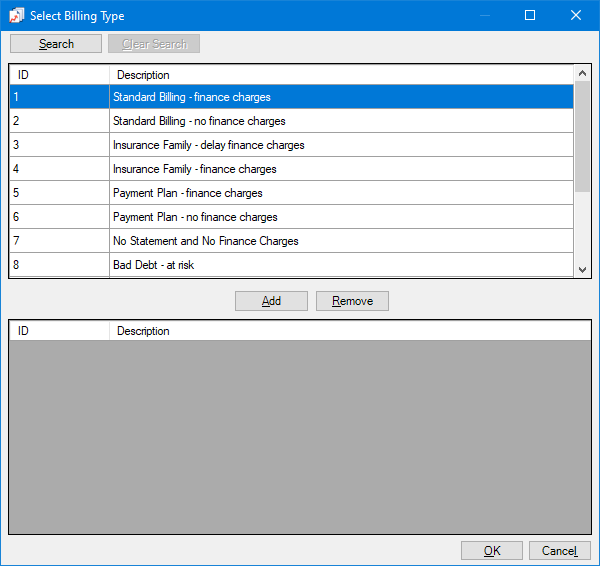
If the list is long, to search for a billing type by ID and/or description, do the following:
Click Search.
The options for searching appear in the upper list.

Enter the first character or more of a billing type's ID and/or description in the ID and Description boxes, respectively.
Click Show Results to view a list of matching billing types.
Note: To return to viewing the list of all the billing types, click Search, click Clear Search to clear the search criteria that you entered, and then click Show Results.
In the upper list, select one or more billing types.
Note: To select multiple billing types, click a billing type, and then, while pressing the Ctrl key, click the other desired billing types. To select a range of adjacent billing types, click the first billing type of the desired range of billing types, and then, while pressing the Shift key, click the last billing type of the desired range of billing types.
Click Add.
Repeat steps b-d as needed to add other billing types.
Note: To remove a billing type that you added, select that billing type in the lower list, and then click Remove.
Click OK.
Patient Tag - Do one of the following:
To not filter the report by a patient tag, clear the Run By Patient Tag checkbox.
To filter the report by the tags that are assigned to patients, select the Run By Patient Tag checkbox. With this checkbox selected, the options to filter the report by tag are available. Do one of the following:
To include transactions for patients with any patient tag, select the All checkbox.
To include transactions for patients with specific tags, do the following:
Click the search button .
The Patient Tag Selection dialog box appears.

If the list is long, to search for a patient tag, do the following:
Click Search.
The options for searching appear in the upper list.

Enter the first character or more of a patient tag name in the Tag Name box.
Click Show Results to view a list of matching patient tags.
Note: To return to viewing the list of all the patient tags, click Search, click Clear Search to clear the search criteria that you entered, and then click Show Results.
In the upper list, select one or more patient tags.
Note: To select multiple patient tags, click a patient tag, and then, while pressing the Ctrl key, click the other desired patient tags. To select a range of adjacent patient tags, click the first patient tag of the desired range of patient tags, and then, while pressing the Shift key, click the last patient tag of the desired range of patient tags.
Click Add.
Repeat steps b-d as needed to add other patient tags.
Note: To remove a patient tag that you added, select that patient tag in the lower list, and then click Remove.
Click OK.
Report Type - Select one of the following options:
Standard Summary - To generate a report that includes totals for the selected date range. The totals are grouped according to the selected Group By option.
Daily Summary - To generate a report that includes totals for each day in the date range. The totals are grouped according to the selected Group By option and then broken down by day.
Notes:
With Collecting Clinic selected under Select Clinic, the grouping of credits is based on the Date Type.
With Rendering Clinic selected under Select Clinic, the grouping of credits is based on the allocation date.
Group By - Select one of the following options:
No Group By - For no grouping. Only the grand totals appear on the report. The totals are not broken down by clinic or provider.
Note: With this grouping, the report does not include suspended credits.
Initial Provider - To group the report by initial provider (the provider selected as the Initial Provider in a patient's Family File). Totals are broken down by initial provider, and the report displays grand totals.
Notes:
With this grouping, the report includes suspended credits and uses the full amount of each credit.
This grouping could be beneficial if, for example, you wanted to pay retired dentists a percentage of work being performed on patients who they brought into the practice.
Rendering Provider - To group the report by rendering provider. Totals are broken down by the rendering provider, and the report displays grand totals.
Note: With this grouping, the report does not include suspended credits.
Clinic - Select one of the following options:
Provider then Clinic - To group the report by rendering provider and then clinic. Totals are broken down by the rendering provider and then by the clinic, and the report displays grand totals.
Clinic then Provider - To group the report by clinic and then rendering provider. Totals are broken down by the clinic and then by rendering provider, and the report displays grand totals.
Note: With this grouping, the report does not include suspended credits.
Note: Additional information about grouping and clinic options is explained in the Grouping and clinic selection scenarios section.
Adjustment Types:
Debits vs Credits - To assign each adjustment type as either a production or collection adjustment, do the following:
Click Debits vs Credits.
The Assign Adjustment Types dialog box appears.
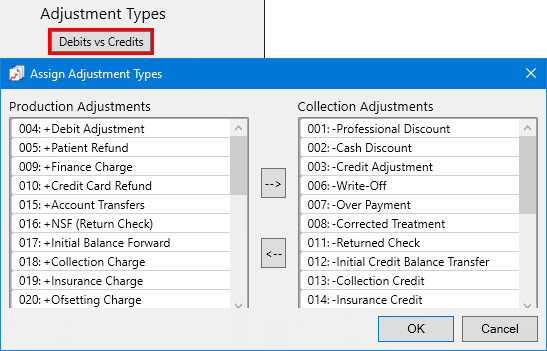
Note: By default, all debit adjustments are in the Production Adjustments list, and all credit adjustments are in the Collection Adjustments list.
Make sure that the adjustment types for the report are set up correctly:
The adjustment types that affect production must be assigned to Production Adjustments. To move an adjustment from the right list to the left list, select that adjustment in the Collection Adjustments list, and then click the Move to Left button  .
.
The adjustment types that affect collections must be assigned to Collection Adjustments. To move an adjustment from the left list to the right list, select that adjustment in the Production Adjustments list, and then click the Move to Right button  .
.
Click OK.
Include Adjustment Type List - To include a list of all the credit and debit adjustments and to which category (production or collection) each are assigned on the report, select this checkbox.
Click Save as Default to save the current settings for the next time you run the report.
Click Clear Defaults to revert the dialog box options to the original defaults.
Click Schedule to schedule a report job.
Click OK to preview the report.
Provider A/R Totals - Standard Report
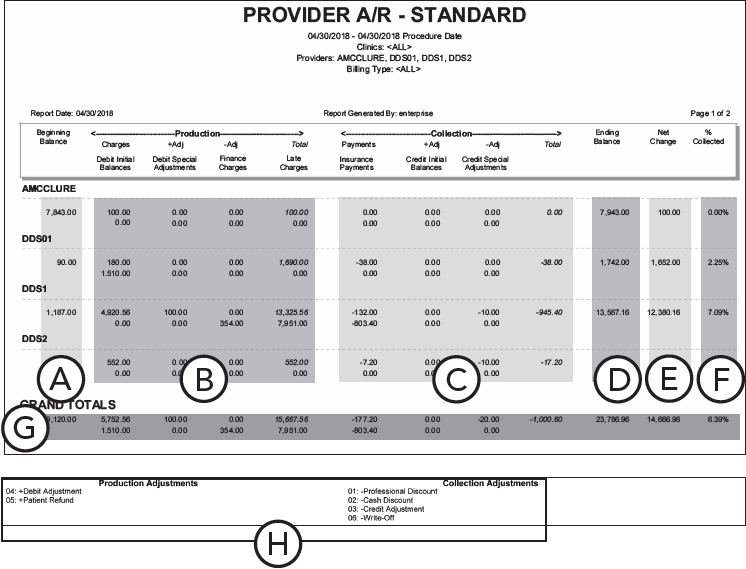
Important information this report provides
Beginning Balance - The outstanding amount that is owed to the provider/clinic at the end of the day prior to the beginning date range of the report.
Production:
Charges - The total charges for the provider/office within the date range.
Debit Initial Balances - The total positive initial balances entered from Ledger.
+ Adj - The total production adjustments that increase (debit) accounts receivable. This amount does not include debit initial balances, debit special adjustments, finance charges, and late charges.
Debit Special Adjustments - The total debit adjustments made during the editing of family relations from Family File.
- Adj - The total production adjustments that reduce (credit) accounts receivable.
Finance Charges - The total finance charges for payment agreements.
Late Charges - The total late fees for delinquent payments.
Total - The total production.
Collections:
Payments - The total payments for the provider/office within the date range.
Insurance Payments - The total payments from insurance companies for the provider/office within the date range.
+ Adj - The total collection adjustments that increase (debit) accounts receivable.
Credit Initial Balances - The total negative initial balances entered from Ledger.
- Adj - The total collection adjustments that decrease (credit) accounts receivable.
Credit Special Adjustments - The total credit adjustments made during the editing of family relations from Family File.
Ending Balance - The outstanding amount that is owed to the provider/clinic at the end date of the report.
Net Change - The difference between the Beginning Balance and Ending Balance (or between Production and Collections).
% Collected - The percentage of collections (the Production Total divided by the Collections Total) within the date range of the report.
Provider and Grand Totals - According to the Group By option selected when setting options for this report, the totals can be grouped by initial or rendering provider. The grand totals of all providers on the report also appear.
Adjustment Types List - If you select Include Adjustment Types List when setting options for running this report, the Adjustment Types List appears on the report. This list identifies whether an adjustment type has been set as a production or collections adjustment for the report.
Provider A/R Totals - Daily Report
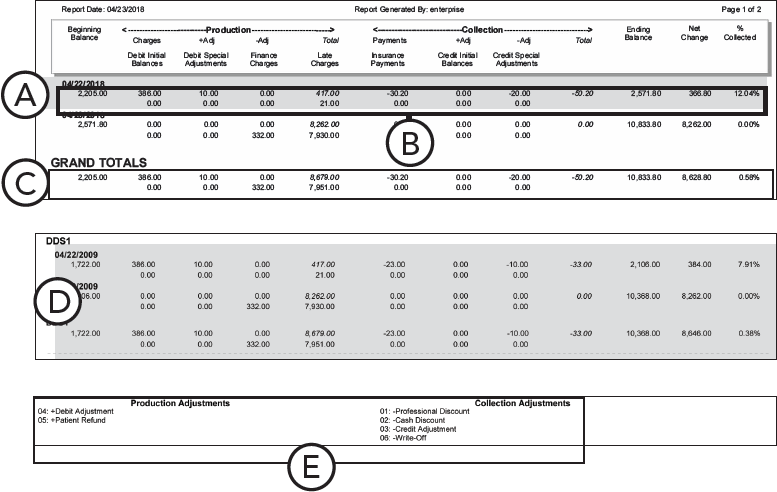
Important information this report provides
Daily Break Down - A daily breakdown of production totals.
Standard Provider A/R Totals - Standard provider accounts receivable totals.
Grand Totals -The combined daily production totals for all providers on the report.
Provider Totals - If Initial Provider or Rendering Provider is selected when setting up options to run this report, the totals are grouped and subtotaled by initial or rendering provider.
Adjustment Types List - If you select Include Adjustment Types List when setting options for running this report, the Adjustment Types List appears on the report. This list identifies whether an adjustment type has been set as a Production or Collections adjustment for the report.
Keep the following in mind when you are setting up the options for the Provider A/R Totals Report.
|
When the report uses the Initial Provider grouping option: The Collecting Clinic and Rendering Clinic options are not available. The report uses the Collecting Clinic for credits and the Rendering Clinic for charges. |
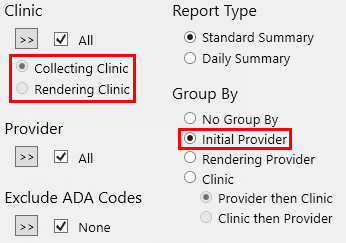 |
|
When the report uses the No Group By, Rendering Provider, or Clinic grouping option: Regardless of whether the Collecting Clinic or Rendering Clinic option is selected, the report always uses the Rendering Clinic for charges. With the Collecting Clinic option selected, the report uses the Collecting Clinic for credits. With the Rendering Clinic option selected, the report uses the Rendering Clinic for credits. |
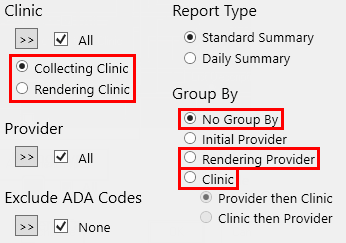 |
Beginning Balance
A charge or applied credit is included according to the following criteria:
|
Initial Provider |
No Group By / Rendering Provider / Clinic |
|
|
|
Collecting Clinic |
Rendering Clinic |
|
Ending Balance, |
Ending Balance, |
One of the following types: • Completed Procedure Codes • Charge Adjustments • Finance Charges • Charge Special Adjustments • Charge Initial Balances |
|
Charges minus Applied Credits |
||
|
(Charge only) The provider is one of the specified providers |
||
|
(Charge only) The amount is greater than zero |
||
|
(Charge only) The entry date or procedure date is before the beginning date of the specified range |
||
|
(Credit only) The allocation date is before the beginning date of the specified range (Entry or procedure date is ignored) The corresponding charge meets the criteria to be included on the report |
||
|
(Credit only) Applied to a completed procedure for an ADA code not being excluded The corresponding procedure meets the criteria to be included on the report |
||
Charges (Production)
A transaction is included as a charge on the report according to the following criteria:
|
Initial Provider |
No Group By / Rendering Provider / Clinic |
|
|
|
Collecting Clinic |
Rendering Clinic |
|
One of the following types: • Completed Procedures • Charge Adjustments (+Adj or -Adj, depending on production adjustment types specified) • Finance Charges • Debit Special Adjustments • Late Charges • Debit Initial Balances |
||
|
The amount is greater than zero |
||
|
The entry date or procedure date is within the specified range |
||
|
The billing type of the family is one of the specified billing types |
||
|
The rendering clinic is one of the specified clinics |
||
|
The patient has an initial provider |
The provider is one of the specified providers |
The provider is one of the specified providers |
|
(Completed procedure only) The ADA code is not being excluded |
||
Credits (Collections)
A transaction is included as a credit on the report according to the following criteria:
|
Initial Provider |
No Group By / Rendering Provider / Clinic |
|
|
|
Collecting Clinic |
Rendering Clinic |
|
One of the following types: • (Guarantor) Payments • Credit Adjustments (+Adj or -Adj, depending on the collection adjustment types specified) • Insurance Payments • Credit Special Adjustments • Credit Initial Balances |
||
|
The amount is less than zero (The full amount of the credit) |
The amount is less than zero (The applied amount only) |
The amount is less than zero (The applied amount only) |
|
The entry date or procedure date is within the specified range |
The allocation date is within the specified range (Entry or procedure date is ignored) |
The allocation date is within the specified range (Entry or procedure date is ignored) |
|
The billing type of the family is one of the specified billing types |
||
|
The rendering clinic is one of the specified clinics |
The collecting clinic is one of the specified clinics |
The rendering clinic is one of the specified clinics |
|
The patient has an initial provider |
The provider is one of the specified providers |
The provider is one of the specified providers |
|
Ignores ADA code exclusions |
Applied to a completed procedure for an ADA code not being excluded |
Applied to a completed procedure for an ADA code not being excluded |
Ending Balance
A charge or credit is included according to the following criteria:
|
Initial Provider |
No Group By / Rendering Provider / Clinic |
|
|
|
Collecting Clinic |
Rendering Clinic |
|
One of the following types: • Completed Procedure Codes • Guarantor Payments • Charge Adjustments • Credit Adjustments • Insurance Payments • Finance Charges • Charge Special Adjustments • Credit Special Adjustments • Late Charges • Charge Initial Balances |
One of the following types: • Completed Procedure Codes • Charge Adjustments • Finance Charges • Charge Special Adjustments • Charge Initial Balances |
Beginning Balance, |
|
Charges plus Credits |
Charges minus Applied Credits |
|
|
The patient has an initial provider |
(Charge only) The provider is one of the specified providers |
|
|
|
(Charge only) The amount is greater than zero |
|
|
The entry date or procedure date is on or before the ending date of the specified |
(Charge only) The entry date or procedure date is on or before the ending date of the specified range |
|
|
|
(Credit only) The allocation date is on or before the ending date of the specified range (Entry or procedure date is ignored) The corresponding charge meets the criteria to be included on the report |
|
|
The billing type of the family is one of the specified billing types |
|
|
|
The rendering clinic is one of the specified clinics |
The collecting clinic is one of the specified clinics |
|
|
(Completed procedure only) The ADA code is not being excluded |
(Completed procedure only) The ADA code is not being excluded |
|
|
|
(Credit only) Applied to a completed procedure for an ADA code not being excluded The corresponding procedure meets the criteria to be included on the report |
|
