
This guide provides information about the new software release. This guide includes a brief description of the new features and enhancements available in this release and instructions on how to use the new features and enhancements.
Notes:
For a complete list of features and fixes in this Dentrix Enterprise release, refer to the release notes.
Before installing or upgrading Dentrix Enterprise, make sure your computers comply with the latest system requirements.
According to Microsoft, mainstream support for Windows Server 2019 ended on January 9, 2024. Currently, Henry Schein One still provides support for Dentrix Enterprise on Windows Server 2019 as indicated in the system requirements.
This release includes the following enhancement:
Removing Appointment Book Providers - When you attempt to remove a provider from the Provider Setup in Appointment Book, you can no longer remove the provider if that provider is the only provider assigned to any views (with the selected clinic assigned).
The following section contains instructions about how to use the new enhancement of this release.
When you attempt to remove a provider from the Provider Setup in Appointment Book, you can no longer remove the provider if that provider is the only provider assigned to any views (with the selected clinic assigned).
To remove a provider from the setup
In Appointment Book, go to Setup > Provider Setup, select a Clinic, click Add Provider, select a provider from the lower list, and then click Remove Provider(s) From List.
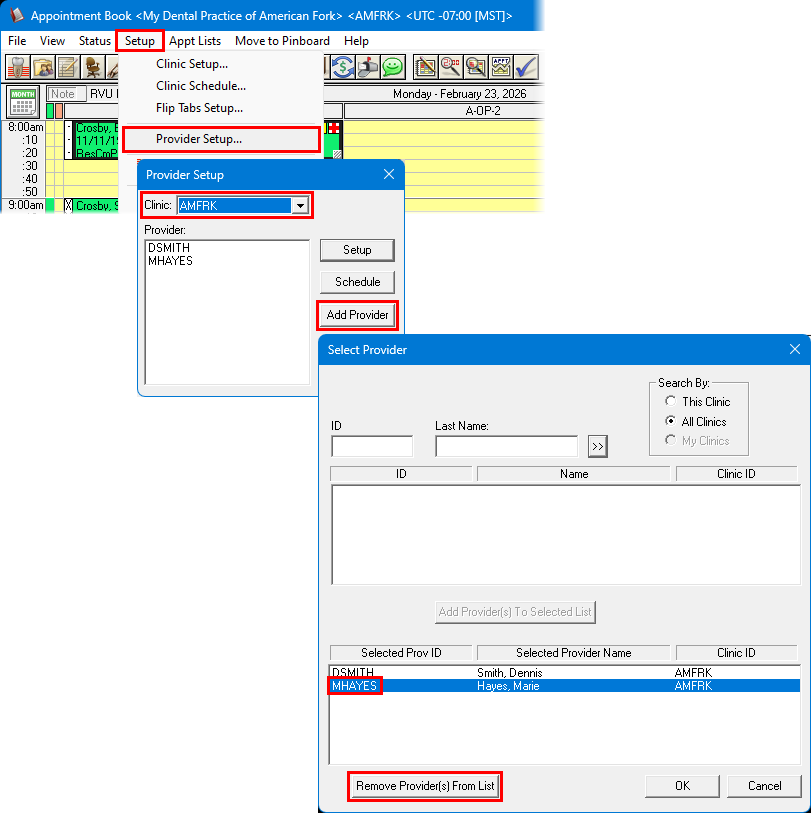
The confirmation message that appears varies:
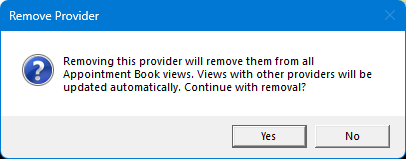
If all views (with the selected clinic assigned) will be left with other assigned providers, the message states that the provider will be removed from all views by removing the provider from the setup. If you click Yes, the provider is removed from the setup and all applicable views. If you click No, the provider is not removed from the setup or any views.
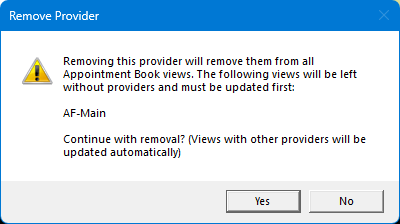
If any views (with the selected clinic assigned) will be left without an assigned provider, the message now lists the views that the provider cannot be removed from because doing so would leave those views without an assigned provider. If you click Yes, the provider is removed from views that have other providers assigned but not the listed views. If you click No, the provider is not removed from the setup or any views. You can update or delete the listed views manually and then retry the removal of the provider from the setup.
Notes:
Before allowing the removal of a provider from the Provider Setup, Dentrix Enterprise still checks for pending appointments that are scheduled with that provider (existing functionality).
Previously, removing a provider from the Provider Setup removed that provider from all views with the selected clinic assigned, which could lead some views without any provider assigned. In Appointment Book, if you attempt to use a view without an assigned provider, the following error appears: "No Provider or No Operatory."
