
You can add notations to any screen or image, and you can also add a snapshot of the images containing notations to a case presentation. Depending on the content you are annotating, you can add notations in one of two ways. If you are annotating patient education, use the drawing tools. If you are annotating presentation content other than patient education topics, use the Dentrix Notation Tools.
Regardless of the notations tool that you use, you must take a snapshot of the modified image in order to save your notations. You cannot save notations without taking a snapshot of them.
When you select a still image or pause an animation, the drawing tools become active. You can use the drawing tools to draw on or annotate images in the Viewing pane. The drawing tools include a pen tool, colour palette tool, eraser tool, text tool, and undo and redo buttons.
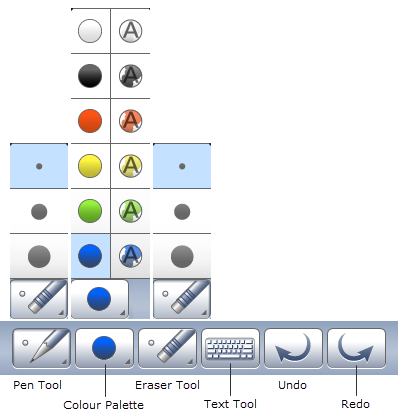
To use the Pen tool
1. Click the Pen Tool button to expand the Pen Tool Size menu.
2. Select the desired pen size or shape.
To use the Colour Palette
1. Click the Colour Palette button to expand the Colour Palette menu.
Note: On the Colour Palette menu, the colours on the right are slightly transparent; whereas, the colours on the left are opaque.
2. Select the desired pen colour.
To use the Eraser tool
1. Click the Eraser Tool button.
2. To change the size of the eraser tool, click the button again to expand the Eraser Tool Size menu.
3. Double-click the Eraser Tool button to erase all drawings or annotations from the image in the Viewing pane.
4. Drag your mouse over the image to erase small areas that you have drawn on or annotated.
To use the Text tool
1. Click the Text Tool button.
The Add Text dialog box appears.
2. Enter the desired text.
3. To change the font or colour, click the Font button, select the desired font and attributes, and then click OK.
4. When you are done entering text, click OK.
The text you just created follows your cursor.
5. Click on a spot of the image in the Viewing pane to place the text on the image.
To undo or redo an action
Click the Undo or Redo button to quickly erase or restore the last changes you have made.