
The Report tab in the Time Clock dialog box enables you to print a Time Punch Report and/or a Payroll Report using the employees and options selected. If you enabled passwords, a user must have rights to “Time Clock, Print Payroll Report” and/or “Time Clock, Print Time Punch Report.”
To print a report
1. In the notification area of the Windows taskbar, right-click the Time Clock icon, and then click Employee Clock In/Out.
The Select Provider/Staff dialog box appears.
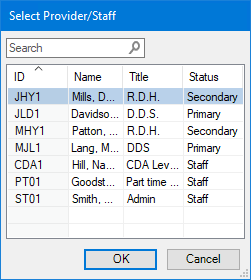
2. Select the appropriate employee and click OK.
The Time Clock dialog box for the selected employee appears.
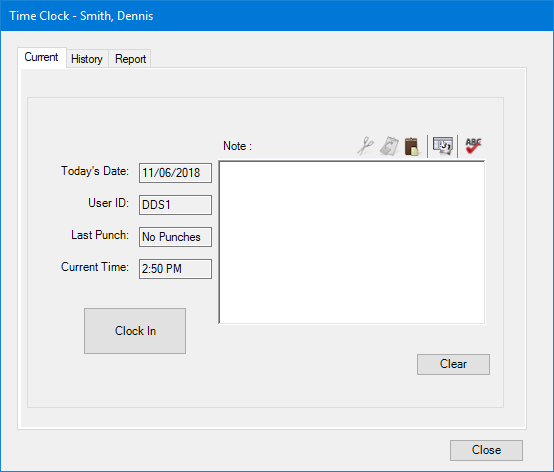
3. Click the Report tab.
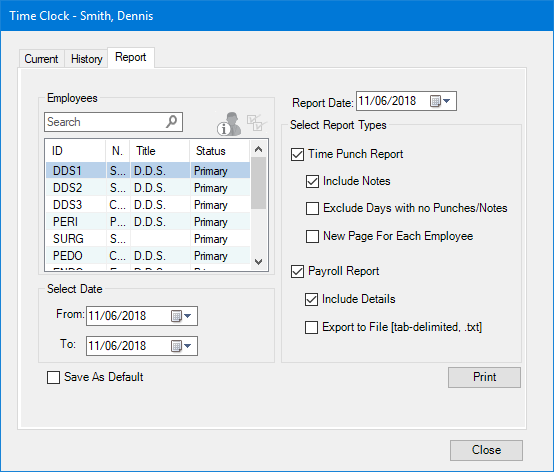
4. If necessary, edit the Report Date.
Note: By default, the report date is the current date.
5. Under Select Employee, select the employees you want to include on the report.
All to include all employees.
List Inactive to show inactive employees in the list.
6. Under Select Date, type a date range in the From and To fields, or expand the drop-downs and select the dates from a calendar.
7. Under Select Report Types, select the type of reports that you want along with any corresponding options:
Time Punch Report - Prints a list of In and Out punches that each employee made within the specified date range as well as the total time.
Include Notes – Select to include each day's Time Clock Notes.
Exclude Days with no Punches/Notes – Select to skip days that do not have recorded punches or notes.
New Page For Each Employee – Select to print a separate page for each employee you selected.
Payroll Report - Calculates and prints each selected employee’s ID, type (hourly or salary), pay rate and overtime rate, regular and overtime hours worked, and current calculated pay.
Include Details – Select to include all of the information described above. If you clear Include Details, Dentrix only lists the employee’s name, ID, hours worked, regular pay, overtime pay, and current pay.
Export to File (tab-delimited, .txt) – Select to save the data in a .txt file with the current date as the file name in your Dentrix/Doc directory (or wherever your Letter Template Path is in Preferences).
8. To save any changes you have made to the options for the next time the reports are printed, select Save As Default.
9. To print the reports, click Print.