
You can easily add letters to the Quick Letters list.
To add a letter to Quick Letters
1. From any Dentrix module (except the Office Manager), select a patient.
2. From the module's toolbar, click the Quick Letters button.
The Quick Letters dialog box appears.
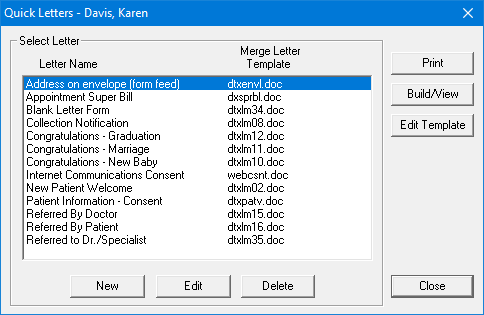
3. Click New.
The New Quick Letter dialog box appears.
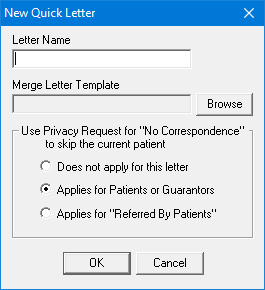
4. Type a name for the letter in the Letter Name field.
Use a name that will help you remember the purpose of the letter.
5. Type the template name in the Merge Letter Template Name field.
When entering the template name, remember the following:
· To add a letter to the Quick Letter list, the letter should have been created and saved. (See Creating patient letters.)
· The template name must match the file name for the document.
· The file extension must be included (for example, dtxlm13.doc).
· To merge a letter, the letter must be saved in the correct directory. All letters should be stored in the letter template path directory. To check the letter template path from the Office Manager, from Maintenance menu, point to Practice Setup and click Preferences. Click the Paths tab.
· If you select, Does not apply for this letter, patients with privacy requests will not be skipped.
· If you select Applies for Patients or Guarantors, all patients who have the "No correspondence" option selected in the Family File will be skipped.
· If you select Applies for "Referred By Patients," the letter will not include any patients who have a "Referred By" patient and the "No correspondence" option selected in the Family File.
6. To save the letter information and return to the Quick Letters dialog box, click OK.