
Using Dentrix you can quickly create and accurately track your patients' prescriptions. To set up and use prescriptions, you must first set up, define, and add each prescription type to the Dentrix database. You can then set up a printer and customize the printer defaults. You can also delete prescription types that you are no longer using.
To edit a prescription type
1. In any Dentrix module except the Office Manager, select a patient.
2. In the toolbar, click Prescriptions.
The Patient Prescriptions dialog box appears.
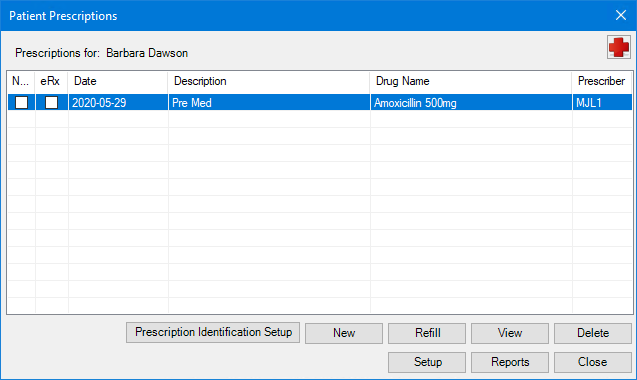
3. Click Setup.
The Prescriptions Setup dialog box appears.
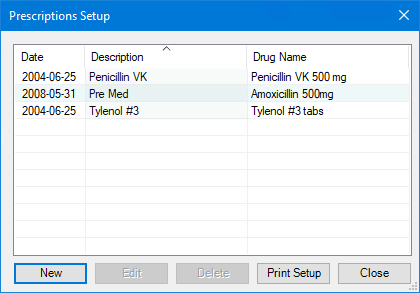
4. Select the prescription that you want to edit, and then click Edit.
The Edit Standard Prescription dialog box appears.
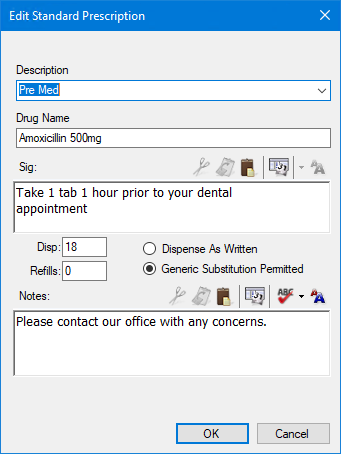
5. As necessary, do one or more of the following, and then click OK:
· Description – Type a description of the medication.
· Drug Name – Type the drug name.
· Sig – Type a dosage interval and any instructions that you want printed on the prescription form.
· Disp – Type the number or amount of the medication to dispense.
· Select one of the following options:
· Dispense as Written – To limit the prescription to the specified drug.
· Generic Substitution Permitted – To substitute a generic drug for a brand name one.
· Notes – Type any instructions regarding the prescribed medication.