

|

Registering for payment processing
Dentrix Pay processes credit cards through Moneris Solutions, Inc. (a Vantiv company), a third-party credit card merchant processor. To use Dentrix Pay, you must have internet access, you must have an Ingenico iPP320 payment device, and you must set up and activate a Moneris Gateway account. For details about how to set up a Moneris account, contact eServices Sales at (800) 734-5561.
After setting up a Moneris account, you will receive an email message or a letter from eServices with instructions on how to activate the Moneris Gateway service. The email message or letter will also include the following required information, which you will need to register for payment processing through Moneris and to set up Dentrix Pay:
· Merchant Name
· Moneris Merchant ID
· Moneris Gateway Store ID
· Moneris ECR IDs for your devices
Once you have set up your Moneris account, you can enable and set up Dentrix Pay in the Office Manager.
To register for payment processing
1. Go to the Moneris Gateway Merchant Resource Center website (https://esplus.moneris.com/usmpg/activate) to activate your practice.
The following screen appears.
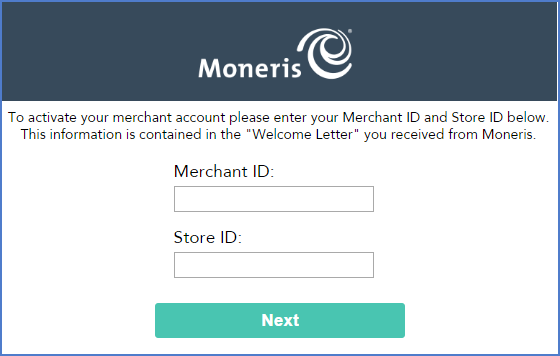
2. Enter your Merchant ID and Store ID, and then click Next.
3. Enter a Username and Password, and record this information in a secure place for future reference.
Note: You will need your username and password to access reports and to manage your account.
4. In the ADMIN menu, click Store Settings to obtain your API token.
Important: When you set up Dentrix Pay, you must enter your Store ID and API token before you can process transactions.
5. Copy the API token to the Windows Clipboard so you can later copy it to the Dentrix Pay Setup dialog box in the Office Manager. You may also want to write the API token down.
Tip: If you ever believe that your API token security has been compromised, you can regenerate the API token at the Moneris Gateway Merchant Resource Center website.