
After setting up your Practice Analysis, you can run Practice Analysis reports.
To run Practice Analysis reports
1. In the Practice Analysis window, click Reports from the menu bar.
The Practice Analysis Reports dialog box appears.
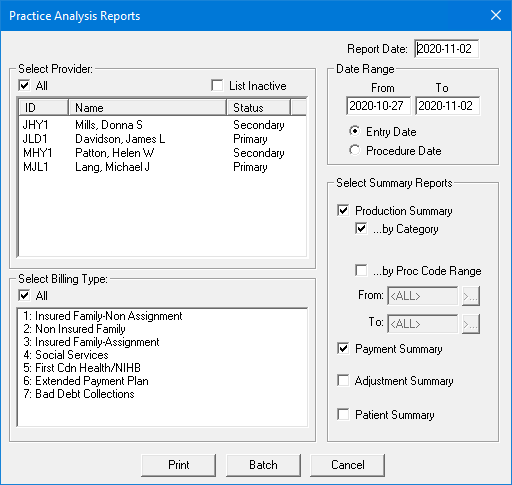
2. Select the desired providers or select All to include all providers, and/or select List Inactive to view inactive providers in the list.
3. Select the billing types that you want to filter the reports by or select All to report on all billing types.
4. In the Report Date field, type the date that you want to appear on the report. By default, this is the current system date.
5. In the From and To fields, type the date range that you want to analyze and select whether to display by entry date or procedure date. The default is Entry Date.
6. Select any or all of the following summary reports available for you to view and/or print:
Production Summary
by Category
by Proc Code Range
Click the From and To search buttons to specify a procedure code range.
Payment Summary
Adjustment Summary – Indicates which adjustment types are applied to production and which are applied to collections with additional totals for adjustment assignments.
Patient Summary
7. The reports you selected can be printed or sent to the Batch Processor for printing at a later time. Click Print if you want to print the report now, or Batch to generate the report and send it to the Batch Processor in the Office Manager.