
Occasionally, providers or staff members may forget their passwords. You can reset their passwords using the Practice Resource Setup dialog box.
To reset a provider or staff password
1. In the Office Manager, click Maintenance, point to Practice Setup, and then click Practice Resource Setup.
The Practice Resource Setup dialog box appears.
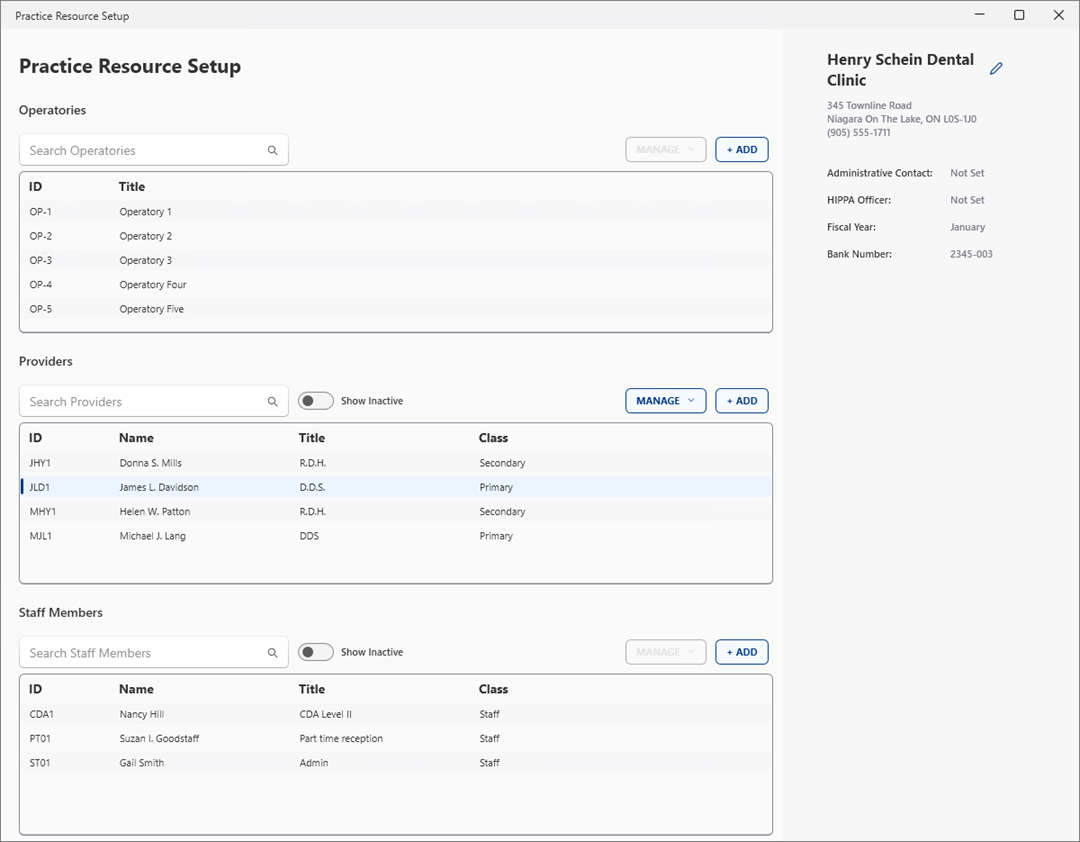
2. Click the provider whose password you want to reset.
3. Click Manage, and then from the list, click Reset Password.
The Create a Temporary Password dialog box appears.
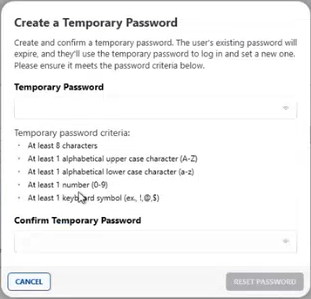
4. Under Temporary Password, type a password.
5. Under Confirm Temporary Password, re-type the temporary password, and then click Reset Password.
The next time the provider or staff member logs in, he or she must create a new, more permanent password.