
You can designate which providers will be hygienists and which will be dentists for the Practice Advisor report.
To assign providers
1. In the Practice Advisor Setup dialog box, click Assign Providers as Dentist/Hygienist.
The Assign Providers as Dentist/Hygienist dialog box appears.
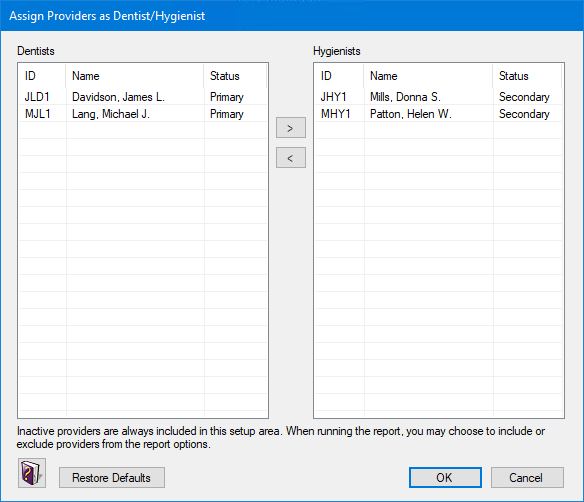
The Dentists and Hygienists list boxes contain the ID, Name, and Status of each provider from the Practice Resource Setup dialog box (For information on how to add and edit provider information, see Practice resource setup). By default, providers (including inactive providers) with a “Primary” Status are assigned to the Dentists list; “Secondary,” to the Hygienists list.
Note: Inactive providers are included in case you want to run the report for a date range in history and want to include data from any of those providers when they were active.
2. Customize the Dentists and Hygienists lists:
To move a dentist or hygienist from one list box to another, select a dentist or hygienist, and then click the left arrow (<) or right arrow (>) button.
To move multiple dentists or hygienists, while holding down the Ctrl key, select the desired dentists or hygienists, and then click the left arrow (<) or right arrow (>) button.
To return providers with a “Primary” Status to the Dentists list and providers with a “Secondary” Status to the Hygienists list, click Restore Defaults.
3. Do one of the following:
To save any changes, click OK.
To exit the Assign Providers as Dentist/Hygienist dialog box without saving, click Cancel.