
The Claim Information block displays information that is specific to a patient and an insurance preauthorization estimate.
To change preauthorization estimate claim information
1. Create a primary dental preauthorization estimate.
Note: To make changes to a primary dental preauthorization estimate, skip Step 2.
2. In the Primary Dental Preauthorization Estimate window, click Create Secondary.
The Secondary Dental Preauthorization Estimate window appears.
Note: If you have made changes to the patient's secondary insurance plan since creating the primary dental preauthorization estimate, the Create Secondary menu option is not available.
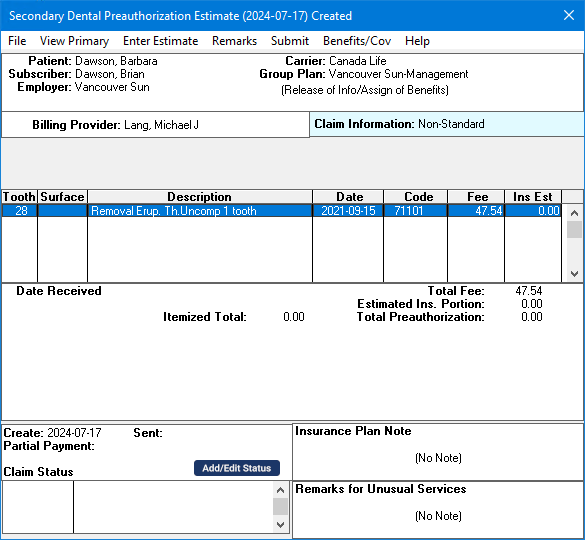
3. Double-click the Claim Information block.
The Insurance Claim Information dialog box appears.
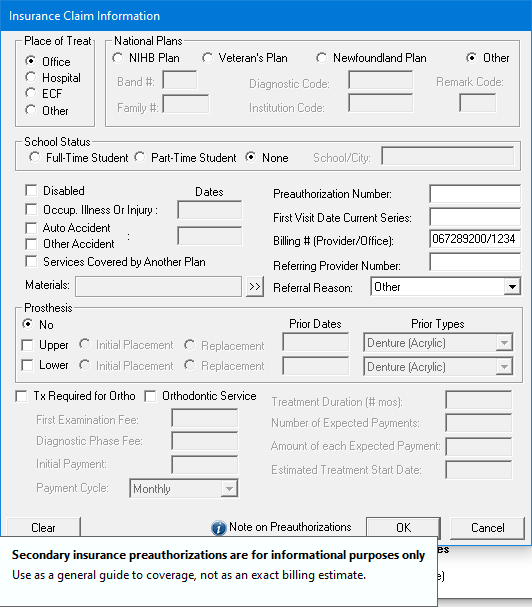
Note: The Note on Preauthorizations icon and messaging only apply to secondary preauthorization estimates.
4. Make changes to any of the information displayed in the Insurance Claim Information dialog box:
Place of Treat - Select the location where treatment was performed.
National Plans - Select the appropriate national plan, and type the accompanying information for that plan.
School Status - Select the appropriate status for the patient. If the patient is a part- or full-time student, enter the name of the school and the city where it is located in the text box.
Disabled - Select if the patient is disabled.
Occupational Illness or Injury - Select if treatment was necessary due to an on-the-job illness or injury. Type the relevant date and description.
Accident Information - Select Auto Accident or Other Accident if treatment was necessary as result of an accident. Type the relevant date and description.
Services Covered by Another Plan - Select if needed and type a relevant description.
Materials - Click the search button (double chevron), and in the Materials Forwarded dialog box, select the supporting material that you will forward with the claim.
Preauthorization Number - If required, type the preauthorization number provided by the patient’s insurance carrier.
Note: If you received a preauthorization and entered it in Dentrix, the preauthorization number automatically prints on the insurance claim. If there is more than one number for the procedures on the claim, you must create a claim for each set of procedures with a different preauthorization number.
First Visit Date Current Series - Type the appropriate date.
Billing # (Provider/Office) - Type the appropriate date.
Referral - If treatment is being referred out, type a Referring Provider Number, and select a Referral Reason.
Prosthesis - If the claim involves a prosthesis, select the appropriate option and specify the necessary information.
Orthodontic Service - If the claim is for orthodontic service, specify the necessary information.
Note: To reset the Insurance Information options to the defaults, click Clear.
5. To save your changes and return to the Dental Preauthorization Estimate window, click OK.
Note: When you enter or clear claim information in a Claim window, the changes only apply to the currently displayed claim and the associated primary or secondary claim. When you create a new claim, the claim information uses the defaults for the current patient. You can change the defaults for the patient through the Appointment Book. For more information, click Scheduling appointments.