
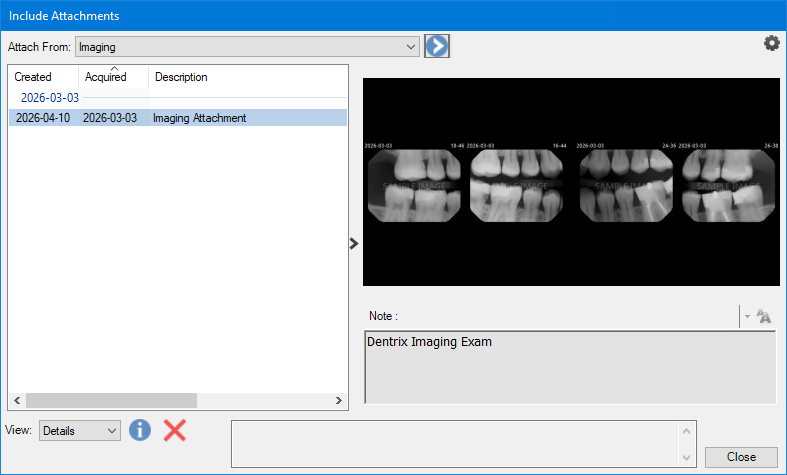
You can attach images that you acquired using Dentrix Imaging.
To attach an image from Dentrix Imaging
1. Double-click an insurance claim in the transaction log.
The Dental Insurance Claim window appears.
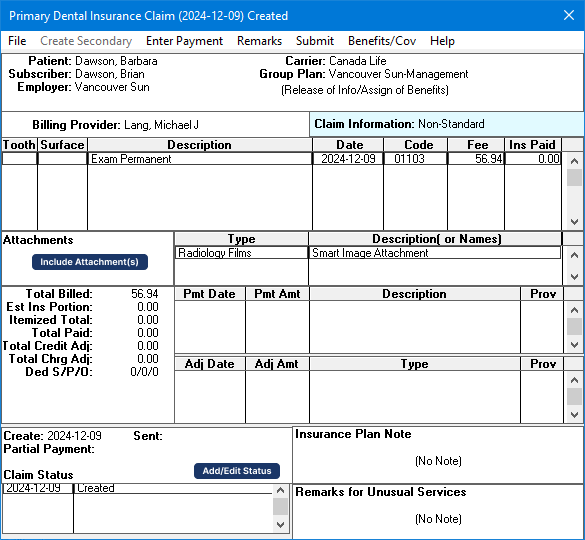
2. Under Attachments, click Include Attachments.
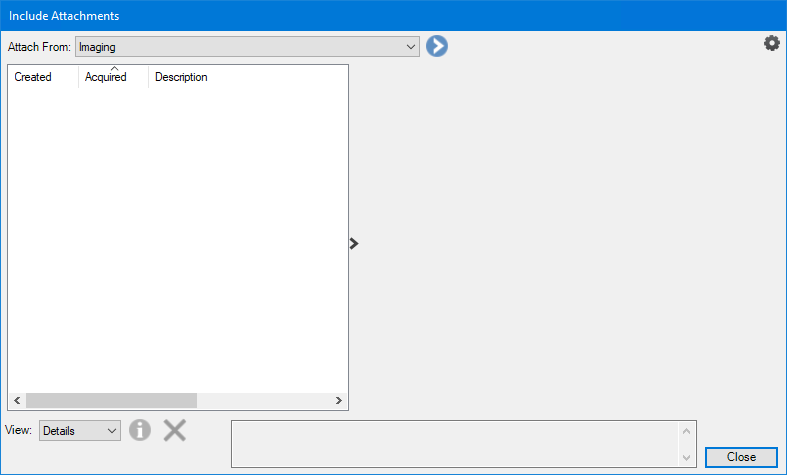
The Include Attachments dialog box appears.
3. Do one of the following:
If Imaging appears in the Attach From list, click the blue chevron icon.
If Imaging does not appear in the Attach From list, click the Down arrow, and then click Imaging.
The Imaging Attachment dialog box appears.
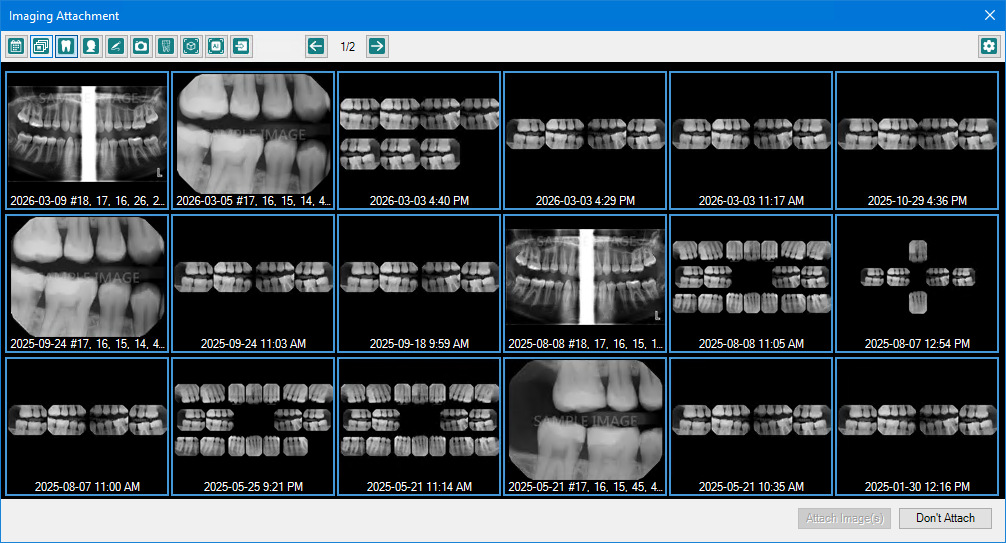
4. Click the images that you want to attach to the claim.
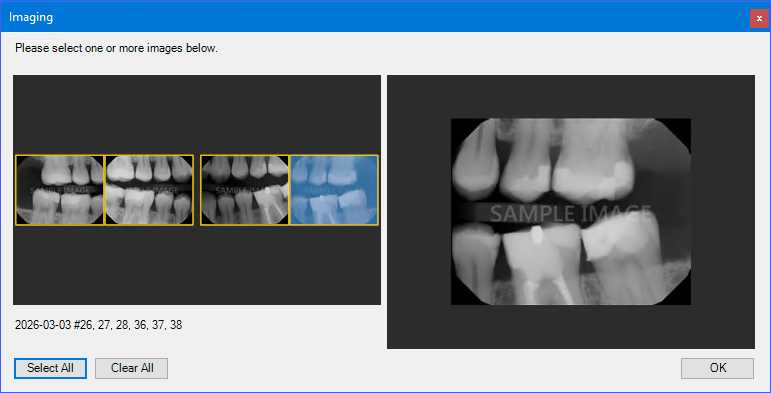
If the image contains more than one image, the Imaging dialog box appears.
a. Do one of the following:
Select one or more of the images.
Click Select All.
b. Click OK.
5. Click Attach Image(s).
The selected images appear in the Include Attachments dialog box.
6. Click Close.