
The Dental Insurance Claim window has been redesigned to make it more intuitive and easier to use. You can preview the proposed changes.
To preview the new Dental Insurance Claim window
1. Open the Ledger, and then double-click an insurance claim.
The Dental Insurance Claim window appears.
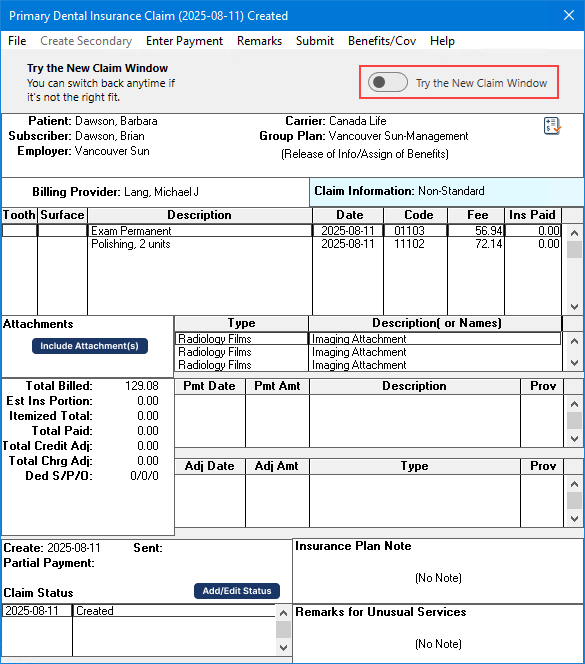
2. To preview the redesigned Dental Insurance Claim window, click the Try the New Claim Window toggle.
The redesigned Dental Insurance Claim window appears.
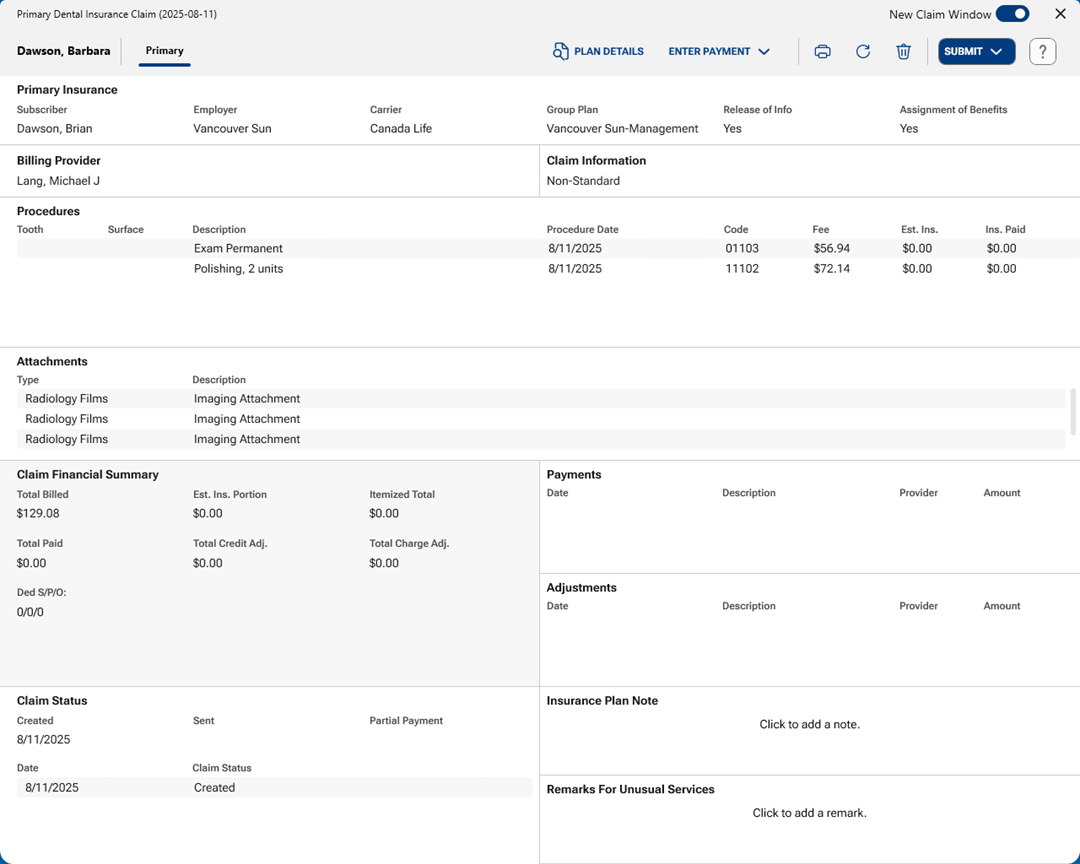
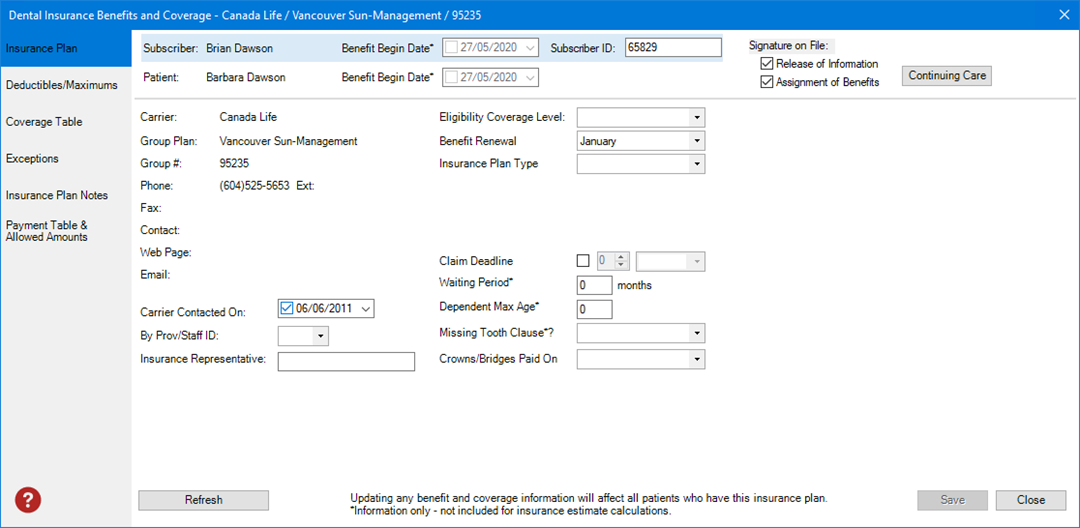
3. To view the details of the selected patient’s insurance plan, click Plan Details.
The Dental Insurance Benefits and Coverage dialog box appears.
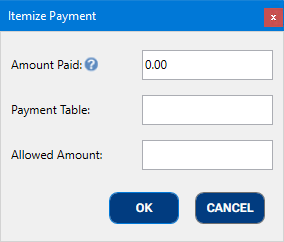
4. To enter a payment, click Enter Payment, and then click Itemized by Procedure or Total Payment.
Depending on the option you selected, that option’s dialog box appears.
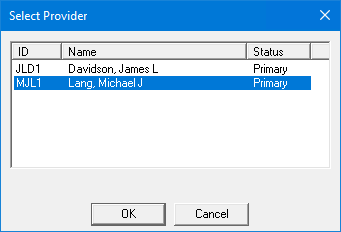
5. To open the specific dialog box associated with a card, click the name of the card. For example, to change a billing provider, click Billing Provider.
The Select Provider dialog box appears.
6. To submit a claim, click Submit, and then click Send to Batch or Send Electronically.
7. To return to the classic Dental Insurance Claim window, click the New Claim Window toggle.