
When you enter a payment in the Ledger, you can apply it to the family balance or an individual patient’s balance within that family. When you apply a payment to the family, it is applied to the oldest balance. You can select the current patient or family as the payment default. When you make a payment or an adjustment in the Ledger, this default is selected automatically. You can always change the patient assignment when entering a transaction.
Note: Even though you can allocate payments and adjustments to an entire family, we recommend that you allocate payments and adjustments to a specific patient instead.
To change a default payment setting
1. With a patient selected in the Ledger, click Transaction, and then click Enter Payment.
The Enter Payment dialog box appears.
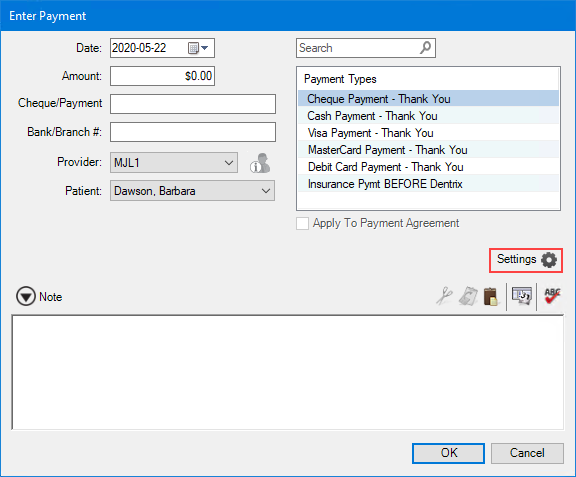
2. Click the Settings icon, and then click Default Payment/Adjustment Options.
The Default Payment/Adjustment Options dialog box appears.
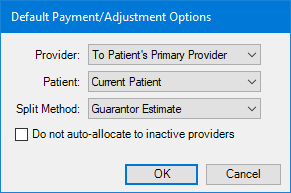
3. Select one or more of the following from the appropriate lists:
Provider –
Split By Provider – Splits payments by provider.
To Patient's Primary Provider – Allocates payments to the patient's primary provider.
To Guarantor's Primary Provider – This option only appears if you select Family Account under Patient.
Patient –
Current Patient – (Default) Applies payments or adjustments to the current selected patient.
Split By Family Members – Splits payments by family member. Adjustments are allocated to an individual patient and are not split.
Family Account – Applies payments or adjustments to a family's account.
Important: We recommend that you allocate payments and adjustments to a specific patient and not the entire family.
Split Method –
Guarantor Estimate – (Default) Allocates payments or adjustments according to the guarantor estimate.
Percentage Payments – Allocates payments or adjustments on a percentage basis.
FIFO (First In First Out) – Allocates payments or adjustments on a first-in first-out basis.
Equal Payments – Allocates payments or adjustments on an equal payment basis.
4. To reset your payment and adjustment settings in the Office Manager, click OK.