
You can use the Provider Credit Balances Manager to allocate provider balances in bulk for 0.00 dollar accounts.
To allocate provider balances in bulk for 0.00 dollar accounts
1. In the Ledger, click File, and then from the menu, click Provider Credit Balances Manager.
The Provider Credit Balances Manager View dialog box appears.
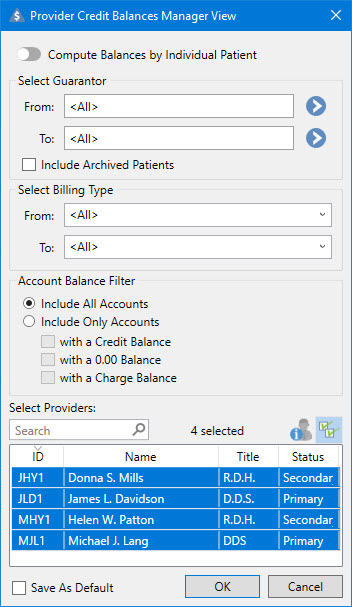
2. Under Account Balance Filter, select Include Only Accounts, and then do the following:
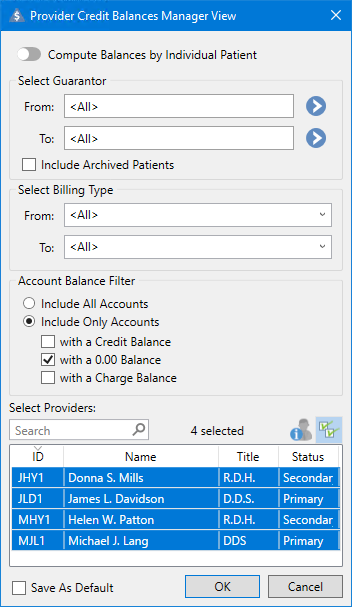
a. Clear the with a Credit Balance and with a Charge Balance checkboxes.
b. Click OK.
The Provider Credit Balances Manager window appears listing accounts with a 0.00 dollar balance only.
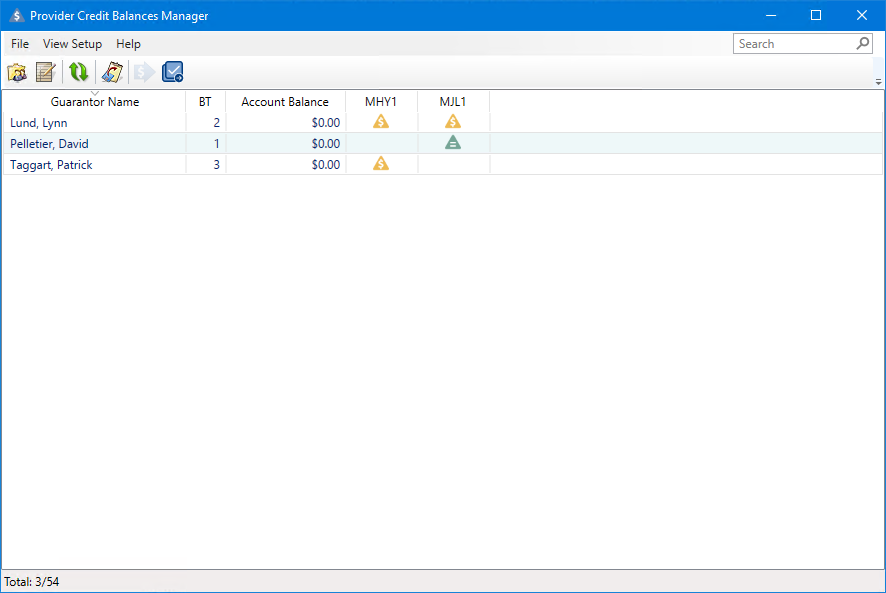
3. Click the Bulk Allocate Credit Balances toolbar button.
The Bulk Allocate Credit Balances dialog box appears.
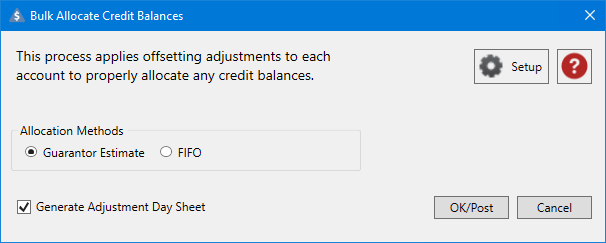
4. To change the allocation types you may have previously selected, click Setup.
The Allocate Balances Settings dialog box appears.
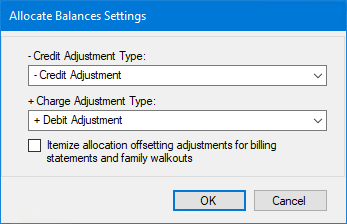
5. Select your preferred - Credit Adjust Type and + Charge Adjustment Type, and then click OK.
6. In the Bulk Allocate Credit Balances dialog box, click OK/Post.
A progress box appears while the bulk allocation process runs.
When the process is complete, a results box appears.
An Adjustment Day Sheet report appears detailing the results of the bulk allocation..