
You can switch the patient’s primary and secondary coverage by removing the existing coverage information and then re-selecting it in the desired coverage area.
To switch the patient’s primary and secondary coverage
1. From the Family File, select a patient.
2. Double-click the Insurance Information block.
The Insurance Information dialog box appears.
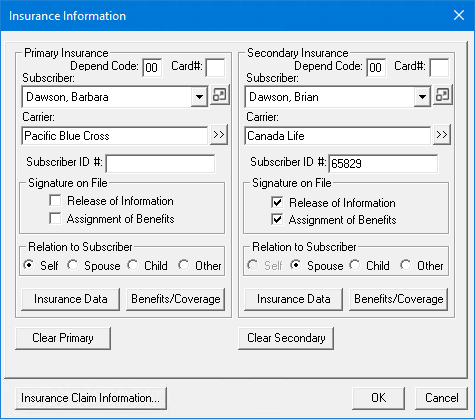
3. Click Clear Primary and Clear Secondary.
The patient's primary and secondary insurance information is cleared.
4. Under Primary Insurance, click the Subscriber search button.
The Select Primary Subscriber (Insured Party) dialog box appears.
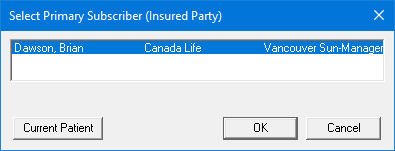
5. Select the subscriber for the primary insurance, and then click OK.
6. Under Secondary Insurance, click the Subscriber search button.
The Select Secondary Subscriber (Insured Party) dialog box appears.
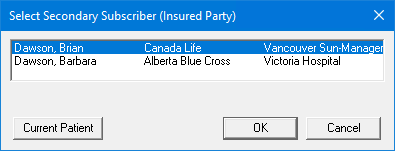
7. Select the subscriber for the secondary insurance, and then click OK.
8. Under Primary Insurance, click the Carrier search button.
The Select Primary Dental Insurance Plan dialog box appears.

9. Select the patient's primary insurance carrier from the list, and click OK.
10. Under Secondary Insurance, click the Carrier search button.
The Select Secondary Dental Insurance Plan dialog box appears.
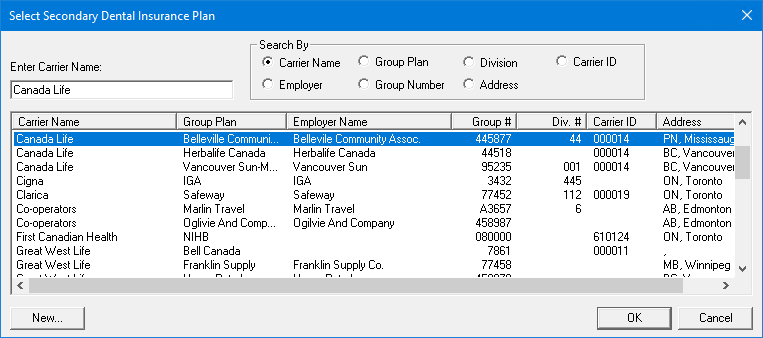
11. Select the patient's secondary insurance carrier from the list, and then click OK.
12. From the Insurance Information dialog box, click OK to accept the patient's new primary and secondary insurance coverages.