
When you set preferences in the Document Center, you can modify where your documents are saved, select the format of image files that you e-mail, specify the compression type you want to use for documents, and select the type of device you use to sign documents electronically.
To set preferences for Document Center
1. From the Setup menu in the Document Center, click Document Center Preferences.
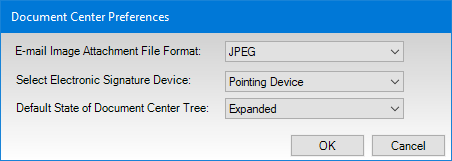
The Document Center Preferences dialog box appears.
Note: By default, documents are stored in the Dentrix database folder, but you can change this if you want.
2. To change where you save your documents, in the Document Directory field, enter the location where you want your documents to be saved or click Browse to specify a location to store your files.
3. To specify the file format to use when you send documents within the Document Center by e-mail, select one from E-mail Image Attachment File Format.
4. To select the type of compression you want to use when you store documents within the Document Center, select one from Select the Desired Compression Type.
For best results, select Perfect Quality.
5. To sign documents in the Document Center, select the device you want to use from Select Electronic Signature Device.
Note: Changes made to the electronic signature device will affect the signature device settings for all modules on that workstation.
6. To save your changes, click OK.