
You can use a Patient Payments Report to review a patient's payments that were applied during a date range.
To run a Patient Payments Report
1. In the Office Manager toolbar, click Analysis, and then click Dentrix Reports.
The Dentrix Reports window appears.
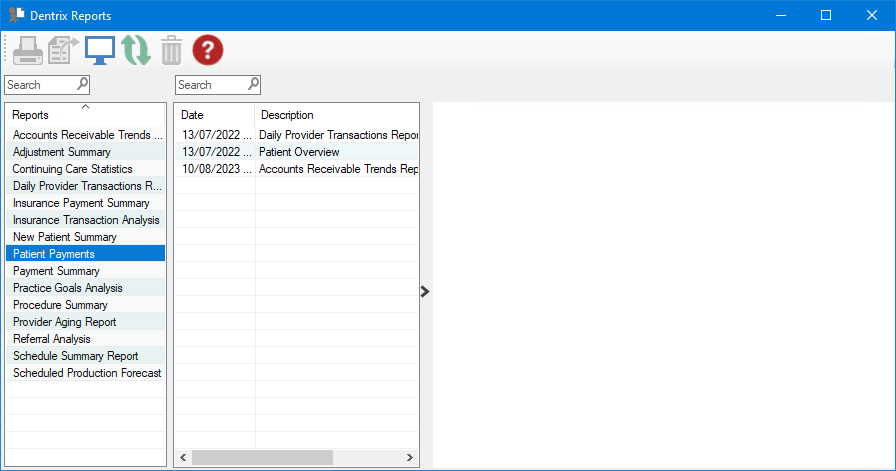
2. Under Reports, double-click Patient Payments.
The Patient Payments dialog box appears.
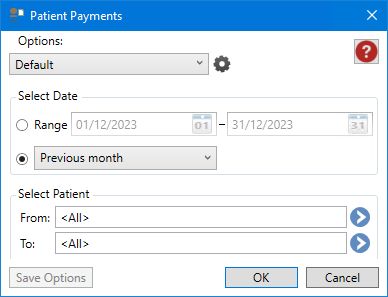
3. To run the report with the default settings, click OK.
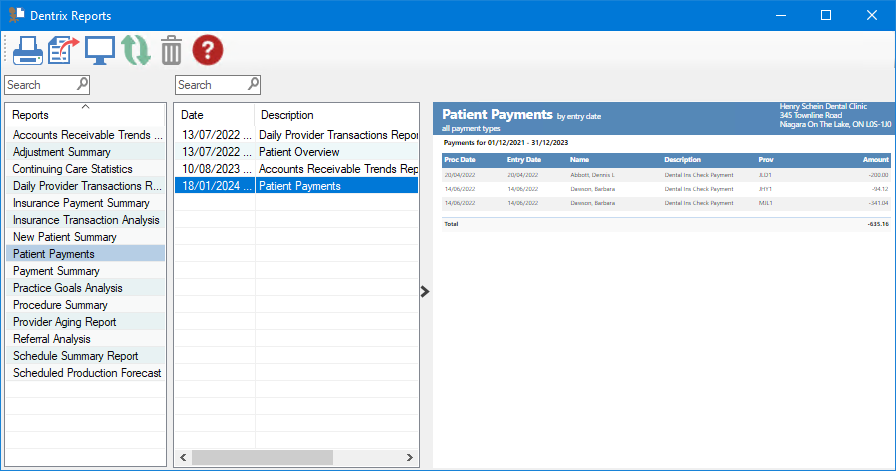
The Patient Payments Report is listed, and a preview of the report appears.
Note: You may need to enlarge the Dentrix Reports window and go to the end of the report to view all of the data including the total amount.
4. To modify the default settings in the Patient Payments dialog box and generate a new Patient Payment Report, double-click Patient Payments again, and then do one or more of the following:
Select Date – You can set a specific date range or select a set of interval options.
Range – Enter the start and end dates, or click the date icon, and then select the date from the calendar.
Date Options – Defaults to the Previous month. For example, if you generate a report on June 2, 2023 using this option, the report will contain data for May 1 through May 31. Other options include:
Current day – Generates a report for the current day.
Previous day – Generates a report for the previous day. For example, if you generate a report on June 2, 2023 using this option, the report will contain data for June 1, 2023.
Previous week – Generates a report for the previous Sunday through Saturday. For example, if you generate a report on Monday, June 5, 2023 using this option, the report will contain data for Sunday, May 28 through Saturday, June 3.
Previous 3 months – Generates a report for the previous 3 months. For example, if you generate a report on June 2, 2023 using this option, the report will contain data for March 1 through May 31.
Previous 6 months – Generates a report for the previous 6 months. For example, if you generate a report on June 2, 2023 using this option, the report will contain data for December 1, 2022 through May 31 , 2023.
Previous year – Generates a report for the previous year. For example, if you generate a report on June 2, 2023 using this option, the report will contain data for January 1, 2022 through December 31, 2022.
Select Patient – Defaults to all patients. To select a patient or a range of patients, click the search buttons, and then select the patient or patients from the Select Patient dialog box.
5. To save any changes you made to the default settings, click Save Options.
6. To manage any saved options, click the Manage Saved options icon.
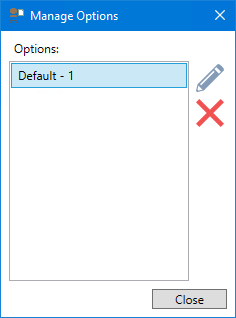
The Manage Options dialog box appears.
7. Do one of the following:
To rename an option, select it, click the Rename Selected Item icon, and then type a new name.
To delete an option, select it, and then click the Delete Selected Item icon.
Important: You can only rename or delete options that you have created.