
The Payment Summary Report displays payment totals for a selected date range. Unlike the Practice Analysis - Payment Summary Report, the Payment Summary Report displays provider and year-to-date totals.
 |
Why: |
To view payment totals by provider, and to view year-to-date payment totals. |
When: |
Yearly and/or as needed. |
In the Office Manager, from the Analysis menu, click Dentrix Reports. Under Reports in the Dentrix Reports window, double-click Payment Summary. For step-by-step instructions on how to run this report, see the Dentrix Help (in the Office Manager, from the Help menu, click Contents).
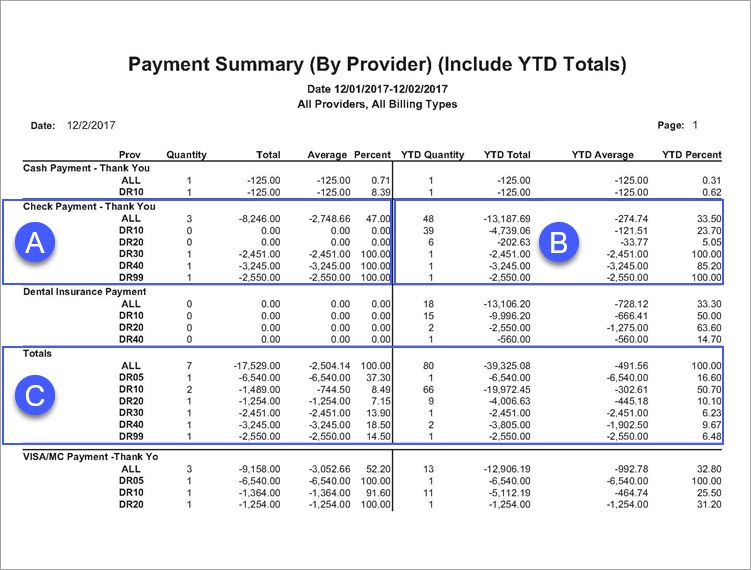
A. Payment Totals – The quantity, total, and payment percentage (the payment sub total divided by the combined payments total listed in the Totals section).
B. Year-to-date Totals – If you select Include YTD Totals when setting options for this report, the year-to-date quantity, total, average, and year-to-date payment percent (the year-to-date payment total divided by the combined year-to-date payment total) appear on the report.
C. Totals – The combined totals of all payment types.
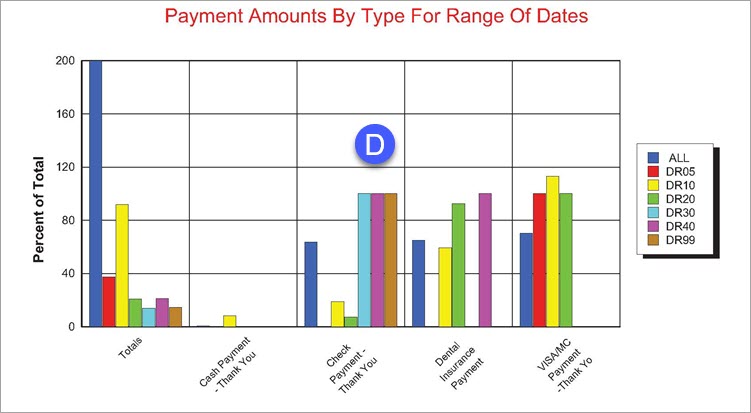
D. Payments Amounts By Type For Range Of Dates – If you select Include Graph/Chart when setting options for this report, a graphical representation of the all Payment Totals (letter A) appears on the report.
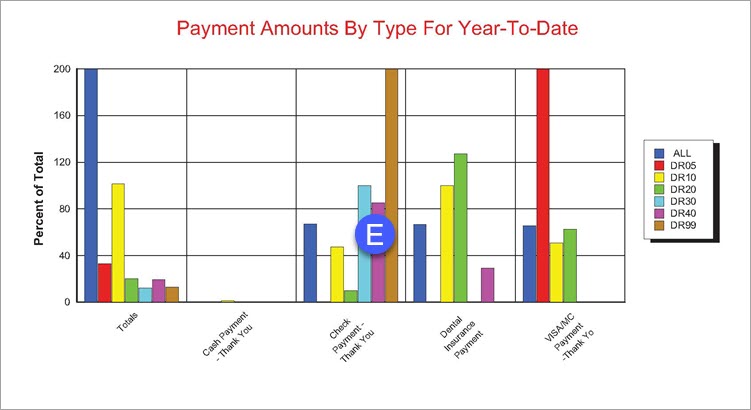
E. Payments Amounts By Type For Year-to-date – If you select Include Graph/Chart and Include YTD Totals when setting options for this report, a graphical representation of all Year-to-date Totals (letter B) appears on the report.