
The Insurance Aging Report lists outstanding insurance claims, grouped by insurance carrier, along with the aged balances of each claim.
 |
Why: |
To identify unpaid claims so they can be targeted for collections. |
|
When: |
Monthly. |
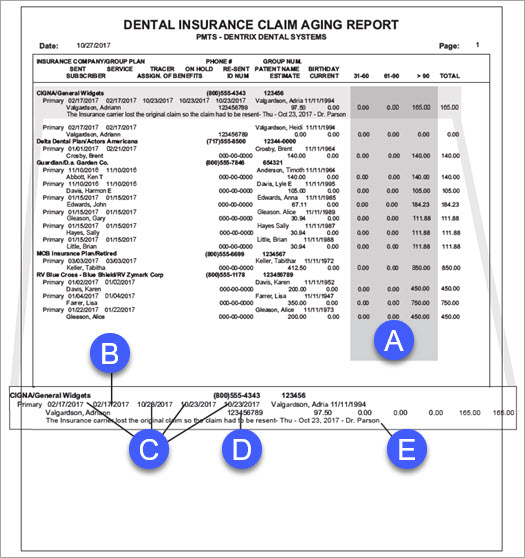
In the Office Manager from the Reports menu, point to Ledger, and then click Insurance Aging Report. For additional details about running this report, see the Dentrix Help (in the Office Manager from the Help menu, click Contents).
A. Aged Balances – The claim’s aged balances.
B. Service – The service date (the date of the procedure) is pulled from the Primary (or Secondary) Insurance Claim window, which can be accessed by double-clicking a claim in the Ledger. The service date is automatically entered when a claim is posted.
C. Dates associated with the claim – If you have entered dates in the Insurance Claim Status dialog box, the corresponding dates appear on the report:
Sent – The date the claim was sent. If you send a claim electronically, the Sent date is automatically entered in the Insurance Claim Status dialog box.
Tracer – The date the tracer was sent (if any).
On Hold – Indicates the date the claim was placed on hold (if any).
Re-Sent – The date the claim was re-sent to the insurance carrier (if applicable). If you re-send a claim electronically, the Re-sent date is automatically entered in the Insurance Claim Status dialog box.
D. ID Num – A unique number that Dentrix assigns to the claim. This number is not the same number the insurance carrier assigns to the claim.
E. Claim Status Notes – If you select Print Status Note when setting options for this report, claim status notes (from the Insurance Claim Status dialog box) appear on the report.