
The Continuing Care Report displays continuing care appointments based on the continuing care views set up in the Appointment Book.
|
Why: |
To view continuing care appointments. |
When: |
As needed |
The following instructions assume you are familiar with the Dentrix continuing care views. See the Dentrix Help (in the Appointment Book, from the Help menu, click Contents) for details on how to set up and use continuing care views.
To run this report
1. In
the Appointment Book, click the Continuing Care toolbar button  .
.
The Dentrix Continuing Care window appears.
2. From the View menu, click a continuing care view.
3. From the File menu, click Print to print the continuing care view in report form.
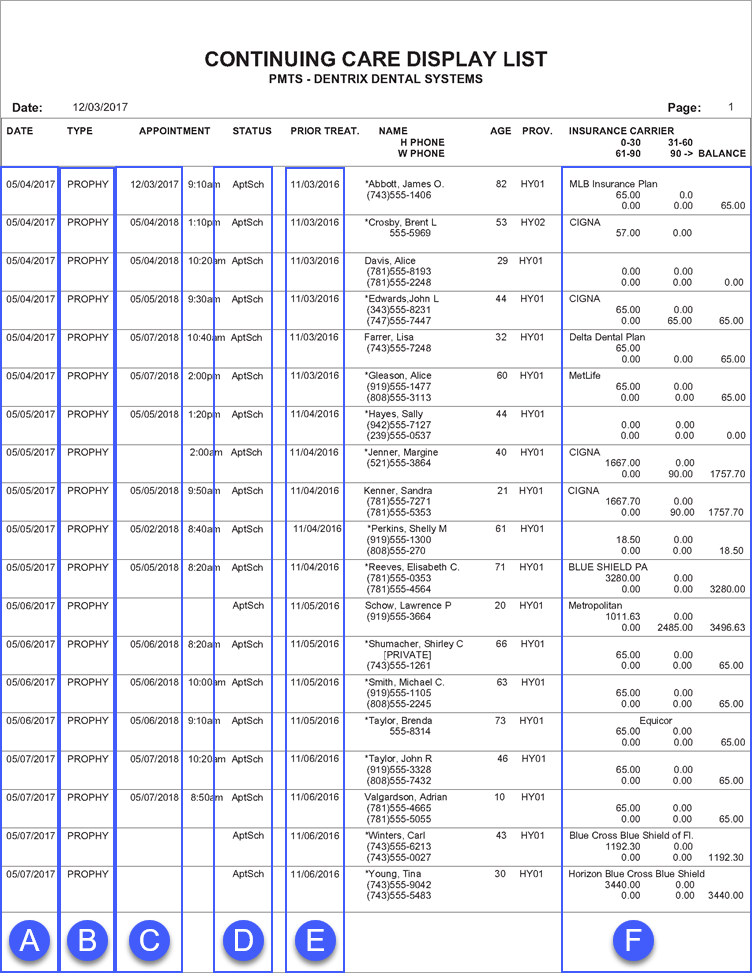
The following information (with the exception of letter F) is pulled from the Edit Continuing Care dialog box.
A. Date – The continuing care due date.
B. Type – The continuing care type.
C. Appointment – The date of the patient’s scheduled continuing care appointment (if any).
D. Status – The appointment status.
E. Prior Treatment – The date of the patient’s last posted procedure.
F. Aged Balance – The patient’s account balances.
