
The Provider/Staff Audit Trail Report allows you to view providers and staff who have been activated or inactivated during a selected date range.
Also, for fraud protection, audit trail reports are sequentially numbered; each time you generate the Audit Trail Report or Provider/Staff Audit Trail Report, the audit number increases by 1. This sequential numbering can alert the doctor to verify if staff members discarded or withheld something that they didn’t want the doctor to see.
|
Why: |
To view providers and staff who have been inactivated or activated for a selected date range. |
When: |
As needed |
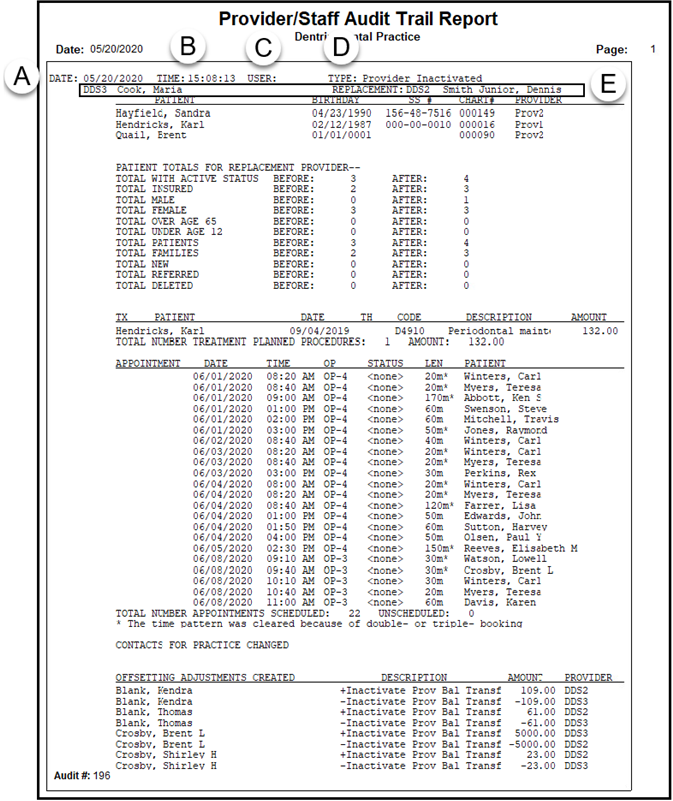
In the Office Manager, from the Maintenance menu, click Audit Trail Report(Prov/Staff). In the Provider/Staff Audit Trail Report dialog box, set the options you want to include in the report, and then click OK. For step-by-step instructions on how to run this report, see the Dentrix Help (in the Office Manager, from the Help menu, click Contents).
A. Date – The date of the change.
B. Time – The time of the change.
C. User – The Dentrix user who made the change.
D. Type – The type of change (Inactivated/Activated).
E. Audit Details – The entry details.
