
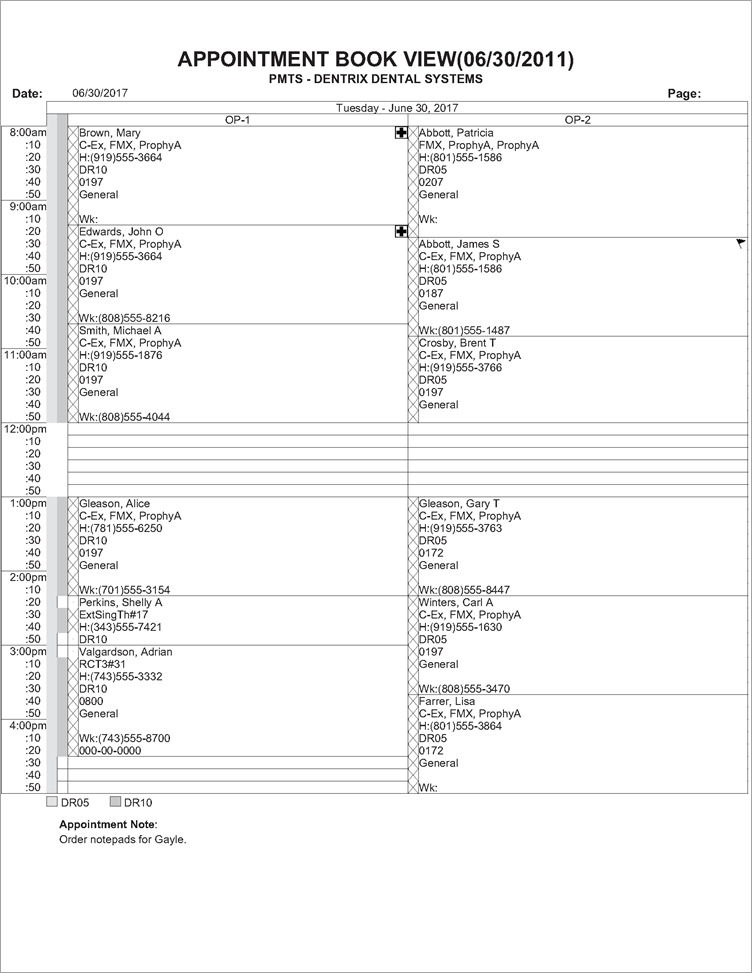
The Appointment Book View printout displays a graphical representation of your appointment schedule.
|
Why: |
To identify guarantors with outstanding balances so they can be targeted collections. |
When: |
Monthly. |
1. In the Appointment Book, open the Appointment Book View you want to print.
2. From the File menu, click Print Appointment Book View.
The Print Appointment Book View dialog box appears.
3. Click Print or Batch to generate the Appointment Book View printout.
