

|

Viewing a different patient record
From within Guru Limited Edition, you can switch between which patient’s record you are viewing. Or, with the integration Guru Limited Edition offers with Dentrix, you can select a different patient in Dentrix, click the Guru Limited Edition button, and view that patient’s record in Guru Limited Edition. If the patient record doesn’t already exist in Guru Limited Edition, the patient record is created automatically.
To choose a different patient from within Guru Limited Edition in order to view their images
1. In the Patient menu, click Choose Patient.
The Choose Patient dialog box appears.
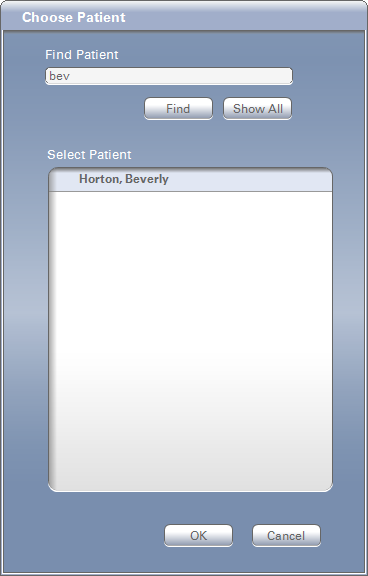
2. Type the first few letters of the patient’s first name in the Find Patient text field.
Note: You can also search by the patient’s last name or ID.
3. Click Find.
The patients who match are displayed in the Select Patient pane. To see all patients, click Show All.
Note: The Show All button is inactive if you are already viewing all the patients.
4. Select the desired patient name in the Select Patient pane.
5. To open that patient’s record, click OK.
The selected patient’s name appears on the title bar of the Patient’s Record pane of the main Guru Limited Edition window.
6. To expand or re-size the Patient’s Record pane, drag the handle on the title bar of the Patient’s Record pane, or double-click the title bar.