
You can print one or multiple images with a custom layout.
To print images from the Thumbnail Tray pane
1. In the Guru Limited Edition File menu, click Print.
The Print dialog box appears. The selected patient’s images appear at the bottom of the dialog box.
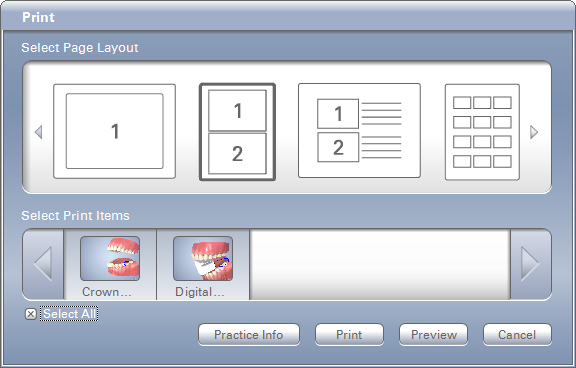
2. Do one of the following:
· Select Print Items – Select the thumbnails that you want to print.
· Select All – Select to print all the images for the selected patient.
3. In the Selected Page Layout pane, select the desired print layout.
4. In the Print dialog box, click Practice Info to edit the practice information that appears on printouts.
Note: You can also customize the practice information (practice name, address, and phone number) if you select Edit Practice Information, and then type the desired text in the appropriate fields in the Edit Practice Information dialog box.
5. To save any changes, click Update.
6. To send the pages directly to the printer, click Print, or to preview your pages before printing them click Preview.