
You can include your own images, such as intra-oral camera pictures and digital X-rays, in a patient’s record.
To import an image
1. In the File menu, click Import.
The Import dialog box appears.
2. Locate and select the digital X-ray or photo that you want to include.
Note: Guru Limited Edition recognizes images in .tiff, .jpeg, .gif, .png, and .bmp formats.
3. Click the Open button.
The Import dialog box appears.
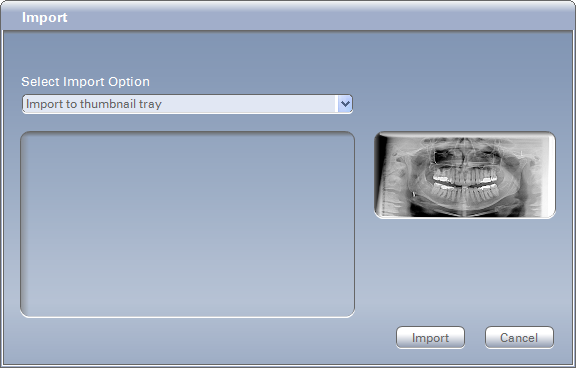
4. In the Select Import Option list, select where you would like to save the image.
· Import to thumbnail tray - You can import images into the Thumbnail Tray pane for easy access.
· Import to patient - You can import images directly into the Patient’s Record pane.
· Import to playlist - You can import images into an editable playlist.
Note: You can drag images into the program from other sources, such as the Desktop or Windows Explorer. You can place these images in the Viewing pane, the Thumbnail Tray pane, or the Playlist Content pane.