Surcharge Report
If your practice is actively surcharging, the Surcharge Report lists each transaction that had a surcharge applied to it in the location that you are currently logged in to.
To view the Surcharge Report
-
If you are not already viewing the correct location, select it on the Location menu.
-
On the Home menu, under Reports, select Surcharge.
The Surcharge Report page opens.
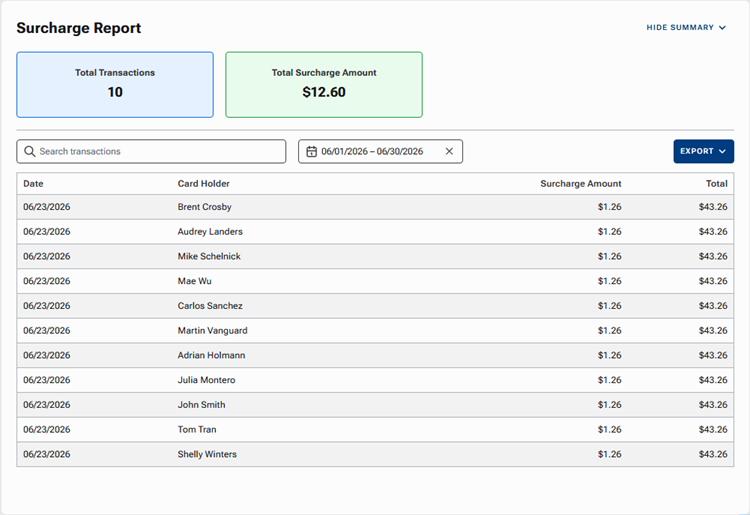
By default, any transactions with surcharges within the past 30 days appear in the list. For each transaction, the date, cardholder’s name (if known), surcharge amount, and transaction amount appear.
The following boxes at the top of the report provide statistics related to the specified date range of the report:
-
Total Transactions - The number of transactions that incurred a surcharge.
-
Total Surcharge Amount - The sum of the surcharges.
-
-
Do any of the following:
-
To search for a transaction by card holder name, begin typing a name in the Search transactions box to view matches in the list, and continue typing as needed to narrow down the list.
-
To change the date range of the report, click the X in the date range box, click the date range box to display a calendar, navigate to the desired month, select the starting date of the range, navigate to the next month (if applicable), and then select the ending date of the range.
Note: The date range cannot exceed 30 or 31 days (depending on the number of days in the month that contains the starting date of the range); if the calendar does not allow you to change the month or select a day, it is because doing so would allow the date range to exceed that 30/31-day limit.
-
To save the report with the information that is currently being displayed, select CSV or PDF from the EXPORT menu.
-