Processing dismissed claims
A dismissed claim is an unresolved claim that was dismissed (moved from the unresolved claims list to the dismissed claims list).
To process a dismissed claim
-
If you are not already viewing the correct location, select it on the Location menu.
-
Do one of the following:
On the location's Overview page, do one of the following:
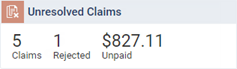
Click (or tap) anywhere in the Unresolved Claims box, or click (or tap) the Rejected counter in the box to focus on rejected claims.
Notes:
This box displays the number of unresolved insurance claims, the number of unresolved claims that have been rejected, and a total of the charges for those claims.
This box is available only if your user role has the "Review Insurance" security right enabled.
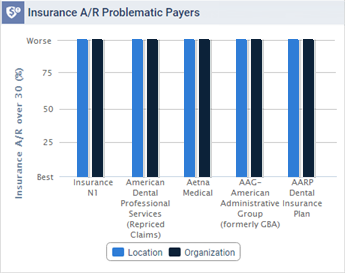
In the Insurance A/R Problematic Payers box, click (or tap) any of the bars on the graph.
Notes:
This box displays a graph that represents by carrier the percentage of unresolved claims that were created over 30 days ago.
This box is available only if your user role has the "Review Insurance" security right enabled.
On the Home menu, under Insurance, select Unresolved Claims.
The Unresolved Claims page opens with the Unresolved Claims tab selected by default.
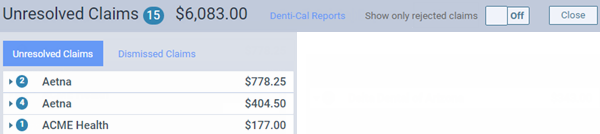
Note: Dentrix Ascend excludes dismissed claims from the total number of overdue insurance claims and the total amount of the charges for those claims.
-
Select the Dismissed Claims tab.

Notes:
-
The claims are grouped by insurance plans, which appear as expandable and collapsible sections. Expand a plan to view the corresponding claims.
-
To list only rejected claims, set the Show only rejected claims switch to On. If you clicked (or tapped) the Rejected count on the Unresolved Claims box, this switch is automatically set to On.

-
To quickly navigate to the Denti-Cal Reports tab of your location's inbox, click (or tap) the Denti-Cal Reports link.

-
-
Select a claim.
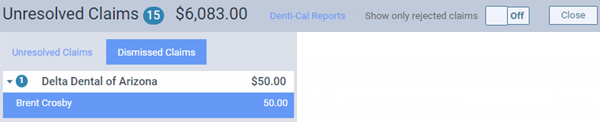
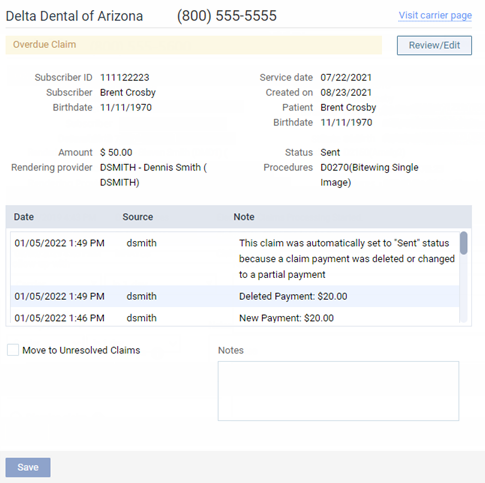
The claim options become available.
-
Do any of the following as needed:
-
Click (or tap) the Visit carrier page link to view or update the insurance carrier's information.
-
Click (or tap) Review/Edit to view the claim. In the Claim Detail dialog box, make any necessary changes, and then click (or tap) Save.
-
Enter any relevant Notes.
-
To move the claim from the Dismissed Claims tab to the Unresolved Claims tab, select the Move to Unresolved Claims checkbox.
Note: For an electronic claim submission, Dentrix Ascend transmits separate service lines for identical procedures on the same claim. For the known carriers, such as Medicaid and Blue Cross/Blue Shield, that require a single line with a quantity value for identical procedures on the the same claim, claims are processed accordingly through the clearinghouse. If you receive a notice from a payer, stating that a quantity value is required for identical procedures, contact Dentrix Ascend Customer Support with that information so the needed functionality can be provided.
-
-
If you have entered notes or flagged the claim to be moved, click (or tap) Save.