Managing denial codes for insurance payments
When you are editing an insurance payment, you can add and/or remove denial codes as needed for the procedures on the associated claim. Each procedure on a claim can have up to three CARCs (Claim Adjustment Reason Codes) and up to three RARCs (Remittance Advice Remark Codes).
Notes:
-
You can record denial codes while you are posting an insurance payment.
-
You can also record denial codes on a payment for a claim on an ERA from the Bulk/ERA Insurance Payments page.
-
The list of available denial codes is not customizable.
To manage denial codes for an insurance payment
-
When you are editing an insurance payment, in the Edit Payment dialog box, expand each procedure for which you want to add and/or remove denial codes by clicking (or tapping) the downward-pointing chevron, or expand all the procedures at once by clicking (or tapping) the downward-pointing double chevron.
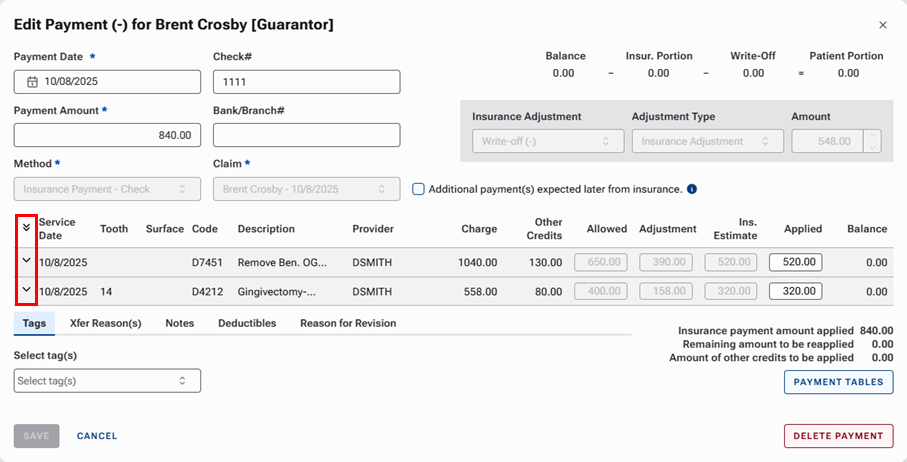
The denial code options appear for each expanded procedure.

-
For an expanded procedure, do any of the following:
-
To add claim adjustment reason codes (CARCs) to the procedure, click (or tap) in the Reason Code box to view the list of codes, and then select up to three claim adjustment reason codes.
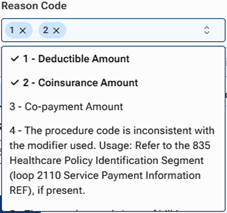
Note: To search for a code, in the box, begin typing a code or part of a description (not case sensitive). Only the matching codes appear in the list. Continue typing as needed to narrow down the list.
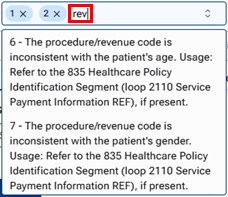
-
To remove a claim adjustment reason code (CARC) from the procedure, click the corresponding X
 .
. -
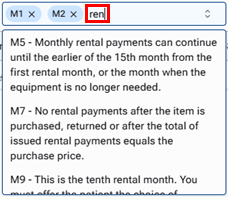
To add remittance advice remark codes (RARCs) to the procedure, click (or tap) in the Remark Code box to view the list of codes, and then select up to three claim adjustment reason codes.
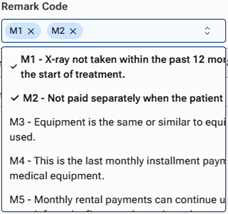
Note: To search for a code, in the box, begin typing a code or part of a description (not case sensitive). Only the matching codes appear in the list. Continue typing as needed to narrow down the list.
-
To remove a remittance advice remark code (RARC) from the procedure, click the corresponding X
 .
.
-
-
Repeat steps 1-2 as needed for other procedures.
-
Finish setting up other options for the payment as needed, and then click (or tap) Save.