Customizing letter templates
You can customize the content of a letter template that you can then merge with patient and practice information according to specified criteria (filters).
To customize a letter template
On the Home menu, under Location, select Letters.
The Letters page opens.
-
Select a letter template. You can choose from the following types of letter templates (which are contained in sections that you can expand and collapse): Appointment Reminder, Birthday, Collection, Labels, Miscellaneous, New Patient Welcome, Recare Appointment Reminder, Recare Due, and Referrals.
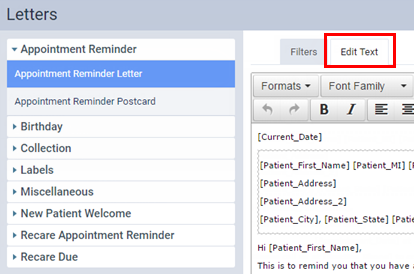
-
On the Edit Text tab, change the content and layout of the letter template, and format the text as needed. Also, you can insert a merge field (such as Patient First Name, Patient Address, Account Balance, and Appointment Time) at the location of the text cursor anywhere in the message.
Note: A merge field appears in the template as text enclosed in square brackets (such as [Patient_First_Name] or [Practice Address]), but the message that a patient sees will have the relevant information from your practice database inserted in place of the merge field (for example, [Practice Address] will be replaced with the practice address of a patient's preferred location).
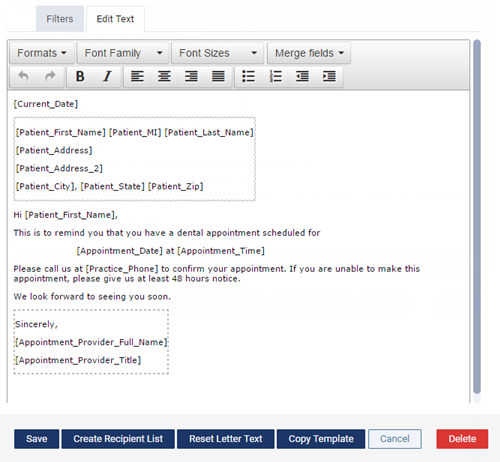
Tip: If you need to reset the entire content of the letter template back to its original text, click (or tap) Reset Letter Text.
-
Click (or tap) Save.