
You can schedule a new patient appointments for minors from the Appointment Book and create a new family account in the Family File at the same time.
To schedule a new patient appointment for a minor
1. Find a new appointment time, locate an open schedule space, and then double-click the appropriate operatory at the desired time.
The Select Patient dialog box appears.
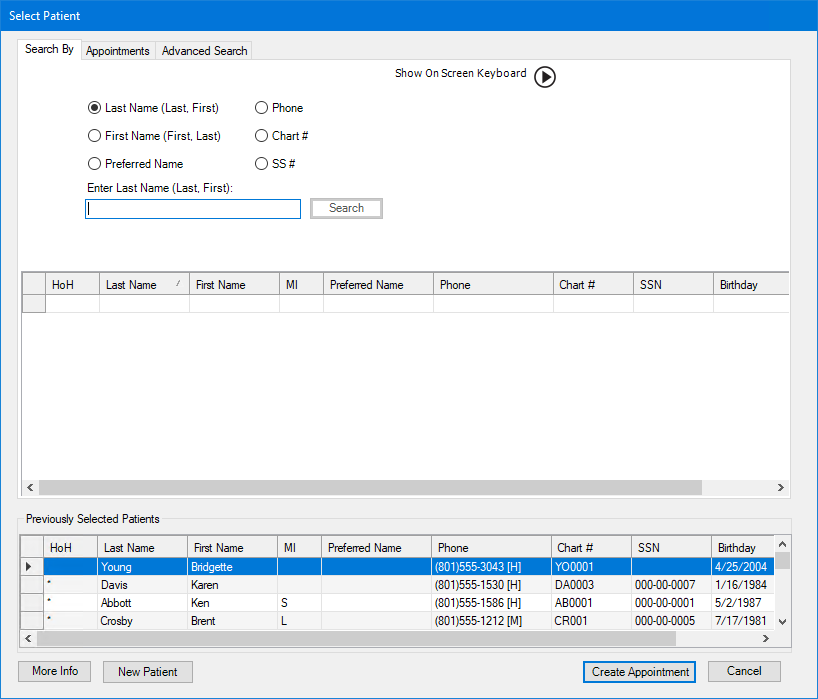
2. Type the first few letters of the patient's last name to ensure that the patient's name is not in the Dentrix database already, and then click New Patient.
The Add a New Patient dialog box appears.
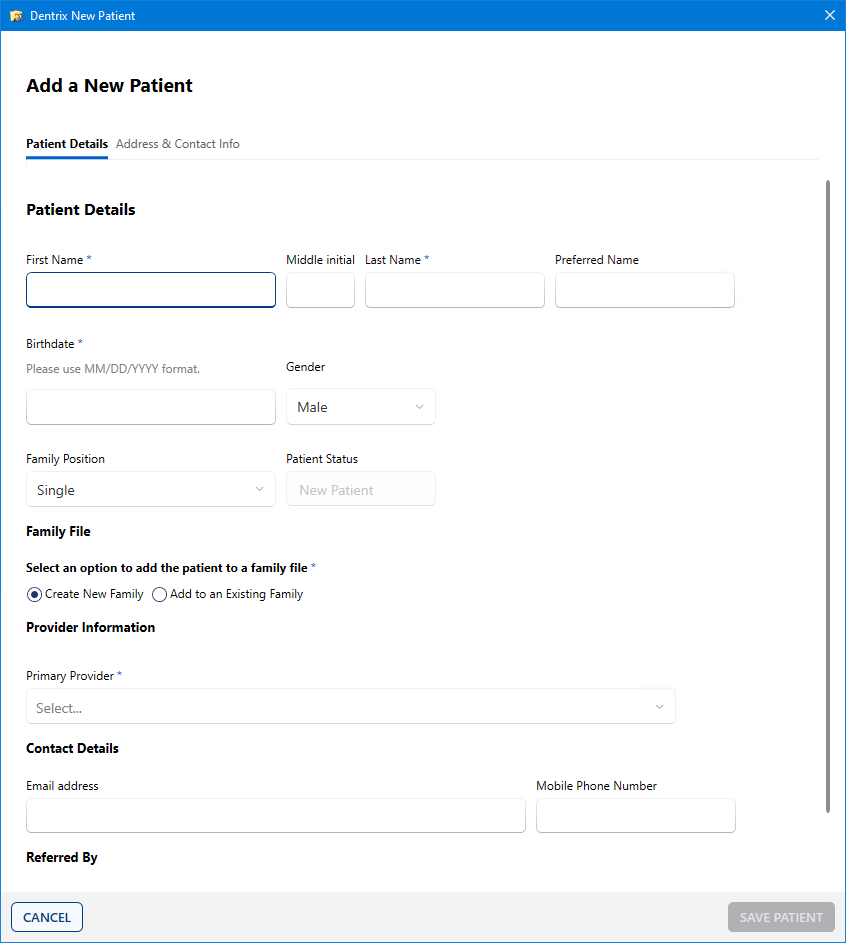
3. Provide the following mandatory information:
Type the patient's first and last names in the corresponding fields.
Type the patient's Birthdate.
If the new patient is a minor, an additional option appears under Family File in the Add a New Patient dialog box.
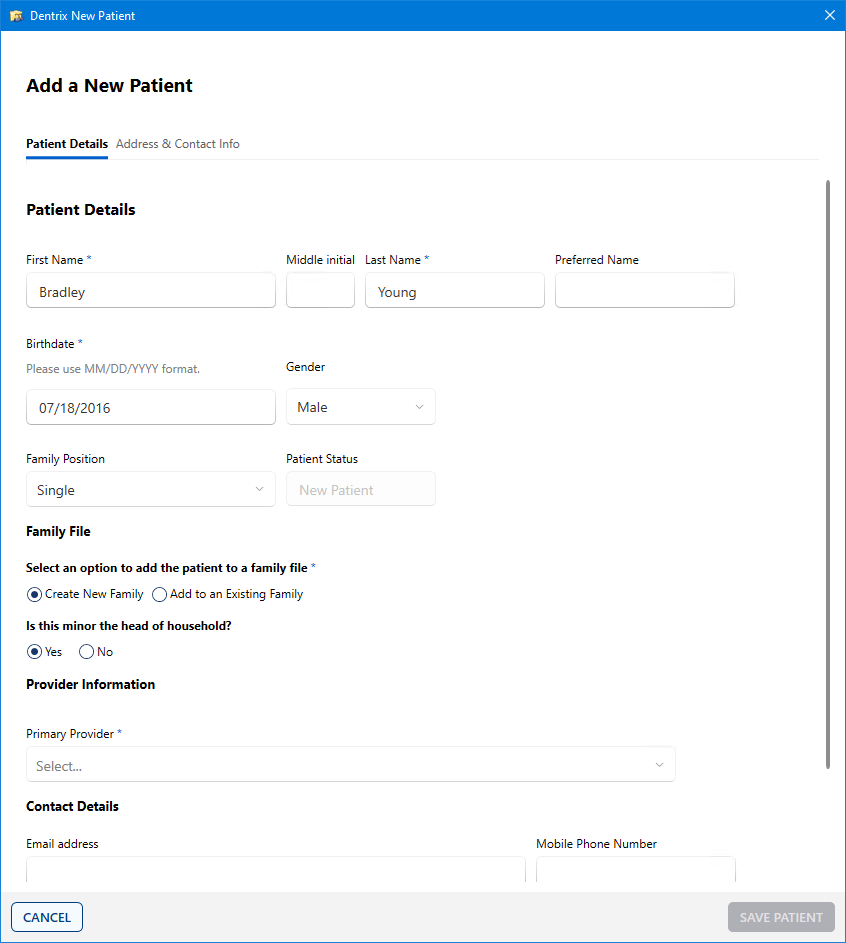
Select one of the following options:
Create New Family – Creates a new family.
Add to an Existing Family – Adds the new patient as a member of an existing family.
Is this minor the head of household? – Select Yes or No.
Note: You might consider a minor as the head of household if the minor was the only patient.
If you select No, the Head of Household Details section appears in the Add a New Patient dialog box.
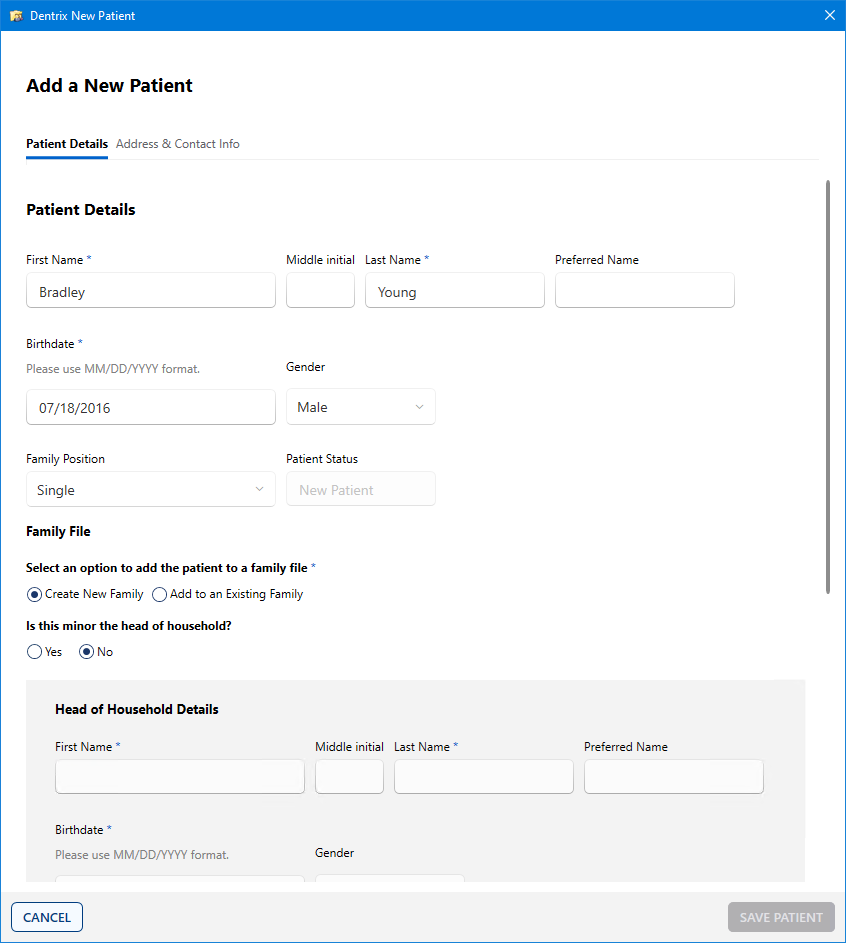
Type the head of household's First Name, Last Name, Birthdate, and Gender.
Select the head of household's Primary Provider from the provider list.
4. If desired, provide the following information:
Select the patient's Gender.
Type the patient's Email address.
Type the patient's Mobile Phone Number.
Select the patient's Referral Source.
5. To complete the new patient's contact information, click Address & Contact Info.
The Address & Contact Info page appears.
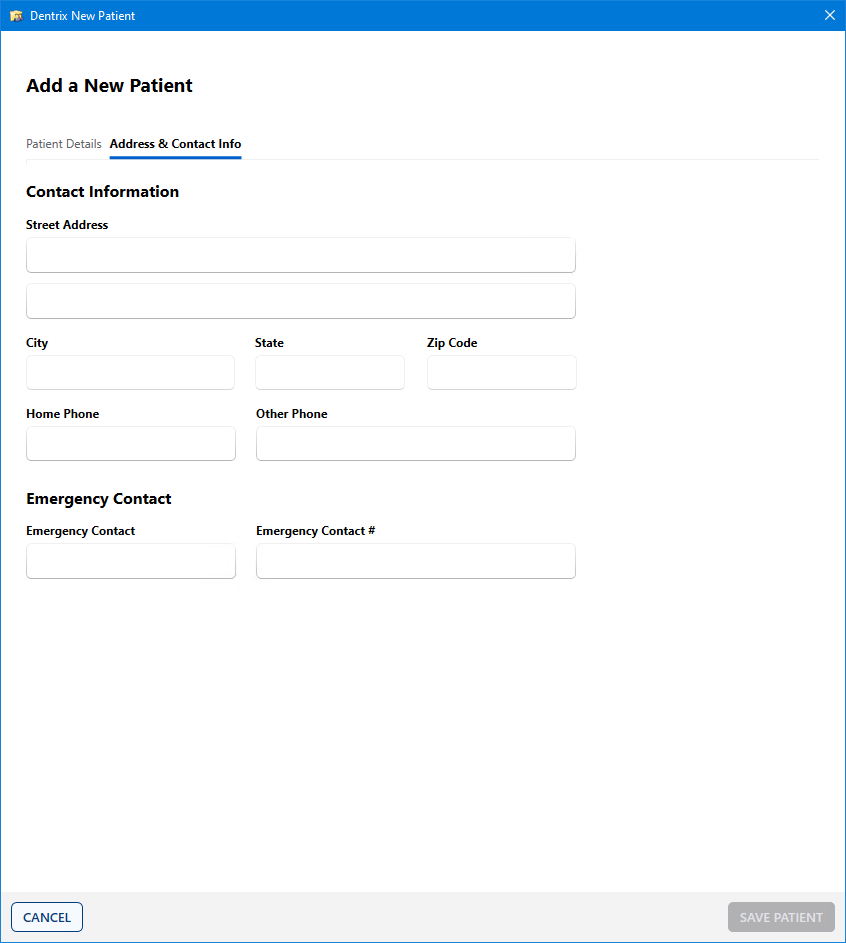
6. Enter following patient information:
Street Address – The patient's street address.
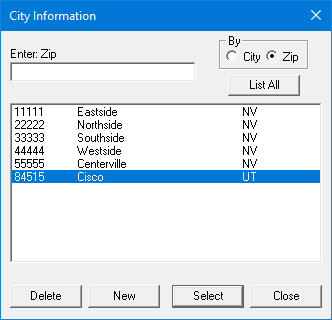
City – The patient's city.
The City Information dialog box appears.
State – The patient's state.
ZIP Code – The patient's ZIP Code.
Note: To avoid the possibility of a claim being rejected, type the patient's ZIP + 4 ZIP Code. You do not need to type the hyphen. Dentrix inserts it automatically.
Home Phone –
Other Phone –
Emergency Contact –
Emergency Contact # – Emergency contact's phone number.
7. Click SAVE PATIENT.
A family account for the new patient is created in the Family File, and the Appointment Information dialog box appears.
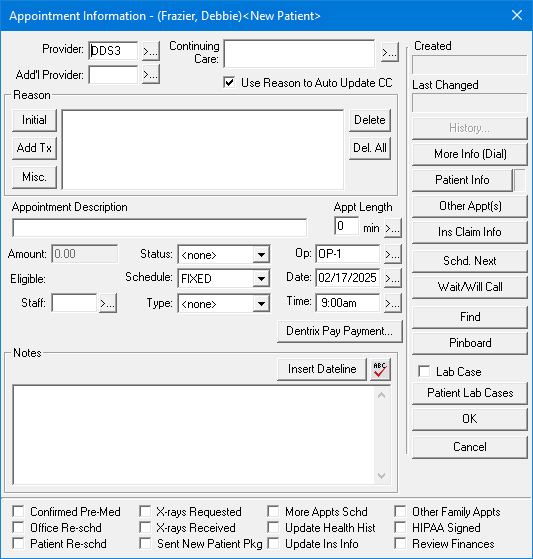
8. Schedule the new patient's initial appointment, and then click OK.