
You can edit existing treatment-planned procedures.
To edit a treatment-planned procedure
1. In the Treatment Planner window, click the Treatment Plan Case Setup bar.
2. Select a treatment plan from the list.
3. Click the plus sign (+), and then double-click a procedure.
The Edit or Delete Procedure dialog box appears.
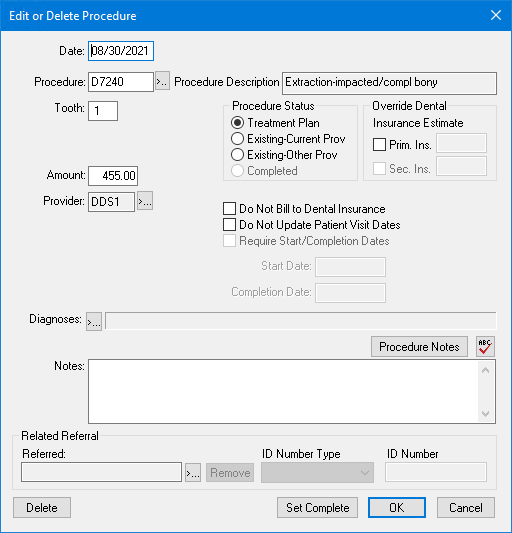
4. Make any needed changes to the following fields:
Date - The date the procedure was performed.
Procedure - The procedure code.
Tooth number - The number assigned to the tooth (1-32).
Surface(s) - Specifies which surface or surfaces of the tooth were treated.
Amount - The amount billed for the procedure.
Override Dental Insurance Estimate - Specifies an estimated amount to be used for dental insurance override.
Procedure Status - The current status of the procedure.
Provider - The provider who performed the procedure.
Diagnoses - You can select from standard diagnoses.
Do Not Bill to Dental Insurance - If selected, the amount will not be billed to dental insurance.
Override Procedure Flags - You can override procedure flags.
Notes - You can type additional patient or procedure notes as needed.
Referral information - You can specify any referral information for the procedure.
5. To save your changes, click OK.