
From the Exam Information section of the Perio panel, you can enter notes for the current periodontal exam.
To create a perio exam note
1. Select a patient, and then click the Exam Information tab in the Perio panel.
The Exam Information section appears.

2. Under Perio Notes, select the appropriate perio notes and values for the selected patient.
The following values are available for each Perio Note:
Gingiva -
Attachment - Normal, Recession, Enlarged Tissue
Bleeding - None, Mild, Moderate, Severe
Color - Coral Pink, Pink, Red, Magenta, Pink with Magenta areas, Light, Dark
Contour - Normal, Irregular, Recessions
Margins - Knife Edged, Clefts, Cuffing
Papillae - Scalloped, Blunted, Enlarged, Punched Out, Cratered
Sulcus - None, Blood, Exudates
Suppuration - None, Mild, Moderate, Severe
Texture - Stippled, Glossy, Rough
Oral Hygiene
Calculus - None, Light, Moderate, Heavy
Plaque - None, Light, Moderate, Heavy
Stain - None, Light, Moderate, Heavy
X-rays
Bone_Defects - None, Craters, Wells, Furcations
Bone_Loss - None, Mild, Moderate, Severe
3. Select a case type from the Periodontal Case Type list.
4. Select the appropriate statuses under Patient Status and Perio Status.
5. Under Miscellaneous Notes, type any notes pertinent to the selected patient.
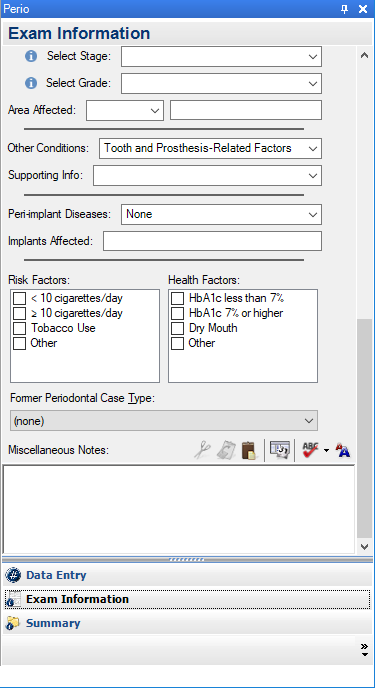
6. To cut, copy, paste, insert a dateline, check spelling, or change the font size of the text, click the corresponding toolbar button.
7. In the Perio Chart, click File, and then click Save Exam.