
You can change the default or create custom screen, label/paint type, and measurement colors for the Graphic Chart. Changing the color scheme of the Graphic Chart also changes the color scheme for the Data Chart.
To change the Graphic Chart color scheme
1. In the Perio Chart, click File, and then click Perio Display Setup.
The Perio Display Setup dialog box appears.
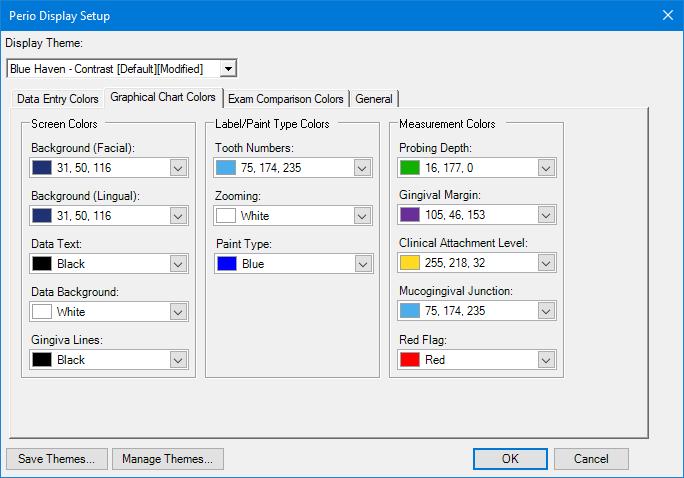
2. Click the Graphical Chart Colors tab.
3. Under Screen Colors, Label/Paint Type Colors, or Measurement Colors, click the list arrow corresponding to the color that you want to change.
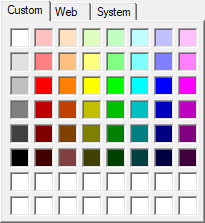
If the color you are changing is a custom one, the Custom color palette appears.
If the color you are changing is a standard one, the Web color palette appears.
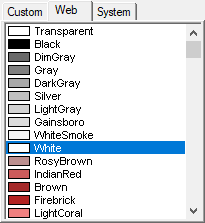
4. Select the color you that want from the palette, and then click OK.
The color changes immediately.
Note: If the colors in the palette are not adequate, you can create custom colors and add them to the palette.
5. To save the change, click Save Themes.
The Save Theme dialog box appears.
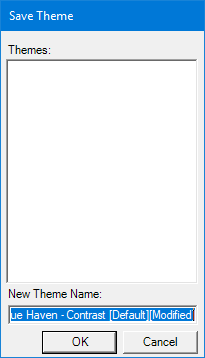
6. Type a new theme name, and then click OK.
The changes you made are saved as a new display theme, and the theme is added to the Display Theme list.