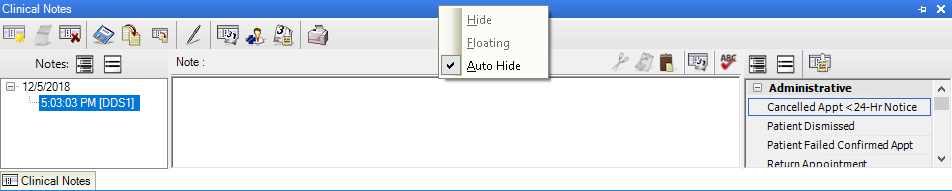
The Auto Hide option is selected by default, so the Clinical Notes panel remains hidden until you hover your cursor over the Clinical Notes tab. The Clinical Notes panel remains visible until you move your cursor from the panel. To have the Clinical Notes panel remain open, clear the Auto Hide option.
To auto-hide Clinical Notes
1. To view the Clinical Notes panel, click View, and then click Clinical Notes Panel.
The Clinical Notes panel appears.
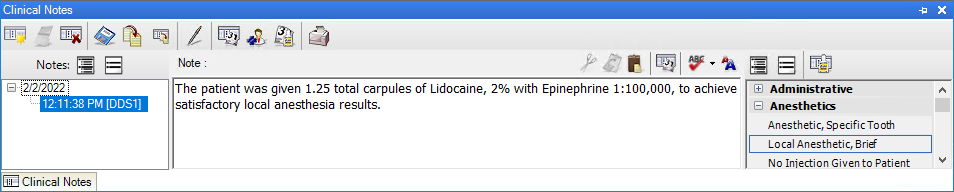
2. To anchor the panel to the Perio Chart window, right-click the title bar, and then clear the Auto Hide option.
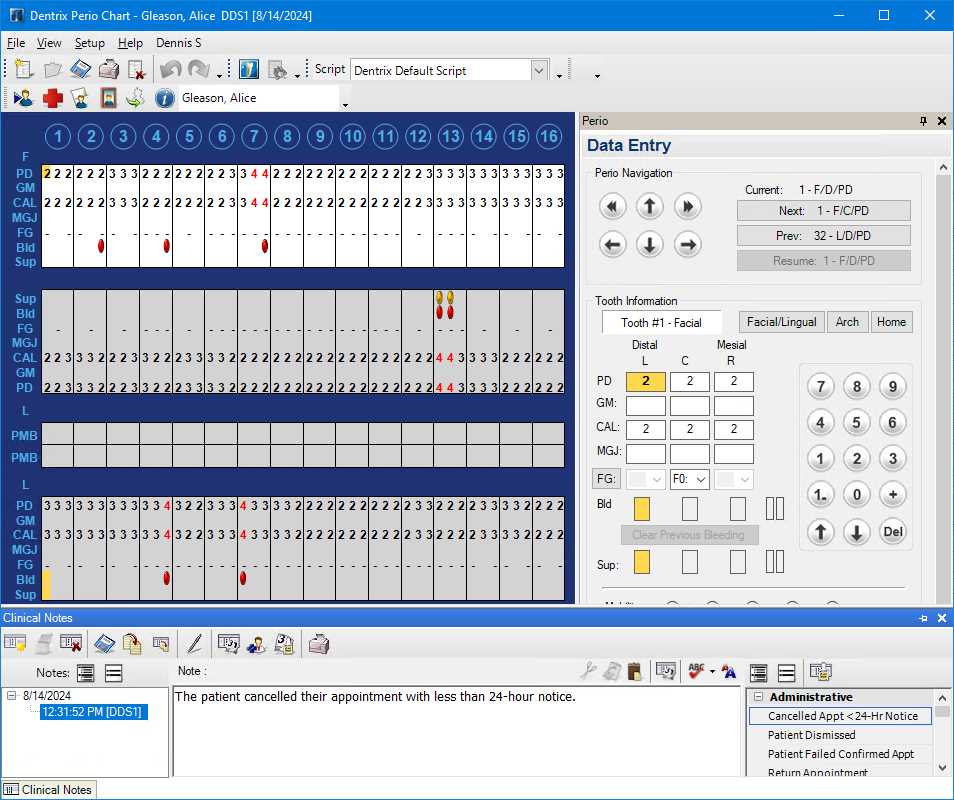
The Clinical Notes panel anchors to the lower-left portion of the Perio Chart window.
3. To return the Perio Chart to the default view, right-click the Clinical Notes title bar, and then click Auto Hide.
The Clinical Notes panel returns the default view.